EasyManua.ls Logo

Casio Privia PX-400R - User Manual

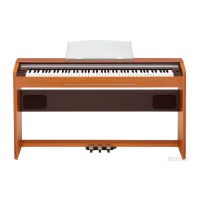
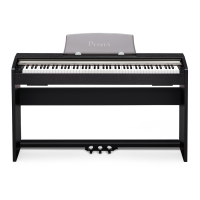
Casio Privia PX-400R
49 pages
Print Icon
To Next Page IconTo Next Page
Loading...
PX400R-ES-1
ES
USER’S GUIDE
GUÍA DEL USUARIO
Please keep all information for future reference.
Guarde toda información para tener como referencia futura.
Safety Precautions
Before trying to use the digital piano, be
sure to read the separate Safety
Precautions.
Precauciones de seguridad
Antes de intentar usar el piano digital,
asegúrese de leer las Precauciones de
seguridad separadas.
PX400R_es_cover.p65 04.8.24, 4:33 PM1

Table of Contents

Questions and Answers

  • M
    Michael PadillaAug 19, 2025
    Why does demo play seem to start, but I can’t hear anything on my Casio Electronic Keyboard?
    • H
      heathermartinSep 12, 2025
      If you can't hear the demo, it could be due to: * The MAIN VOLUME knob is set to “MIN”. Rotate the MAIN VOLUME knob more towards “MAX”. * Headphones are connected to the digital piano. Unplug the headphones from the digital piano.
  • K
    kgreenAug 21, 2025
    What to do if the microphone does not work on my Casio Privia PX-400R?
    • D
      Dr. Michael NewtonAug 21, 2025
      There could be a couple of reasons why the microphone isn't working: * The microphone volume setting might be too low. Try increasing the microphone volume. * The microphone's switch might be turned off. Ensure the microphone switch is turned on.
  • K
    Kristen AdamsAug 23, 2025
    What to do if the pitch of my Casio Electronic Keyboard is off?
    • B
      Brandon AcostaAug 23, 2025
      If the pitch is off, it could be due to these reasons: * The digital piano’s key setting might be something other than “C”. Change the key setting to “C”, or turn the power off and then back on again. * The digital piano tuning might be incorrect. Adjust the tuning, or turn the power off and then back on again.
  • S
    Sandra PittsAug 26, 2025
    What to do if Auto Accompaniment does not sound on my Casio Electronic Keyboard?
    • R
      Robert SantiagoAug 26, 2025
      If the Auto Accompaniment isn't working, the accompaniment volume setting might be “000”. Use the ACCOMP/SONG VOLUME button to increase the accompaniment volume.
  • L
    Lisa YuAug 27, 2025
    What to do if I can’t load data from a memory card on my Casio Electronic Keyboard?
    • J
      Jason HartAug 28, 2025
      If you're having trouble loading data from a memory card: * The card might not be inserted correctly into the card slot. Ensure the card is correctly inserted. * There might not be enough room in the area into which you are trying to load the data. Make more room in digital piano memory by deleting downloaded songs, and/or Song Memory data. * The card might have voltage specifications or a capacity that is not supported by this digital piano. Use a card of the specified voltage specifications and capacity. * There might be something wrong with the card. Try using a different card.
  • S
    Stephanie CampbellAug 29, 2025
    What to do if I can’t store data on a memory card using my Casio Privia PX-400R Electronic Keyboard?
    • J
      jeffrey07Aug 30, 2025
      If you can't store data on a memory card, consider the following: * The card might be write-protected. Remove the write protect sticker from the card. * The card might not be inserted correctly into the card slot. Correctly insert the card into the slot. * There might not be enough room available on the card. Use a different card or delete files you no longer need. * The card might have voltage specifications or a capacity that is not supported by this digital piano. Use a card of the specified voltage specifications and capacity. * There might be something wrong with the card. Use a different card.
  • M
    Michelle DennisSep 1, 2025
    Why is there noise in the microphone output of my Casio Privia PX-400R?
    • M
      madison29Sep 1, 2025
      The noise in the microphone output could be due to nearby fluorescent lighting or another digital noise source. Try moving the microphone away from the source of the noise.
  • J
    Joseph MeyersSep 3, 2025
    What should I do if the sound output by my Casio Privia PX-400R does not change regardless of how much keyboard pressure I use?
    • V
      Vincent CollinsSep 3, 2025
      If the sound output doesn't change with keyboard pressure, it's possible that Touch Response is turned off. Use the SETTING button to turn on Touch Response.
  • F
    Frederick BlairSep 5, 2025
    What to do if when playing together with another MIDI instrument, keys and tunings do not match on my Casio Privia PX-400R?
    • D
      daniel30Sep 5, 2025
      If the keys and tunings don't match when playing with another MIDI instrument, it could be because the Tuning or Transpose setting of the digital piano is something other than “00”. Use the TRANSPOSE/KEY CONTROL button or the SETTING button to change the transpose and tuning settings to “00.”
  • R
    Rickey MackSep 7, 2025
    What to do if I can’t record chord accompaniment data on my computer from my Casio Privia PX-400R Electronic Keyboard?
    • U
      uburnsSep 7, 2025
      If you can't record chord accompaniment data, it might be because Accomp MIDI Out is turned off. Use the SETTING button to turn on Accomp MIDI Out.

Summary

Safety Precautions

Important Safety Instructions

Comprehensive safety guidelines for operating the digital piano.

FCC Warning and Product Notice

Regulatory compliance information and notices regarding interference.

Important Product Information

Key information and warnings before initial use of the product.

General Guide

Control Panel Overview

Diagrams and labels for the digital piano's back and left side panels.

Score Stand Attachment

Instructions for attaching the score stand to the digital piano.

Power Supply

Using the AC Adaptor

Guidelines for connecting and using the specified AC adaptor for power.

Memory Protection

Explanation of how settings and data are retained when the unit is off.

Connections

Connecting Headphones

Instructions for connecting headphones for private practice.

Connecting Pedals

Details on connecting damper and soft/sostenuto pedals.

Audio and Amplifier Connections

Procedures for connecting external audio or musical instrument amplifiers.

Accessories and Options

Note on using only specified accessories for safety.

Selecting and Using Built-in Tones

Tone Selection Basics

Overview of tone types and how to select individual tones.

Using Tone Effects

Instructions for applying Reverb and Chorus effects to sounds.

Layering Two Tones

Procedure for combining two different tones to play simultaneously.

Splitting the Keyboard

Assigning different tones to the left and right sides of the keyboard.

Layer and Split Together

Combining layering and splitting features for complex sound setups.

Pedal Functions and Usage

Details on pedal operations, pitch bend wheel, and metronome use.

Playing a Rhythm

Rhythm Selection and Control

How to select rhythms and adjust tempo for playback.

Auto Accompaniment Setup

Using Auto Accompaniment modes and playing chords.

Chord Fingering Modes

Explanation of CASIO CHORD, FINGERED, and FULL RANGE CHORD fingering.

Adjusting Accompaniment Volume

Setting independent volume levels for accompaniment and tunes.

Using Auto Harmonize

Adding harmony to melody notes based on chord fingerings.

Auto Harmonize Types

Description of available Auto Harmonize effect types.

One-Touch Preset

Automatically configuring settings for rhythm patterns.

Using Registration Memory

Registration Memory Overview

Understanding registration memory for saving and recalling setups.

Storing and Recalling Setups

Step-by-step guide to saving and loading registration memory data.

Playing Back Built-in Tunes

Piano and Song Group Playback

Playing built-in piano and song group tunes, and adjusting tempo.

Tune Playback Control

Features for pausing, skipping, looping, and changing melody tones.

Advanced Tune Playback

Playing all tunes, downloaded tunes, and practicing with parts.

Using a Microphone for Sing Along

Microphone Connection and Usage

Connecting and using a microphone with the digital piano.

Sing Along Playback

Procedure for singing along with built-in or memory card tunes.

Transpose and Microphone Echo

Adjusting key transpose and enabling microphone echo effects.

Recording Your Keyboard Play

Recording Data Overview

Types of data recorded and track selection for song and free recording.

Song Memory Management

Using the SONG MEMORY button, capacity, and data storage.

Playing Back Recorded Songs

How to play back recorded songs from Song Memory.

Free Recording Process

Steps for recording a performance and playing it back.

Overdubbing and Deleting Tracks

Recording melodies over existing tracks and deleting parts.

Other Settings

Keyboard and Pedal Settings

Adjusting keyboard touch, tuning, layer volume, pitch bend, and pedal settings.

MIDI and Computer Connections

Using MIDI for instrument communication and connecting to a computer via USB.

USB;MIDI Modes and User Song Deletion

Managing USB/MIDI modes and deleting user-loaded songs.

Using a Memory Card

Memory Card Basics and Handling

Introduction to memory cards, types, and essential handling precautions.

Loading and Saving Memory Card Files

Procedures for saving and loading various file types to/from a memory card.

Loading File Data

Step-by-step guide to loading data from a memory card into the piano.

Renaming and Deleting Files

Instructions for renaming and deleting files on a memory card.

Formatting and Input Characters

Procedures for formatting memory cards and supported input characters.

Memory Card Error Messages

Troubleshooting common error messages related to memory card operations.

Troubleshooting

Specifications

Appendix

Tone List

Detailed list of all built-in tones, including their categories and parameters.

Rhythm List

Comprehensive list of all available built-in rhythm patterns.

Song List

Lists of built-in Piano Group and Song Group tunes.

Drum Assignment List

Mapping of drum sounds to specific MIDI note numbers for each drum set.

Fingered Chord Chart

Visual guide to fingering various chords in the accompaniment area.

Operational Precautions

Unit Placement and Care

Guidelines for optimal placement and cleaning of the digital piano.

Memory Protection Details

Further details on the lithium battery's role in memory protection and replacement.

MIDI Implementation Chart

Casio Privia PX-400R Specifications

General IconGeneral
Number of Keys88
Touch Sensitivity3 levels, Off
Polyphony32 notes
Power Consumption18W
EffectsReverb, Chorus
Recording2 tracks, 1 song
MetronomeYes
TransposeYes
TuningYes
Speakers2 x 12 cm
Amplifier8W x 2
Power SupplyDC 12V
ConnectorsHeadphone, MIDI In/Out, Pedal, Line Out
Included AccessoriesAC adapter

Related product manuals