28
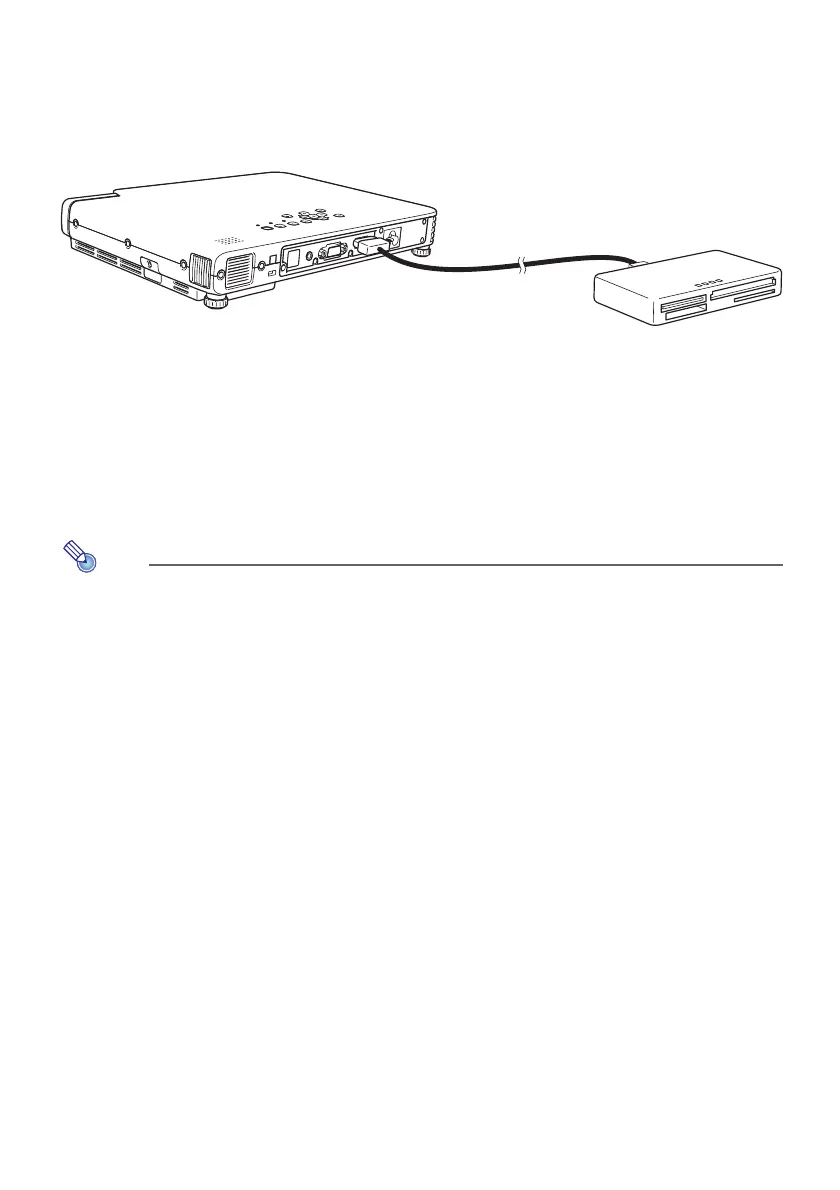
Connecting a USB Card Reader to the Data Projector
1
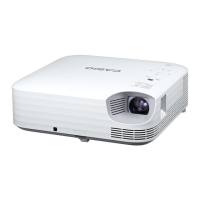
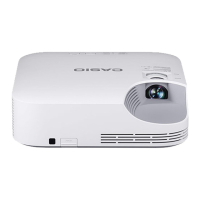
Turn on the Data Projector.
z Wait until the Data Projector’s POWER/STANDBY indicator is lit green.
2
Connect the USB card reader to the Data Projector USB port.
3
Load the memory card that contains the data you want to project with Viewer
into the card slot of the USB card reader.
z For details about how to load a memory card into the USB card reader, see the user
documentation that comes with the reader.
z After the Data Projector detects the loaded memory card, it will start up Viewer
automatically and display a menu of files (page 30) or menu of drives (page 29) on the
memory card.
Note
z Viewer will not start up automatically if the Data Projector’s plug-and-play feature is
turned off. In this case, you will need to press the [INPUT] key to switch the input
source to the memory card. For more details about the plug-and-play setting, see
“Setup Menu Contents” in the User’s Guide.
z Only files of formats that are recognized by the Data Projector (jpg, jpeg, jpe, bmp,
avi, mp4) appear in the file menu. Note that even if a file appears in the file menu,
it does not mean that the file can be displayed or played back by the Data Projector.
z The file menu displays USB memory device contents in the following sequence:
folders, movie files, image files. For details about how to play back a movie file, see
“Using Viewer to Play a Movie” (
page 39).



 To Next Page