3.WIFI Connection
1
NOTE:
1) Please place the litter box as close to the router as possible, and make sure the litter box is powered on.
2) Please authorize the location information, and the Android phone also needs to turn on GPS.
3) Please note that the WIFI name can only contain letters and numbers, so as not to aect the connection.
4)
Please use 2.4GHz WIFI, 5GHz WIFI is not suppoed, as well as hotels, airpos, etc. that require special
ceication of WIFI.
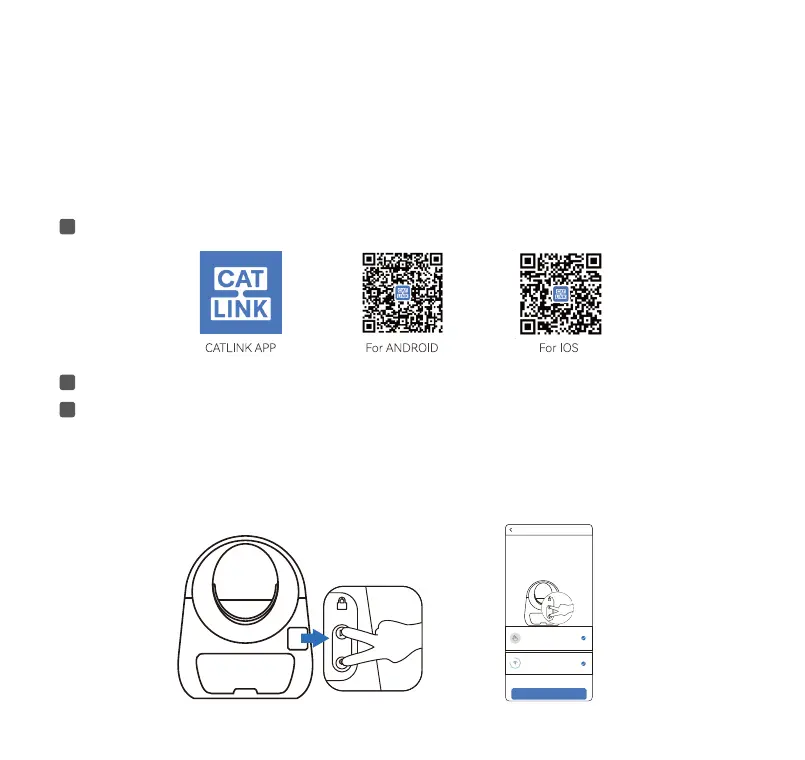
Download the CATLINK APP in the application market of your phone or scan the QR code.
2
Register your account in the app and log in. ( Please authorize location, please turn on GPS for Android. )
3
On the DEVICE page, click the ‘+’ in the upper right corner, select the SCOOPER, and follow the instruc-
tions to complete the WIFI connection. (Before connecting, your mobile phone needs to be connected to
WIFI)
Step1.
Long press the 2 buttons until you hear 2 beeps. Make sure that the WIFI indicator is ashing, click NEXT
on the APP.
1 Press and hold the
WIFI connection button
at the same time, the
WIFI indicator will ash
Make sure you press the 2 buttons
at the same time, release after you
hear 2 beeps.
Check if the WIFI indicator is blinking.
step 1 help
NEXT
05
Toll free: +1 833 440 2772 Email: suppo@catlink.cn


 To Next Page