Panel locking button
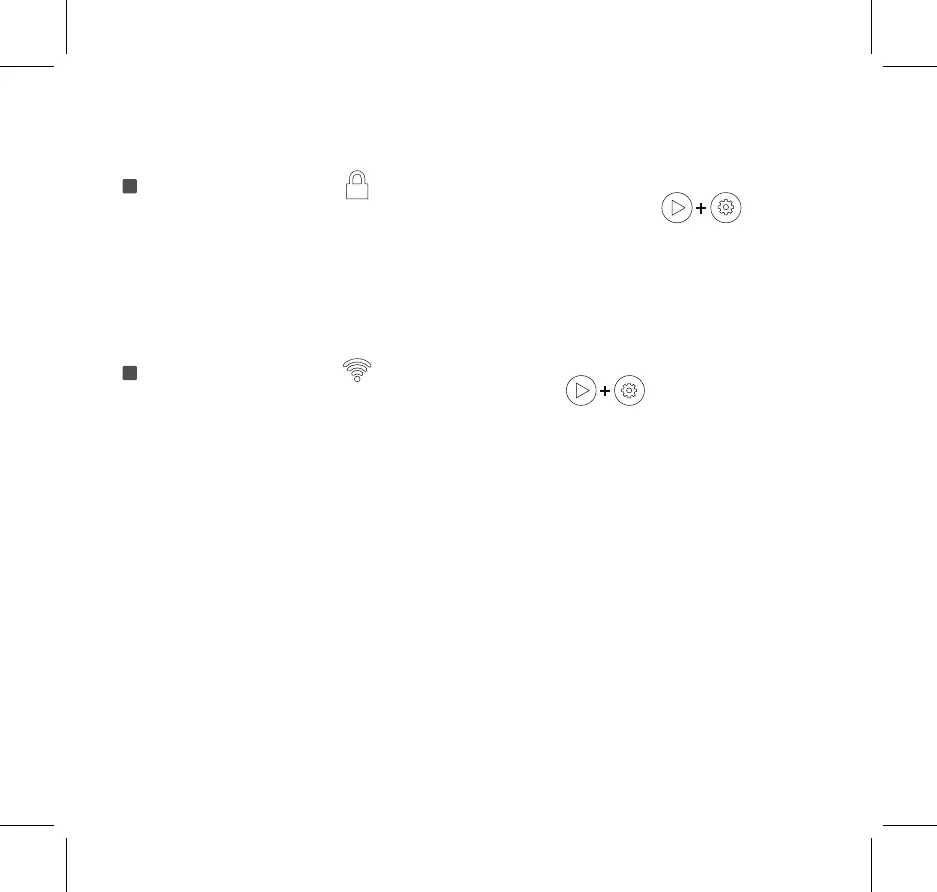
Press and hold the Mode button and the Clean/Pause button for three seconds.
Release the buttons when you hear a beep. If the Panel lock indicator is on, the panel locking is
successfully enabled. If you want to disable the panel locking, repeat the above-mentioned
operations. If the Panel lock indicator is off, the panel locking is successfully disabled.
Note: This key can also be turned on or off on CATLINK APP.
Wi-Fi connection button
Press and hold the Mode button and the Clean/Pause button.
Release the button when you hear the second beeping sound. If the Wi-Fi connection indicator blinks,
the device is ready for network configuration.
If the Wi-Fi connection is instantly on after you release the buttons, the network configuration has
been completed and the device is already connected to the network. In this case, you can skip the
network configuration and proceed to the next step.
Note: This function only works when there is no Wi-Fi connection.
p9
3
4


 To Next Page