English - 15 -
Using DLNA Network Service
'/1$'LJLWDO/LYLQJ1HWZRUN$OOLDQFHLVDVWDQGDUGWKDW
eases viewing process of digital electronics and makes
WKHPPRUHFRQYHQLHQWWRXVHRQDKRPHQHWZRUN)RU
IXUWKHULQIRUPDWLRQYLVLWZZZGOQDRUJ
'/1$ VWDQGDUG DOORZV \RX WR YLHZ DQG SOD\ SKRWRV
PXVLFDQG YLGHRV VWRUHGLQWKH'/1$ PHGLD VHUYHU
connected to your home network.
Step 1: Nero Media Home
7KH '/1$ IXQFWLRQ FDQQRW EH XVHG LI WKH VHUYHU
program is not install to your PC. Please prepare your
PC with the provided Nero Media Home programme.
For more information about the installation, please refer to
Nero Media Home Installation section
Step 2: Connect to a Wired or Wireless Network
6HH WKH FKDSWHU 1HWZRUN 6HWWLQJV IRU GHWDLOHG FRQ¿JXUDWLRQ
information.
Step 3: Play Shared Files via Media Browser
Select Media Browser by using Left or Right button
from the main menu and press OK button. Media
browser will be then displayed.
'/1$VXSSRUWLVDYDLODEOHRQO\ZLWKWKH0HGLD%URZVHU
IROGHUPRGH7RHQDEOHIROGHUPRGHJRWRWKHSettings
tab in the main media browser screen and press OK. In
WKHVHWWLQJVRSWLRQVKLJKOLJKWView Style and change to
Folder using Left or Right button.
Please select desired media type and press OK.
,I VKDULQJ FRQ¿JXUDWLRQV DUH VHW SURSHUO\ DQ 26'
message will be displayed after selecting the desired
PHGLDW\SH6HOHFW2.WRGLVSOD\WKHVHOHFWHGQHWZRUN
RU86%PHPRU\FRQWHQW,I\RXZDQWWRUHIUHVKWKH
GHYLFH OLVW SUHVV GREEN EXWWRQ <RX FDQ SUHVV
MENU to exit.
,IDYDLODEOHQHWZRUNVDUHIRXQGWKH\ZLOOEHOLVWHGRQ
this screen. Select the media server or network that
you want to connect to by using “ ” or “ ” buttons
and press OK button.
If you select the media type as Video and choose a
GHYLFHIURPWKHVHOHFWLRQPHQXDQHZPHQXVFUHHQ
will appear on the screen.
Select Videos from this screen to list all the available
YLGHR¿OHVIURPWKHVHOHFWHGQHWZRUN
7R SO D \ RW K HU P H G LD W \ SH V I UR P W KLV V FUH H Q \ R X PX V W
go back to the main Media Browser screen and select
media type as desired and then perform the network
VHOHFWLRQDJDLQ5HIHUWR0HGLD%URZVHU86%3OD\EDFN
VHFWLRQIRUIXUWKHULQIRUPDWLRQRQ¿OHSOD\EDFN
6XEWLWOH ¿OHV GR QRW ZRUN LI \RX ZDWFK YLGHR IURP
network through DLNA.
<RX FDQ FRQQHFW RQO\ RQH WHOHYLVLRQ ZLWK '/1$ WR
WKHVDPHQHWZRUN,IDSUREOHPRFFXUVZLWKWKH'/1$
QHWZRUN SOHDVH VZLWFK RQRII \RXU WHOHYLVLRQ 7ULFN
PRGH DQG MXPS DUH QRW VXSSRUWHG ZLWK WKH '/1$
function.
CAUTION:
There may be some PC’s which may not be able to
XWLOL]H WKH '/1$ IXQFWLRQ GXH WR DGPLQLVWUDWRU DQG
security settings. (such as business PC’s).
)RUEHVWKRPHQHWZRUNVWUHDPLQJZLWKWKLVVHWWKH
supplied Nero software should be installed.
Internet Portal
<RX FD Q D F F HV V W K H PORTAL mode using your
79 7R GR WKLV DQ DFWLYH LQWHUQHW FRQQHFWLRQ
LV UHTXLUHG )ROORZ WKH VWHSV RQ &RQQHFWLQJ
to a Wired/Wireless(optional) Network section
to connect your TV to the internet. After the
FRQQHFWLRQLVHVWDEOLVKHG\RXFDQVHOHFWRUYLHZ
portal options.
Note: A b r o a d b a n d i n t e r n e t c o n n e c t i o n i s r e q u i r e d
for high quality viewing. Ensure that the internet
FRQQHFWLRQ LV PDGH SURSHUO\ <RX PXVW VHW WKH
&RXQWU\ DQG /DQJXDJH GDWD FRUUHFWO\ LQ WKH
)LUVW7LPH,QVWDOODWLRQIRUWKHSURSHURSHUDWLRQRI
internet portal.
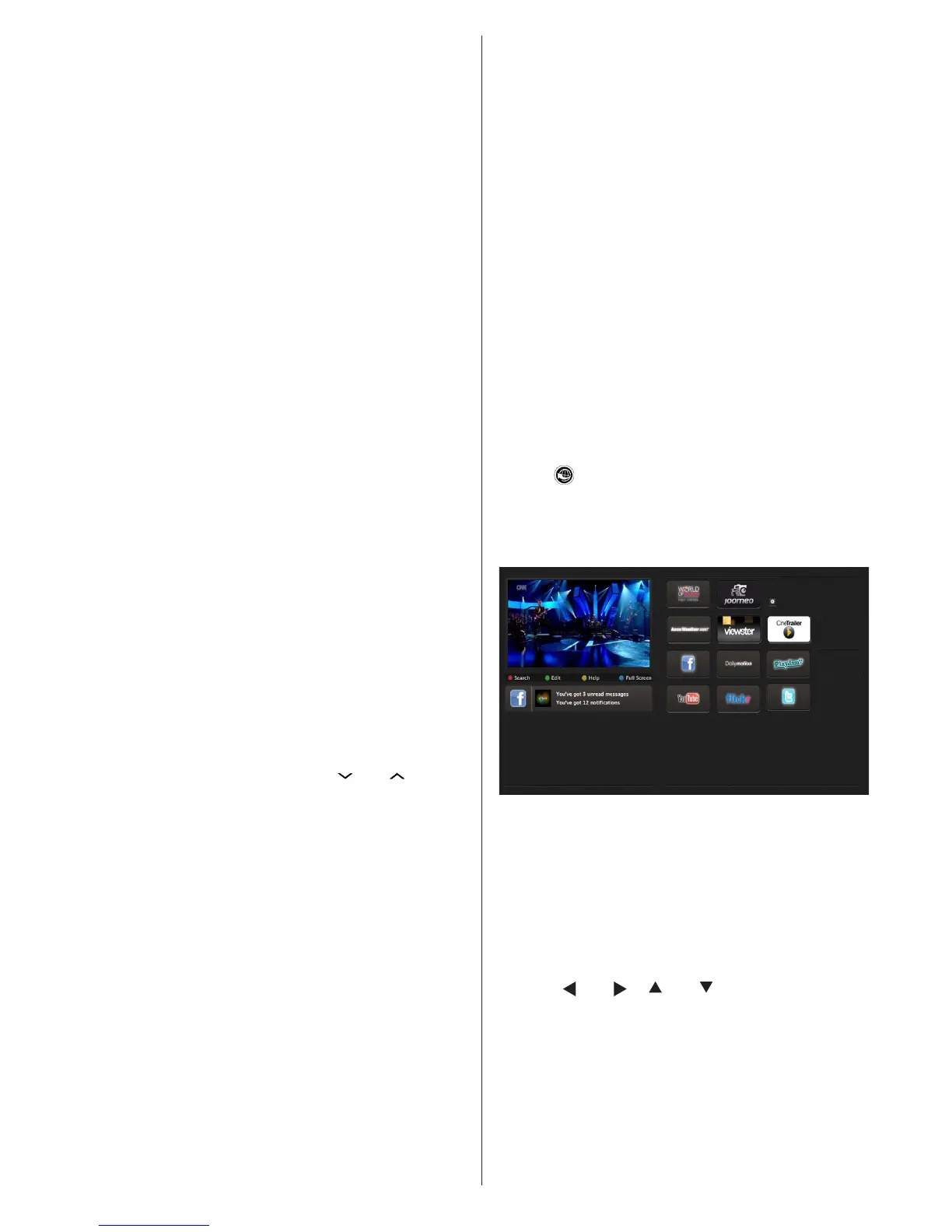
Press “ ” button on your remote control and
the portal application options will be displayed.
Application options will be displayed as shown in the
template below. Available applications’ contents may
change depending on the application content provider.
Note on PIP Window
If you switch to portal mode while watching TV
FKDQQHOV FXUUHQW SURJUDPPH ZLOO EH GLVSOD\HG RQ
WKH 3,3 ZLQGRZ <RX FDQ FKDQJH FKDQQHOV XVLQJ
P+/P- buttons.
Current HDMI content will be displayed on the PIP
ZLQGRZLI\RXVZLWFKWRSRUWDOPRGHZKLOHZDWFKLQJ
HDMI source.
8VHWKH³ ” or “ ´³ ” or “ ” to navigate between
WKHLWHPVRQ3RUWDOVFUHHQ3UHVVWKH2.EXWWRQWR
FRQ¿UP\RXUVHOHFWLRQ3UHVVWKH%$&.EXWWRQWRJR
to the previous screen.
3UHVVWKH(;,7EXWWRQWRTXLWWKH,QWHUQHWSRUWDOPRGH


 To Next Page