5. TOUCH BUTTONS
The buon displays a menu of recently opened applicaons.
The buon returns immediately to the main screen.
The buon moves back one step to the previous menu/page.
Screen Lock
To lock the phone’s screen, simply press the “POWER BUTTON.”
Screen Unlock
When the phone is in idle mode, press the “POWER BUTTON” once to wake up
the phone.
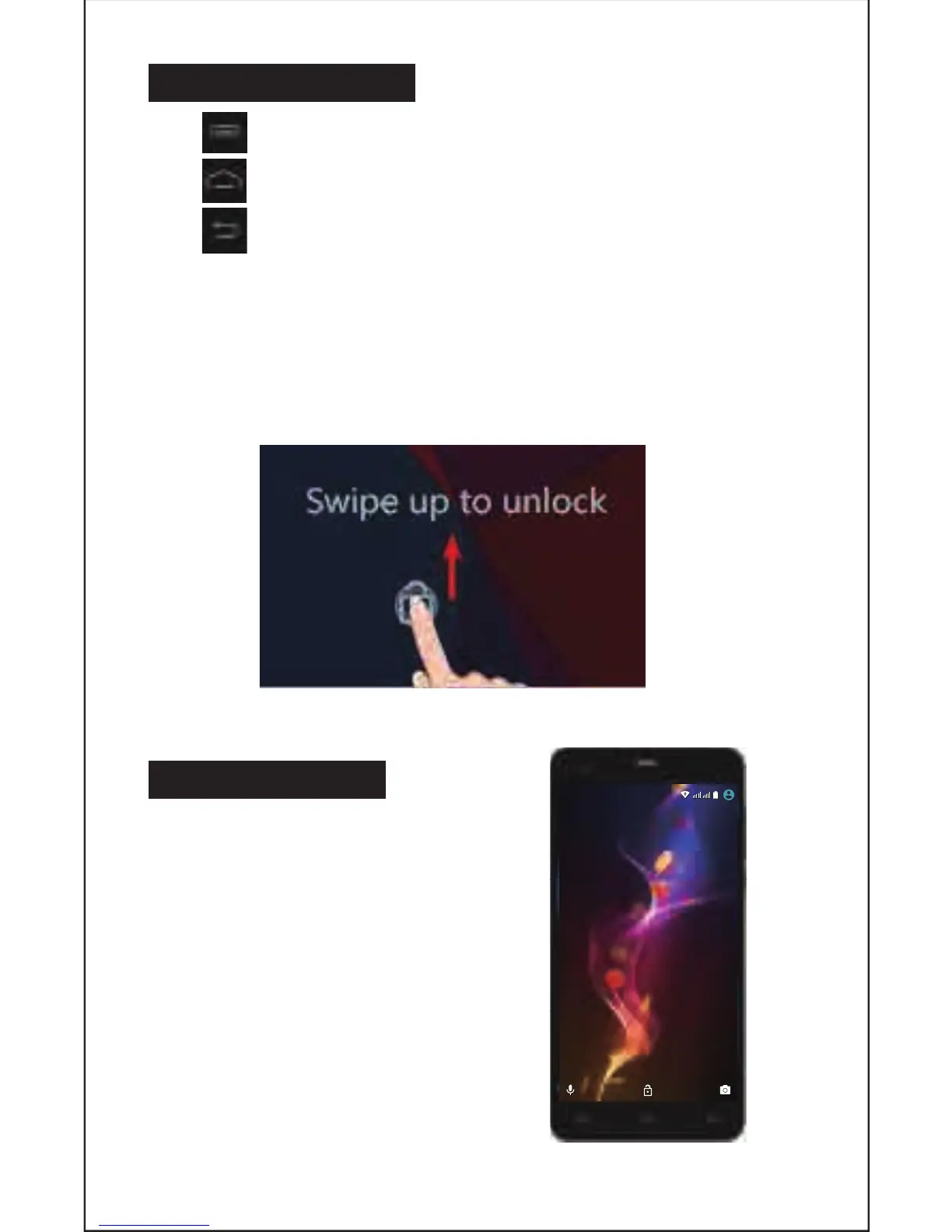
Screen unlock: To unlock, swipe up as illustrated below:
6. HOME SCREEN
The home screen will look similar to the
picture opposite. To switch between
screens, simply slide your finger le or
right across the display.
The status bar and navigaon buons
are always visible, no maer which
home screen you are currently viewing.
The desktop contains shortcuts to your
most-used applicaons and widgets.
The icon will launch the Applicaon
menu.
6
03:28
WED-2-NOV
2G4G
03:28
WED-2-NOV
2G4G


 To Next Page