• Wi-Fi – Connect to/disconnect from wireless networks, view connecon status.
• Data usage – Enable/disable mobile data, view current usage, set mobile data
limit. (note: this funcon is available only on devices supplied with 3G card
funconality)
• Bluetooth – Connect or disconnect Bluetooth devices.
• Display – Adjust display sengs.
• Smart Gesture Sengs – “ON” / “OFF.”
• Audio Profiles – Adjust the various audio sengs such as ringtones.
• Prompts and noficaons – Adjust various noficaon sengs.
• Storage – View your phone’s internal and external storage sengs.
• Baery – View the status of your baery and make adjustments to power
consumpon.
• Apps – A list of all apps downloaded and running.
• Delete applicaons – Select apps to delete.
• Locaon services – Change approximate locaon detecon, improve search
results, GPS satellites.
• Security – Adjust phone’s security sengs.
• Accounts – Add or remove email and Google™ accounts such as gmail,
Google.
• Language & input – Select Language Add to the diconary, edit on-screen
keyboard sengs, vocal search, etc.
• Backup & Reset – Backup and restore data, perform factory reset, etc.
• Date & Time – Set date, me zone, me, clock format etc.
• Accessibility – Set up large text, auto-rotate screen, speak password etc.
• About Phone – Displays informaon about your phone.
8. MAKING AND RECEIVING CALLS
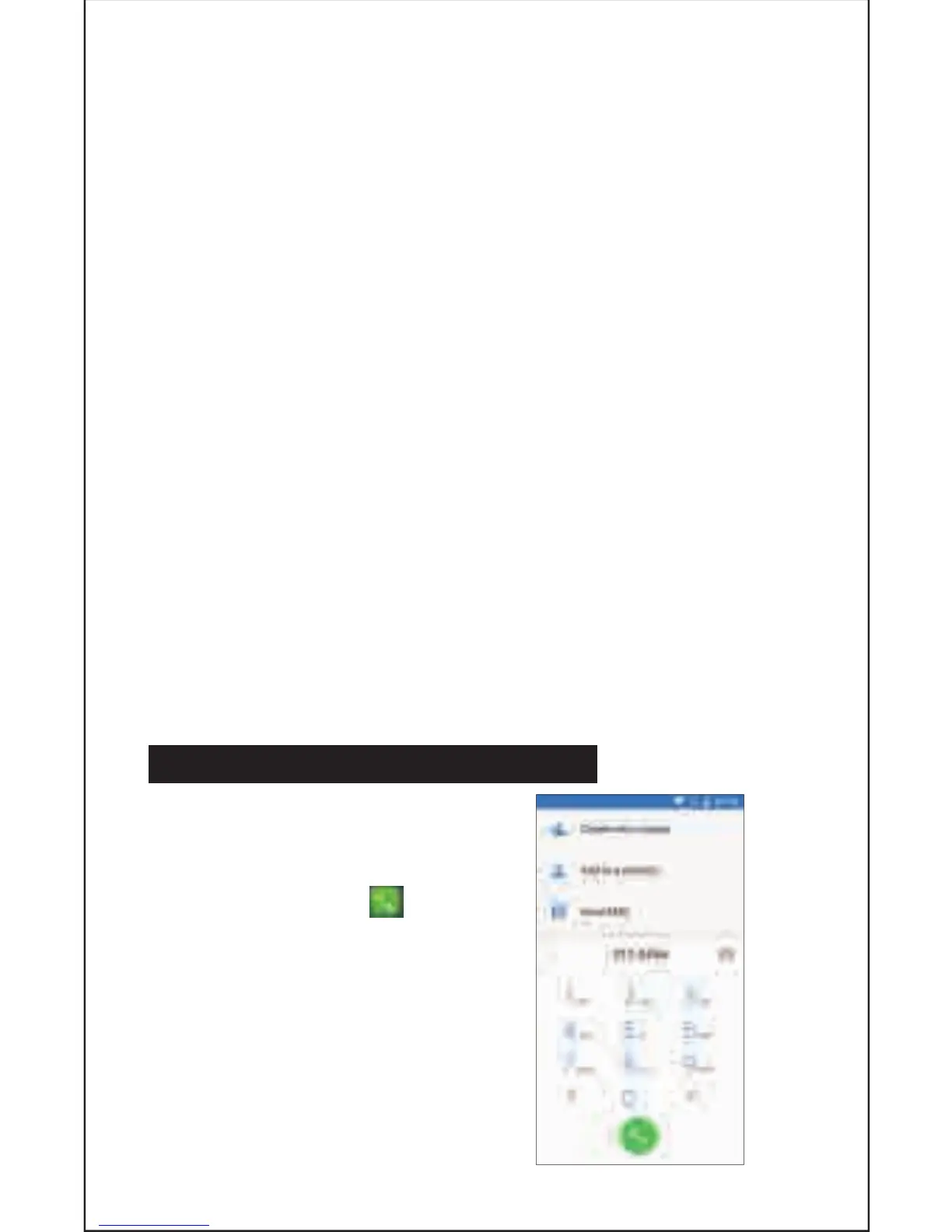
Once your SIM cards are
installed turn on your phone
and wait a few minutes for
your phone to find a network.
Then select the Call icon.
Here you can dial a number or
select a contact from your
stored contacts list to call. You
can also view outgoing and
incoming calls that have been
made, as well as adding or
removing contacts.
8
· Google is trademask of Google LLC


 To Next Page