10
7.3 Old Interphone Series
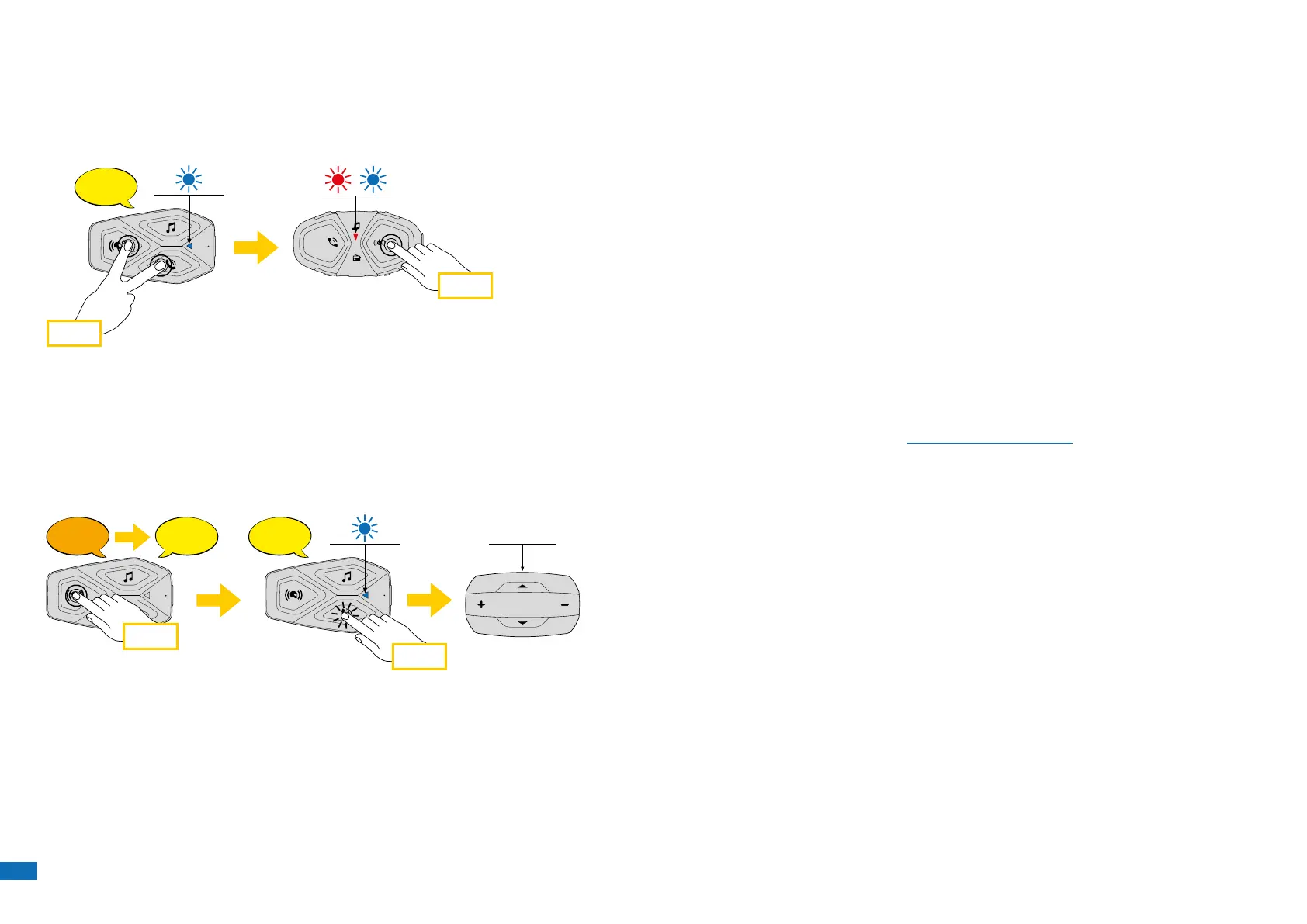
It is possible to pair previous Interphone series devices by pressing, with the
unit on, the INTERCOM and TELEPHONE buttons for 5 seconds. Then start
pairing mode on the second unit, usually pressing the power button (with
the control unit o) until the led ashes red/blue.
6 sec
Bluetooth
Mesh
Interphone U-Com 16 (Utente) Aggiungi utente
Aggiungi utenteAggiungi utente
Fine intercom
3 sec
10 sec
Setup
Bluetooth
®
Intercom - other pairings
Matching previous series. To be done with unit on on u-com 3 and with the unit o on the other
device (consult the manual of the other device for more details)
Anycom pairing for other brands (except Sena)
Anycom
pairing
Interphone
pairing
Intercom
pairing
Con guration
menu
Mobile phone
pairing
7.4 Anycom
Anycom feature allows intercom conversations with other intercom brands.
It is possible to pair the intercom with only one non-Interphone device at a
time. The intercom distance depends on the performance of the connected
Bluetooth
®
intercom. When a not-Interphone device is paired with the
Interphone device, if another Bluetooth
®
device is paired via the second
mobile phone pairing, it will be disconnected.
x 3
?
Bluetooth
Mesh
Interphone U-Com 16 (Utente) Aggiungi utente
Aggiungi utenteAggiungi utente
Fine intercom
10 sec
Setup
Bluetooth
®
Intercom - other pairings
Matching previous series. To be done with unit on on u-com 3 and with the unit o on the other
device (consult the manual of the other device for more details)
Anycom pairing for other brands (except Sena)
Anycom
pairing
Intercom
pairing
Con guration
menu
Mobile phone
pairing
1. With U-COM 3 on, enter the conguration menu by pressing the central
button for 10 seconds. Do not to release the button before the led turns
blue.
2. Press the PHONE button 3 times to activate the ANYCOM pairing mode.
3. Set the not-Interphone intercom to mode Phone pairing.
8. FUNCTION PRIORITY AND FIRMWARE
UPGRADES
8.1 Function Priority
Intercom prioritizes connected devices in the following order:
1. (highest) Phone
2. Bluetooth
®
Intercom
3. (lowest) Bluetooth
®
stereo music
A low priority function will be interrupted by a higher priority function. For
example, stereo music will be interrupted by an intercom conversation; an
intercom conversation will be interrupted by an incoming cell phone call.
You can reverse the priority of Intercom and Music, via APP smartphone
or device manager for PC/MAC.
8.2 Firmware Upgrades
The headset supports rmware upgrades. Using the Device Manager utility
(available for PC and MAC on www.interphone.com) you can upgrade
rmware.
The USB Power & Data Cable (USB-C) must be connected to your computer,
then start Device Manager on computer and follow instructions step by step.
Interphone Unite APP can check the rmware version present on the
headset and inform you in case of a newer available rmware, but APP can’t
ash the new rmware to headset.


 To Next Page