6
Multimedia TFT system of motorcycle must be paired with “PHONE
PAIRING”:
TFT
UCOM16
Cascopilota
COLLEGAMENTI
UCOM3
10 sec
x 1
UCOM3
Bluetooth
®
devices pairing
Intercom
pairing
Intercom
pairing
Intercom
pairing
Intercom
pairing
Con guration
menu
Con guration
menu
Con guration
menu
Con guration
menu
Phone
pairing
Phone
pairing
Second
mobile phone
pairing
GPS pairing
Main phone pairing (to be done with unit on)
Second phone pairing (to be done with unit on)
Gps SATNAV & TFT pairing (to be done with unit on)
Rider’shelmet
CONNECTIONS
Note: There is an alternative way, to pair only the rst phone (main
telephone). With the control unit o, press and hold at the same time the
MUSIC key together with the CENTRAL key, until the red / blue LED ashes.
The primary phone will have priority over the second phone, in case of
simultaneous call reception on both phones.
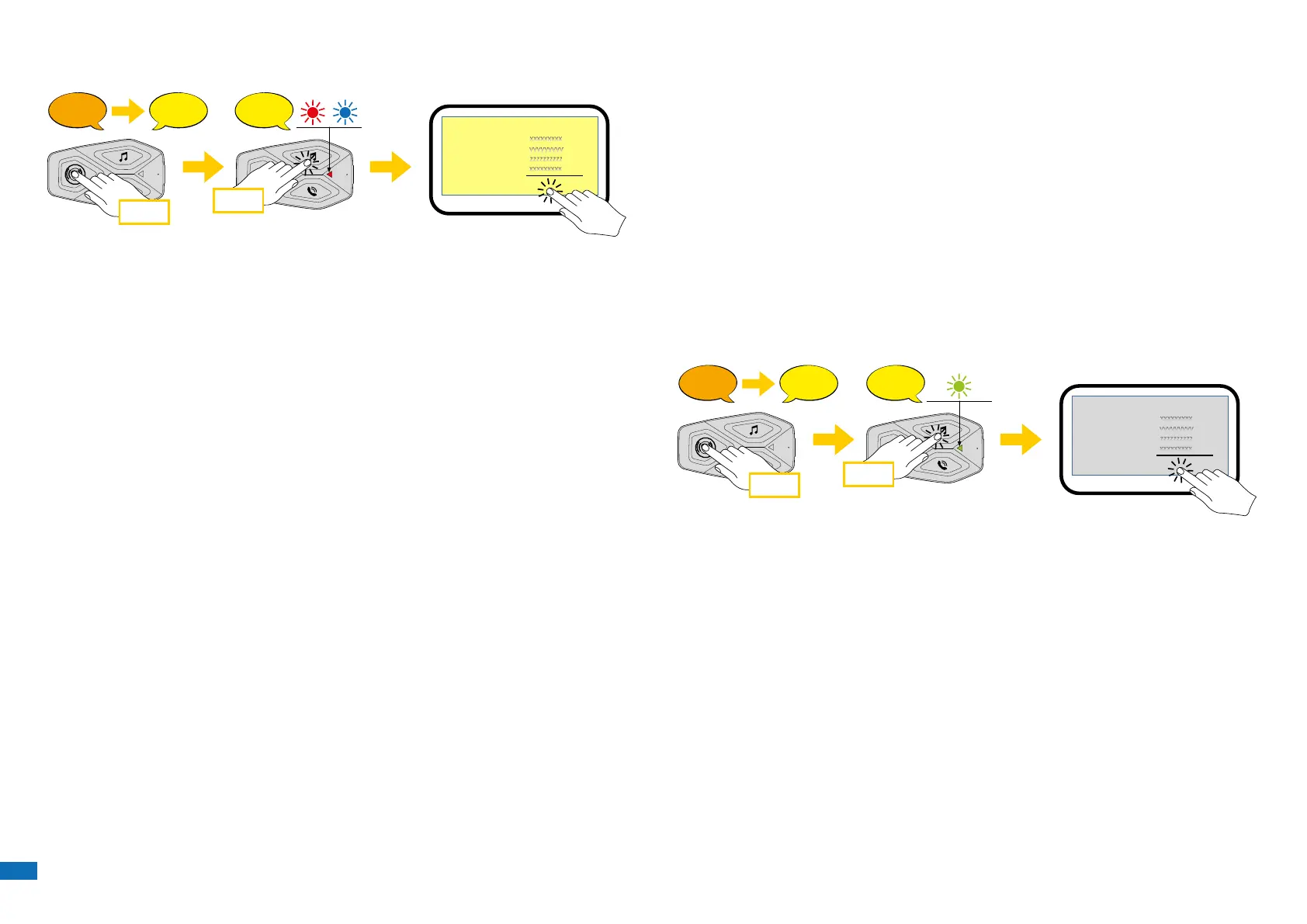
4.2 Second mobile phone pairing
1. Switch on Bluetooth
®
service on your phone (check device manual for
more details).
2. With U-COM 3 on, press and hold central button for 10 seconds, to enter
settings menu. Don’t release the button until the led light is blue.
3. Press the MUSIC button twice to activate Second mobile phone pairing
mode.
4. Start the search for new Bluetooth
®
devices on the mobile phone.
5. In few moments the phone will list “ U-COM 3 vx.x” among available
devices to pair. Select this item.
6. If prompted for a PIN or code, enter 0000 (four times zero ).
7. UCOM Voice guide will conrm the successful pairing.
8. If your smartphone asks for additional authorization please conrm.
4.3 GPS Pairing
1. Switch on Bluetooth
®
service on your GPS (check device manual for more
details).
2. With U-COM 3 on, press and hold central button for 10 seconds, to enter
settings menu. Don’t release the button until the led light is blue.
3. Press the MUSIC button 5 times to activate GPS pairing mode.
4. Start the search for new Bluetooth
®
devices on the GPS.
5. In few moments the device will list “ U-COM 3 vx.x” among available
devices to pair. Select this item.
6. If prompted for a PIN or code, enter 0000 (four times zero).
7. UCOM Voice guide will conrm the successful pairing.
8. If your device asks for additional authorization please conrm.
GPS
UCOM16
Bluetooth
UCOM3
TFT
UCOM16
Cascopilota
COLLEGAMENTI
10 sec
x 5
UCOM3
Bluetooth
®
devices pairing
Intercom
pairing
Intercom
pairing
Intercom
pairing
Intercom
pairing
Con guration
menu
Con guration
menu
Con guration
menu
Con guration
menu
Phone
pairing
Phone
pairing
Second
mobile phone
pairing
GPS pairing
Main phone pairing (to be done with unit on)
Second phone pairing (to be done with unit on)
Gps SATNAV & TFT pairing (to be done with unit on)
TFT
UCOM16
Rider’shelmet
CONNECTIONS
4.4 Advanced Selective Pairing: Hands-Free or A2DP Stereo
Phone Pairing allows the headset to establish two Bluetooth
®
proles:
Hands-Free or A2DP Stereo. Advanced Selective Pairing allows the headset
to separate the proles to enable connection with two devices.
4.4.1 Phone Selective Pairing - Hands-Free Prole
Execute Phone Selective Pairing in the Conguration Menu.
4.4.2 Media Selective Pairing - A2DP Prole
Execute Media Selective Pairing in the Conguration Menu.


 To Next Page