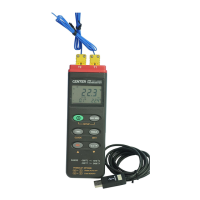
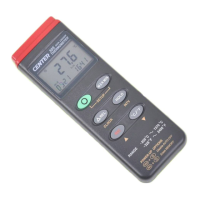
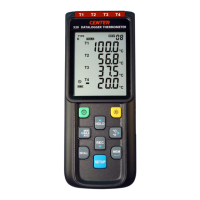
DATALOGGER THERMOMETER
5
(4) Press
button again, the MAX and MIN symbol blinks together. The reading shows present
T1 temperature.
(5) Press
button again, MAX symbol lights up, and the mode returns to (1).
To exit:
Press and hold button for 2 seconds to stop storing maximum and minimum and average
data.
Note:
When the unit is in the MAX/MIN mode, , and buttons are disabled.
6.5 Data-Hold mode
Press button to freeze the data shows on the LCD screen. Press again to exit Data-Hold
mode.
Note:
When the unit is in the Data-Hold mode, the , , and buttons are disabled.
6.6 Selecting temperature units:
By default, each time the unit is powered on, the scale is set to the Celsius (°C). Press the
button to switch between Celsius (°C) and Fahrenheit (°F).
6.7 Connecting to a computer:
The PC jack signal output is a 9600 bps N 8 1 serial interface. Use the USB cable (standard
accessory) to connect with a computer.
6.8 External DC 9V power supply jack:
Connect the AC adapter (optional accessory) to use external power.
6.9 Using the offset to compensate for probe errors:
You can adjust the readings of thermometer to compensate for the errors against a specific
thermocouple.
(1) Plug the thermocouple into the input T1 terminal.
(2) Turn off the unit.
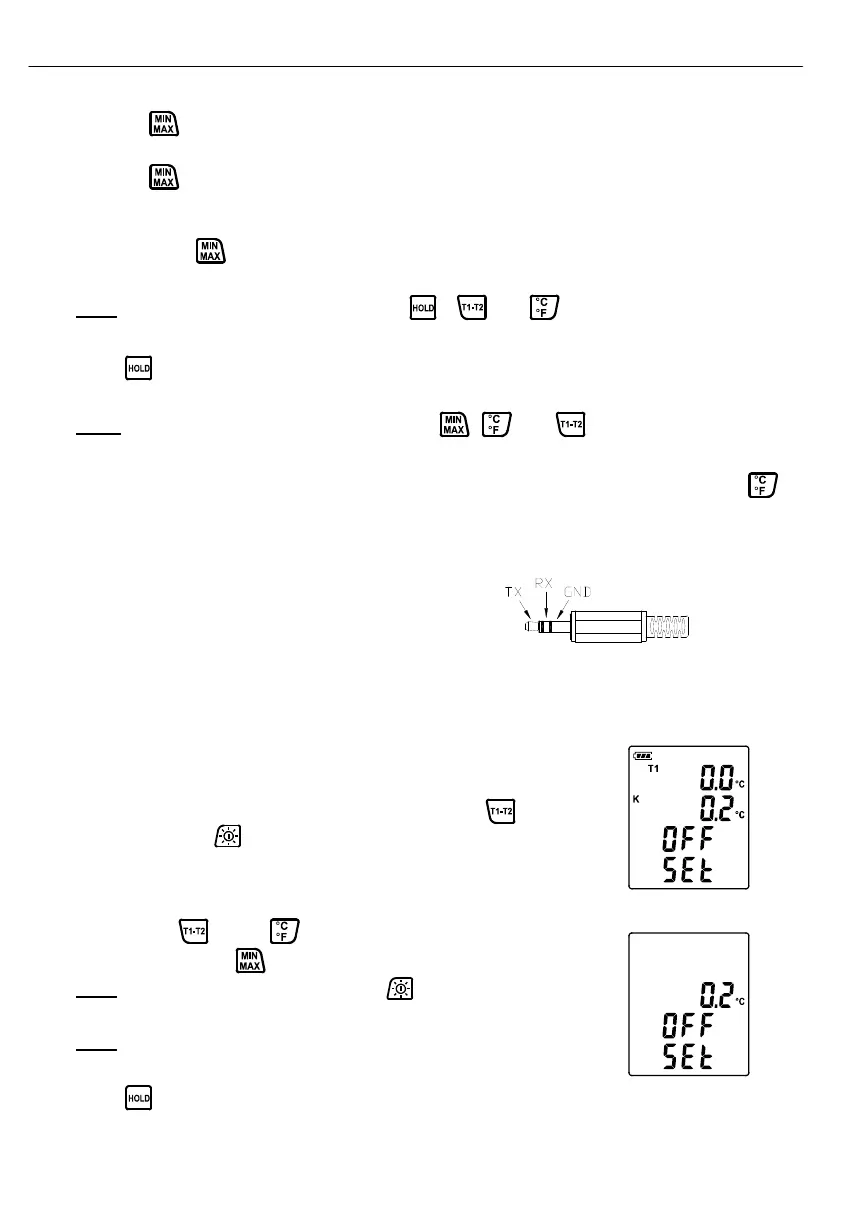
(3) Enter offset setting mode by pressing and holding
button
and then press
power button to turn on the unit.(see Fig.2)
(4) Place the thermocouple in a known stable temperature
environment (such as an ice bath or a dry well calibrator).
(5) Allow the readings to stabilize.
(6) Press ▲ (
) or ▼ ( ) to adjust value.
(7)When finish, press
button to exit offset setting mode.
Note:
To abort during the process, press power button to exit
offset setting mode.
Note:
The offset value will affect every channel.
※How to display offset value:
Press button for more than 1 second to display offset value.
(see Fig.3)
Fig.2
Fig.3


 To Next Page