30
Operation
Connect With Your Smartphone
The Wi-Fi Garage Door Opener is compatible with up to 16 myQ
®
enabled accessories. Up to 10
devices can be paired to the Wi-Fi garage door opener’s internal gateway. These devices can be
controlled with the myQ
®
App. These devices include any combination of myQ
®
garage door
openers, Wi-Fi garage door openers, myQ
®
light controls, myQ
®
gate operators or myQ
®
commercial door operators. A LiftMaster Internet Gateway (828LM) can be added if you need to
control more than 10 devices using the myQ
®
App. Up to 6 devices can be paired to garage door
opener itself (controlled by garage door opener through 900MHz). These devices include any
combination of myQ
®
light controls or a garage door and gate monitor.
YOU WILL NEED:
•
Wi-Fi enabled smartphone, tablet or laptop
•
Broadband Internet Connection
•
Wi-Fi signal in the garage (2.4 GHz, 802.11b/g/n required), see page 4
•
Password for your home network (router's main account, not guest network)
•
myQ
®
serial number located on the garage door opener
CONNECT YOUR GARAGE DOOR OPENER TO YOUR HOME WI-FI NETWORK
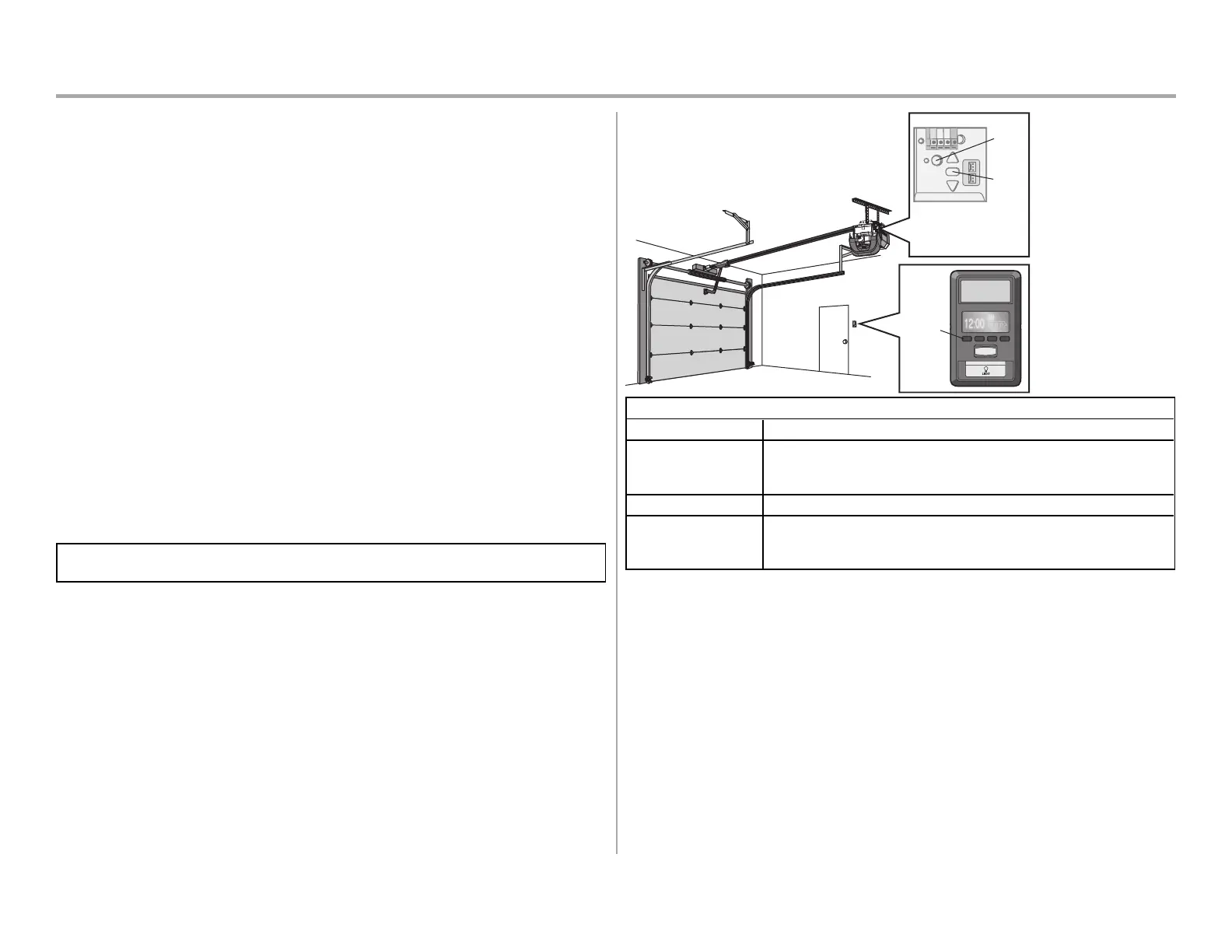
1. Use the Smart Control Panel®, go to Menu > Program > Wi-Fi Setup OR press and release
the yellow LEARN button on the garage door opener 3 times. The garage door opener will
beep once. You have 20 minutes to complete the connection process.
2. On your mobile device, go to Settings > Wi-Fi and select the network with the “MyQ-” prefix.
3.
Launch the web browser on your smartphone or tablet. Enter setup.myqdevice.com into the
browser address bar. Follow the on screen prompts to connect the garage door opener to
your Wi-Fi network. The myQ serial number will display on screen.
Write the serial number in the space below:
4. Download the myQ app from the App Store® or Google Play™ store. Sign up for your myQ
account and add the myQ serial number to your account.
To add a second Wi-Fi garage door opener, repeat steps 1-3. Add the second myQ serial number to
your account in the myQ app.
Navigation
Buttons
LED
Learn
Button
An LED on the garage
door opener will indicate
Wi-Fi status. See table
below.
WiFi Status
LED Definition
Blue
Off - Wi-Fi is not turned on.
Blinking - Garage door opener is in Wi-Fi learn mode.
Solid - Mobile device connected to the garage door opener.
Blue and Green
Blinking - Attempting to connect to router.
Green
Blinking - Attempting to connect to the Internet server.
Solid - Wi-Fi has been set up and garage door opener is connected to the
internet.
NOTES:
To erase the Wi-Fi settings, see page 33.
If you need help adding devices to your myQ account, or to learn more go to
WiFiHelp.LiftMaster.com.



 To Next Page