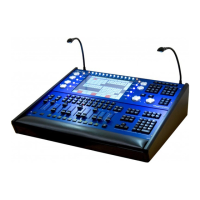
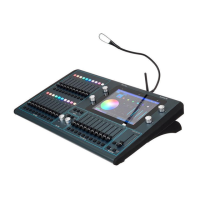
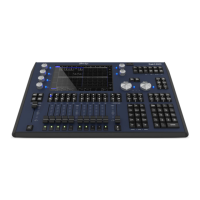
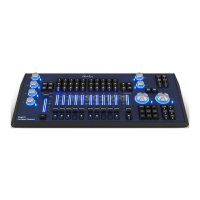
ChamSys MQ100 Series Service Document
Page 2 of 22 www.chamsys.co.uk
Section 1: Testing to determine faults.
All ChamSys consoles contain built-in hardware tests to help diagnose any faults that
may occur. To access these tests on any MagicQ console, first power on the console. The
board test mode can then be accessed using one of two methods. Either navigate to the
Setup window using the physical key on the console, located in the top right group of
keys. Then use the on-screen soft keys to navigate to View System > View Wings >
Board Test. Alternatively, you can press three keys together to trigger the shortcut to
access the board test mode. These keys are ALT + CTRL + SHIFT.
Testing keys: When pressing keys on the console, you will see the key name appear in
the command box on screen, as mentioned below. When a key is pressed, you will also
see it highlight on screen, briefly red, then green. If the key stays highlighted green, it is
working correctly, but if it stays highlighted red, then it is getting stuck. You should only
ever see the key pressed highlight on screen. If more than one key highlights at a time,
there is an issue. If more than one key is pressed at once, the test will fail, and these will
need to be tested again individually.
Testing faders: When testing a fader, you will again see the number of the
corresponding fader appear in the command box. Ensure the correct fader number is
being listed. Slowly raise and lower the fader as sharp movements can lead to
inaccurate results. You should see only positive values when raising the fader, and only
negative values when lowering it. When a fader is fully lifted, it will highlight grey on
screen, and then green when returned to the bottom. If the fader is not fully lifted, when
returned to the bottom, it will highlight red. Be sure also to only test one fader at a time.
Mixed values or triggering of other faders implies an issue with one or more faders.
Testing encoders: The letter for the encoder will be listed in the command box when
testing it, with positive values when turning the encoder clockwise and negative values
when turning the encoder anti-clockwise. Once fully turning in one direction, the encoder
will highlight grey on screen, and then green when fully turned in the opposite direction.
The faster the encoder is turned, the higher values are reported, but the encoders should
be turned slowly in order to produce accurate results. Mixed values, triggering of other
encoders or encoders not working at all implies faults with one or more encoders.
Testing the touch screen: While in board test mode, drag your finger around the screen
and you should see co-ordinates reported in the command box. If you do not, the touch
is not working correctly. In addition, if you witness the co-ordinates jump to other values
when taking your finger off the screen, this can also imply a fault.
Testing LEDs: When in board test mode, you can activate LED tests using the on-screen
soft keys. If any LEDs do not light up during these tests, then they will likely need
replacing.
You can also run through a full production test using the PROD TEST soft key on screen
in board test mode, but some specific testing equipment is required.


 To Next Page
 Loading...