ChamSys MQ70/MQ50 Service Document
Page 4 of 25 www.chamsys.co.uk
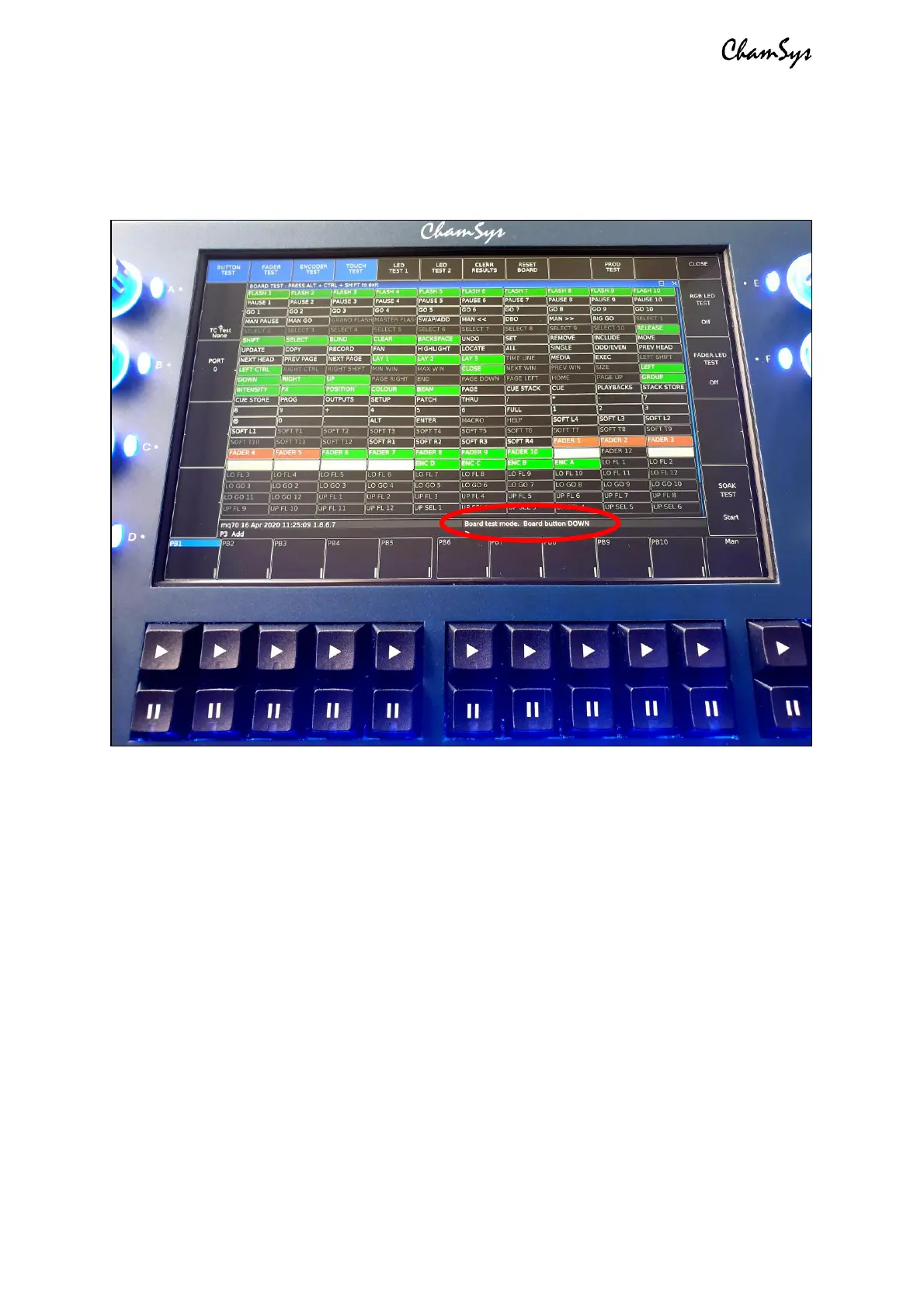
Once in board test mode you can begin testing the keys, faders and encoders on the
console straight away, as described below. When testing these, you will see the name of
the key, fader or encoder used appear in the command box down the bottom right of the
screen, as in the image below.
Testing keys: When pressing keys on the console, you will see the key name appear in
the command box on screen, as mentioned below. When a key is pressed, you will also
see it highlight on screen, briefly red, then green. If the key stays highlighted green, it is
working correctly, but if it stays highlighted red, then it is getting stuck. You should only
ever see the key pressed highlight on screen. If more than one key highlights at a time,
there is an issue. If more than one key is pressed at once, the test will fail and these will
need to be tested again individually.
Testing faders: When testing a fader, you will again see the number of the
corresponding fader appear in the command box. Ensure the correct fader number is
being listed. Slowly raise and lower the fader as sharp movements can lead to
inaccurate results. You should see only positive values when raising the fader, and only
negative values when lowering it. When a fader is fully lifted, it will highlight grey on
screen, and then green when returned to the bottom. If the fader is not fully lifted, when
returned to the bottom, it will highlight red. Be sure also to only test one fader at a time.
Mixed values or triggering of other faders implies an issue with one or more faders.


 To Next Page
 Loading...