EasyManua.ls Logo

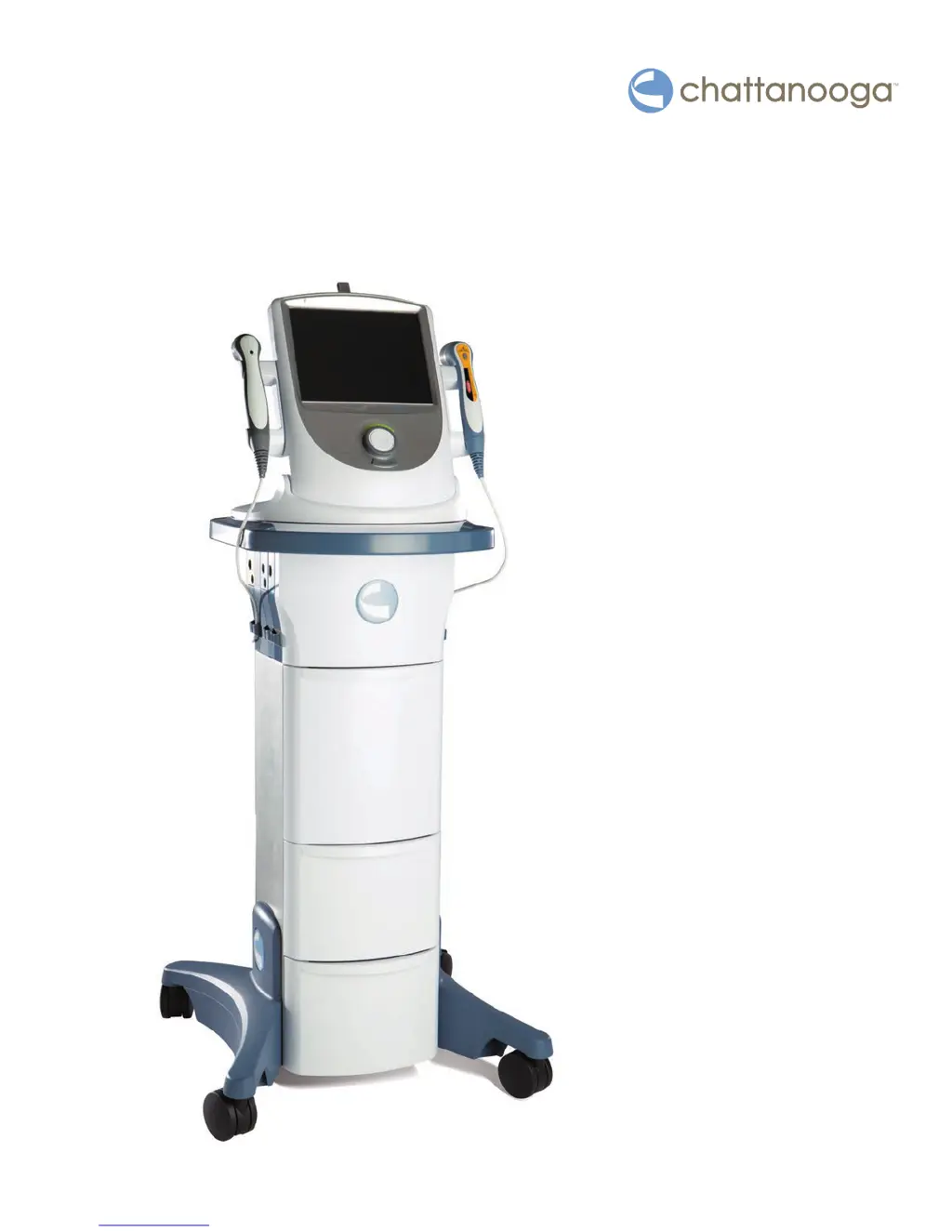
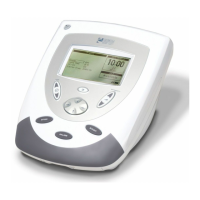
Chattanooga Intelect Neo - User Manual

Chattanooga Intelect Neo
84 pages
Print Icon
To Next Page IconTo Next Page
Loading...
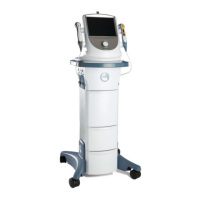
Intelect® Neo Clinical
Therapy System
User Manual
Operator and
Installation
Instructions

Table of Contents

Questions and Answers

  • W
    William VaughnAug 15, 2025
    What to do if I can't select a treatment because the channels are in use on my Chattanooga Medical Equipment?
    • S
      Sandra HernandezAug 15, 2025
      If you are attempting to select a treatment on your Chattanooga Medical Equipment, but the available channels for the desired modality are currently in use, complete the existing treatment before attempting to start another treatment on the same channel.
  • T
    Tracie RossAug 19, 2025
    How to save treatment to USB if patient ID is blank on Chattanooga Medical Equipment?
    • C
      Carrie BarnettAug 19, 2025
      To save a treatment to a USB flash drive using your Chattanooga Medical Equipment, you must type in or select a Patient ID before saving.
  • J
    James KempAug 21, 2025
    What to do if the ultrasound applicator is not plugged in Chattanooga Medical Equipment?
    • V
      vanessafowlerAug 21, 2025
      If no ultrasound applicator is plugged into your Chattanooga Medical Equipment unit, ensure the desired ultrasound applicator is securely connected to the unit before selecting an ultrasound treatment.
  • K
    Kevin SnowAug 25, 2025
    What to do if sEMG channels are in use when selecting sEMG treatment on Chattanooga Medical Equipment?
    • F
      fmcmillanAug 25, 2025
      If you're attempting to select an sEMG treatment but the sEMG channels are currently in use on your Chattanooga Medical Equipment, you should complete the existing treatment before starting another treatment on the same channel.
  • A
    Andrea CummingsAug 28, 2025
    How to fix blank protocol name when saving Custom protocol on Chattanooga Medical Equipment?
    • S
      Steven GordonAug 28, 2025
      When saving a Custom protocol on your Chattanooga Medical Equipment, make sure that the protocol name is not blank before saving it.
  • J
    James HendersonAug 30, 2025
    What to do if sequence name is blank when saving a sequence on Chattanooga Medical Equipment?
    • B
      bjonesAug 30, 2025
      When saving a Sequence with your Chattanooga Medical Equipment, ensure the sequence name is not blank before saving the sequence.
  • M
    Matthew ObrienSep 2, 2025
    How to save Clinic Name if it is blank on Chattanooga Medical Equipment?
    • L
      Leslie MorrisonSep 3, 2025
      When saving the Clinic Name on your Chattanooga Medical Equipment, make sure the Clinic name is not blank before saving it.
  • B
    Beth MyersSep 6, 2025
    Why can't I delete a factory sequence on my Chattanooga Medical Equipment?
    • Z
      Zachary EvansSep 6, 2025
      Factory sequences (names begin with a “*”) cannot be deleted from your Chattanooga Medical Equipment.
  • R
    riverakyleSep 8, 2025
    How to delete a factory protocol on Chattanooga Medical Equipment?
    • H
      Haley StevensSep 8, 2025
      Factory protocols (names begin with a “*”) cannot be deleted from your Chattanooga Medical Equipment.
  • W
    woodardrobertSep 12, 2025
    What to do if I can't save a protocol because memory is full on Chattanooga Medical Equipment?
    • B
      Becky PetersonSep 12, 2025
      If you're attempting to save a Custom protocol or Sequence after the system memory has reached the maximum allowed (200) on your Chattanooga Medical Equipment, delete unused User protocols or sequences.

Summary

Precautionary Instructions

Safety Symbols and Definitions

Explains symbols like CAUTION, WARNING, DANGER used to indicate safety hazards.

General Cautions

Provides important cautions regarding system operation, maintenance, and potential hazards.

Warnings and Precautions

Details critical warnings for patient safety and proper system use, including laser and electrical hazards.

Warnings and Dangers

Covers further warnings and danger information related to electrical current, laser safety, and general system handling.

Setup

Therapy System Start-Up

Step-by-step guide for the initial setup and power-on of the Intelect® Neo Clinical Therapy System.

Specifications

Laser Applicator Technical Specifications

Details technical specifications for single diode laser applicators, including output power and beam characteristics.

Laser Applicator Technical Specifications (Continued)

Provides technical specifications for cluster diode laser applicators, detailing their configurations and output.

Waveforms

Utilities

Patient Preparation

Operation

Home Screen

Overview of the system's home screen, detailing access to modalities and functions.

Treatment Screens

Explains the elements and functions available on the Electrotherapy and Ultrasound treatment screens.

CPS (Clinical Protocol Setup)

Guides users through setting up and customizing clinical protocols for various treatments.

Electrotherapy Operation

Provides general instructions for performing electrotherapy treatments using the system.

Vacuum Operation

Details how to operate the vacuum modality, including continuous and pulsed modes.

Sequencing

Instructions on how to create and manage sequences of electrotherapy protocols for treatment sessions.

Strength;Duration (S;D) Curve

Explains how to use the S/D curve feature for electrodiagnostic muscle assessment.

Iontophoresis Operation

Guides users through the process of performing iontophoresis treatments.

Ultrasound Operation

Provides instructions for operating the ultrasound modality, including applicator selection and parameter adjustment.

Combination Operation

Details how to perform combination therapy using ultrasound with electrical muscle stimulation.

SEMG Operation

Instructions for using the SEMG modality for muscle retraining and biofeedback.

Laser Operation

Guides users through the procedures for operating the laser modality safely and effectively.

Data

Saving to USB Flash Drive;Patient Data

Instructions for saving and accessing patient treatment data via USB flash drive.

Custom Protocols

Steps for creating, saving, and managing custom treatment protocols.

Troubleshooting

Troubleshooting Codes

A chart defining error, warning, and information codes with probable causes and remedies.

Maintenance

Chattanooga Intelect Neo Specifications

General IconGeneral
Power Supply100–240 VAC, 50/60 Hz
Frequency50/60Hz
Vacuum ModuleOptional
Laser ModuleOptional
Ultrasound Module1 MHz and 3 MHz frequencies
User InterfaceTouchscreen with intuitive icons and menus
ProtocolsPre-programmed treatment protocols
Custom ProtocolsYes, user-programmable
Multilingual SupportYes
Software UpdatesVia USB

Related product manuals