Before you begin ...
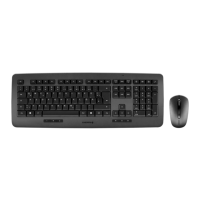
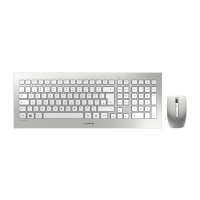
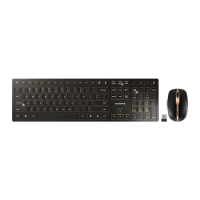
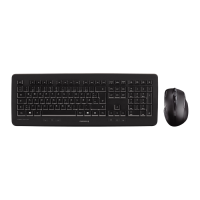
The CHERRY DW 5100 is a combination of a
wireless keyboard and mouse for operating
PCs and laptops.
It is characterized by the following features:
• Cordless freedom with a range of up to
5 meters
• Optical sensor with changeable resolution
for fine-detail work with the DPI switches on
top of the mouse (1000/1750 dpi)
• Battery status LED in keyboard and mouse
• Abrasion-proof laser key cap lettering
• You can configure the mouse buttons as well
as the F-keys and Hotkeys (except standby)
using KeyM@n software (as a free download
at: www.cherry.de > Service > Downloads >
CHERRY DW 5100)
For information on other products, downloads
and much more, visit us at www.cherry.de.
Every device is different!
The operating instructions contain
information on effective and
reliable use.
• Read the operating instructions carefully.
• Keep the operating instructions and pass
them on to other users.
1 General safety
instructions
2 Connecting the devices
to a PC or laptop
WARNING: Risk of choking from
swallowing small parts
• Keep the device out of the reach of
children under 3 years.
CAUTION: Danger of explosions
due to incorrect or incorrectly
inserted battery
• Only use batteries of the type named in the
technical data.
• Insert the batteries in accordance with the
markings (+/-) in the battery compartment.
The devices are ready for ope-
ration without having to install
software.
• Use the receiver on a USB 2.0
connection if possible.
1 Connect the receiver to a USB port on the
PC or laptop.
2 Insert batteries into the mouse and
keyboard.
3 Set the switch on the bottom of the mouse to
ON.
The LEDs of the devices flash for approx.
9 seconds and they are connected to your PC/
laptop.
If the devices do not work, the connection has
failed.
• Establish a new connection to the receiver
(see 4.6 "Troubleshooting").
3 Adjusting the
sensitivity of the mouse
(DPI number)
You can adjust the resolution of the sensor
according to your needs.This changes the
speed of the mouse pointer.
• Press the DPI button on the top of the
mouse.
The LED flashes depending on the setting:
1x = 1000 dpi
2x = 1750 dpi
The setting is saved in the mouse and is
retained even when the mouse is switched off.
OPERATING MANUAL
CHERRY DW 5100 – Wireless Ergonomic Desktop
EN
64410004-03_DE-EN-FR-ES-IT-NL_DW5100.fm Seite 10 Montag, 14. Januar 2019 11:45 11


 To Next Page