28
English
2
1
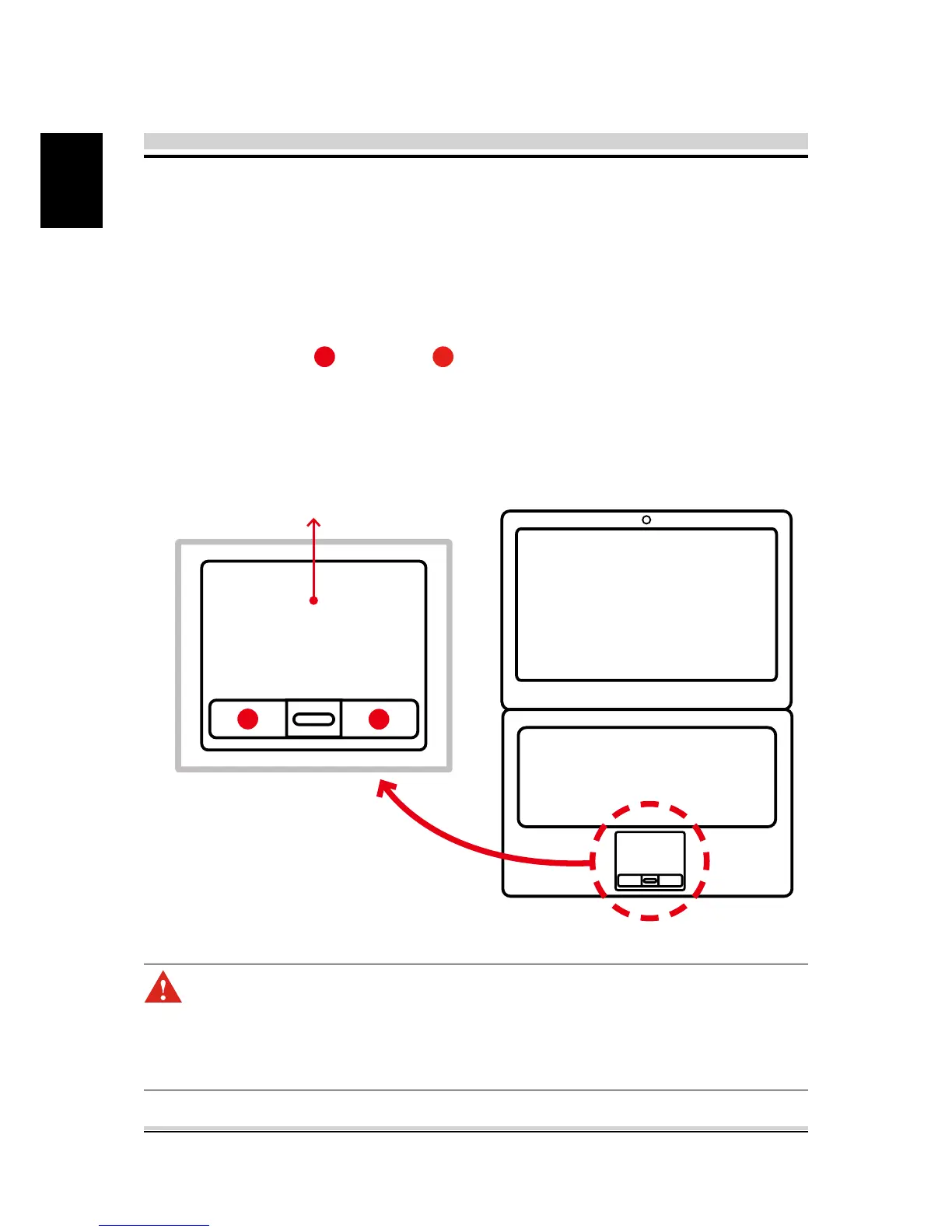
3.4 Using the touchpad
Press the left
1
and right
2
buttons located on the edge of
the touchpad to make selections and run functions. These two
buttons are similar to the left and right buttons on a mouse.
Tapping on the touchpad produces similar results.
CAUTION: Keep your ngers dry and clean while using the touch-
pad. Also keep the touchpad dry and clean. The touchpad is sensi-
tive to nger movements. Therefore, the lighter the touch, the better
theresponse. Tapping too hard will not increase the touchpad’s re-
sponsiveness.
The touchpad is a rectangular electronic panel located just
below your keyboard. You can use the static-sensitive panel of
the touchpad and slide it to move the cursor. You can use the
buttons below the touchpad as left and right mouse buttons.
Touchpad



 To Next Page