EasyManua.ls Logo

Christie LW502 - User Manual

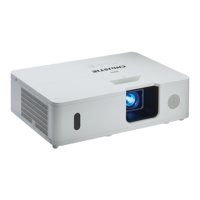
Christie LW502
127 pages
Print Icon
To Next Page IconTo Next Page
Loading...
LW502/LWU502
User's Manual (detailed)
Operating Guide
020-001057-01

Table of Contents

Other manuals for Christie LW502

Questions and Answers

  • L
    Leonard DavidsonAug 10, 2025
    What to do if images from two Christie Projectors do not superimposed even after performing fine adjustment?
    • K
      kathryndavisAug 10, 2025
      If the images from the two projectors do not superimposed even after performing fine adjustment, try these steps: * Press the AUTO button on the remote control or execute AUTO IMAGE on each of the projectors. * Adjust H POSITION and V POSITION on each of the projectors. * Check the RESOLUTION setting in the INPUT menu, and change to the same setting if the setting differs between Main and Sub.
  • E
    Evelyn WilkersonAug 16, 2025
    How to fix out of focus or not superimposed images on Christie LW502?
    • W
      wheeleremilyAug 16, 2025
      To correct images that are out of focus or not superimposed well, adjust the ZOOM ring, VERTICAL adjuster, HORIZONTAL adjuster, and the FOCUS ring to superimpose the images. If needed, adjust 3D KEYSTONE and KEYSTONE as well.
  • J
    Jesus SmithAug 28, 2025
    Why aren't my Main and Sub Christie Projectors operating in sync?
    • V
      Vanessa WrightAug 28, 2025
      If the Main and Sub projectors are not operating in sync, it may be because the RS-232C cable between them is not properly connected. Connect the RS-232C cable properly and restart the Main projector.
  • A
    Albert RhodesSep 3, 2025
    Why isn't the STACK menu working on my Christie Projector?
    • J
      John KelleySep 4, 2025
      The STACK menu may not function if the projector settings are not configured for the Intellectual Stack feature. Check these settings on both the Main and Sub projectors: STANDBY MODE in the SETUP menu should be set to NORMAL, COMMUNICATION TYPE under COMMUNICATION in the SERVICE menu should be OFF, and STACK LOCK in the SECURITY menu should be OFF.
  • H
    Hannah MontoyaNov 21, 2025
    Why is the Intellectual Stack feature not working on my Christie LW502 Projector?
    • R
      Rebecca BaldwinNov 21, 2025
      The Intellectual Stack feature might not work due to several reasons: * No power is supplied to the Main and Sub projector. To use the Intellectual Stack feature, ensure AC power is supplied to both the Main and Sub projectors. * The RS-232C cable between the Main and Sub projectors is not properly connected. To use the Intellectual Stack feature, connect an RS-232C cross cable between the Main and Sub projectors. * The menu settings for Intellectual Stack are not performed correctly. Check the settings of the STACK menu on the Main and Sub projectors. To use the Intellectual Stack feature, one projector must be set to Main and the other projector must be set to Sub. * Signal cables are not connected correctly. Check the connection of cables and ensure the cable connection matches...

Summary

Setting up

Connecting with your devices

General instructions for connecting external devices to the projector.

Connecting with your devices (continued)

Details warnings and cautions for USB wireless adapter and network connections.

About HDBaseT connection

Explains HDBaseT technology and its requirements.

Connecting power supply

Guides on connecting the power cord and checking the power indicator.

Remote control

Power on;off

Turning on the power

Step-by-step guide to power on the projector.

Turning off the power

Step-by-step guide to safely power off the projector.

Operating

Selecting an input signal

Guide on choosing the active input source for the projector.

Adjusting the zoom and focus

Instructions for adjusting lens zoom and focus for image clarity.

Adjusting the lens shift

Details how to adjust the lens shift for image positioning.

Using the automatic adjustment feature

Explains how to use the auto-adjust function for image alignment.

Correcting the distortion

Introduces keystone, 3D keystone, and warping for distortion correction.

Using the EDGE BLENDING features

Guides on setting up edge blending for multi-projector displays.

PbyP (Picture by Picture); PIP (Picture in Picture)

Explains displaying two different signals simultaneously.

Changing the picture input signal

Guides on selecting input signals for main and sub areas.

Using the menu function

Using the menu function

Overview of accessing and navigating projector menus.

EASY MENU

IMAGE SETTINGS menu

SIZE AND POSITION menu

INPUT menu

SETUP menu

AUDIO menu

MENU PREFERENCES

OPTION menu

OPTION menu (continued)

Details Direct Power On, Auto Power Off, and Shutter Timer settings.

SECURITY menu

SECURITY menu (continued)

Details TRANSITION DETECTOR function for installation changes.

Maintenance

Replacing the lamp

Step-by-step guide for replacing the projector lamp.

Lamp warning

Important warnings and precautions regarding lamp handling and disposal.

Cleaning and replacing the air filter

Instructions for cleaning and replacing the projector's air filter.

Troubleshooting

Related messages

Lists common messages and their troubleshooting steps.

Related messages (continued)

Further troubleshooting messages including temperature rising.

Regarding the indicator lamps

Explains the meaning of indicator lamp states (Lit, Blinking, Off).

Regarding the indicator lamps (continued)

Further details on indicator lamps for interior heating and air filter issues.

Resetting all settings

How to perform a factory reset for projector settings.

Issues that may be easy to be mistaken for machine defects

Table of issues that might be mistaken for defects.

Issues that may be easy to be mistaken for machine defects (continued)

Covers HDMI OUT issues and network power cycling.

Christie LW502 Specifications

General IconGeneral
Contrast Ratio2000:1
Native Resolution1280 x 768 (WXGA)
Lamp Life2000 hours (Standard), 4000 hours (Eco)
Weight16.7 lbs (7.6 kg)
Brightness5000 lumens
Light SourceLamp
Lens ShiftHorizontal: ±10%
Input ConnectorsHDMI, VGA, Composite, S-Video, Component

Related product manuals