English – V.202106
USB and Ethernet Stand Alone interface 10 Datasheet / Technical manual
CONNECTING TO DMX ETHERNET DEVICES VIA WIFI ROUTER
The RJ45 port on DMX Ethernet devices enables wired connection to a local area network, but it is also possible to
wirelessly connect to the network by WiFi.
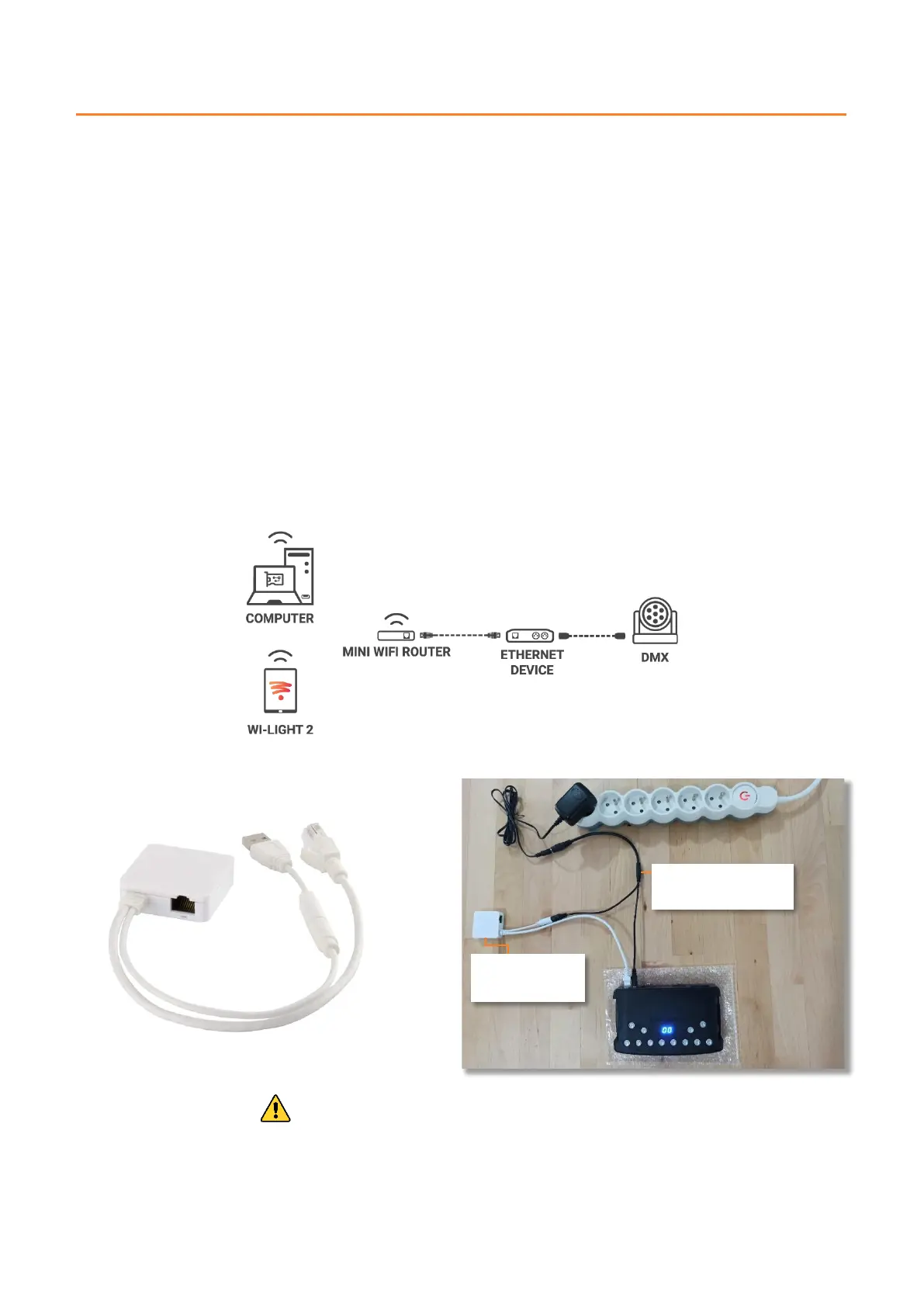
Illustrated below is an example configuration using a third-party mini WiFi router to enable a wireless connection. Other
descriptions for such routers include “hotspot”, “hub”, “dongle”, “bridge”, “repeater”, etc.
Note: This example shows a single DMX Ethernet device, but it is possible to connect multiple DMX Ethernet devices to
the WiFi router using a third-party IP network switch to expand the available RJ45 ports.
Setting up the wireless network:
• Configure the WiFi router as a hotspot to create a new access point (or configure the WiFi router as a bridge or repeater to
join an existing network). If IP addresses are assigned dynamically on the network by a DHCP server, refer to the WiFi
router’s datasheet/manual for details regarding configuration.
• Once the router is correctly configured, connect it to the RJ45 port of the DMX Ethernet device. Set the DMX Ethernet
device configuration to DHCP or static IP mode (refer to the device’s datasheet/manual for details).
• Once the DMX Ethernet device is connected to the router, it can be controlled by the Wi-Light 2 App.
Example of mini WiFi dongle/router installation:
Never use the interface's 5v usb port to power another device.



 To Next Page