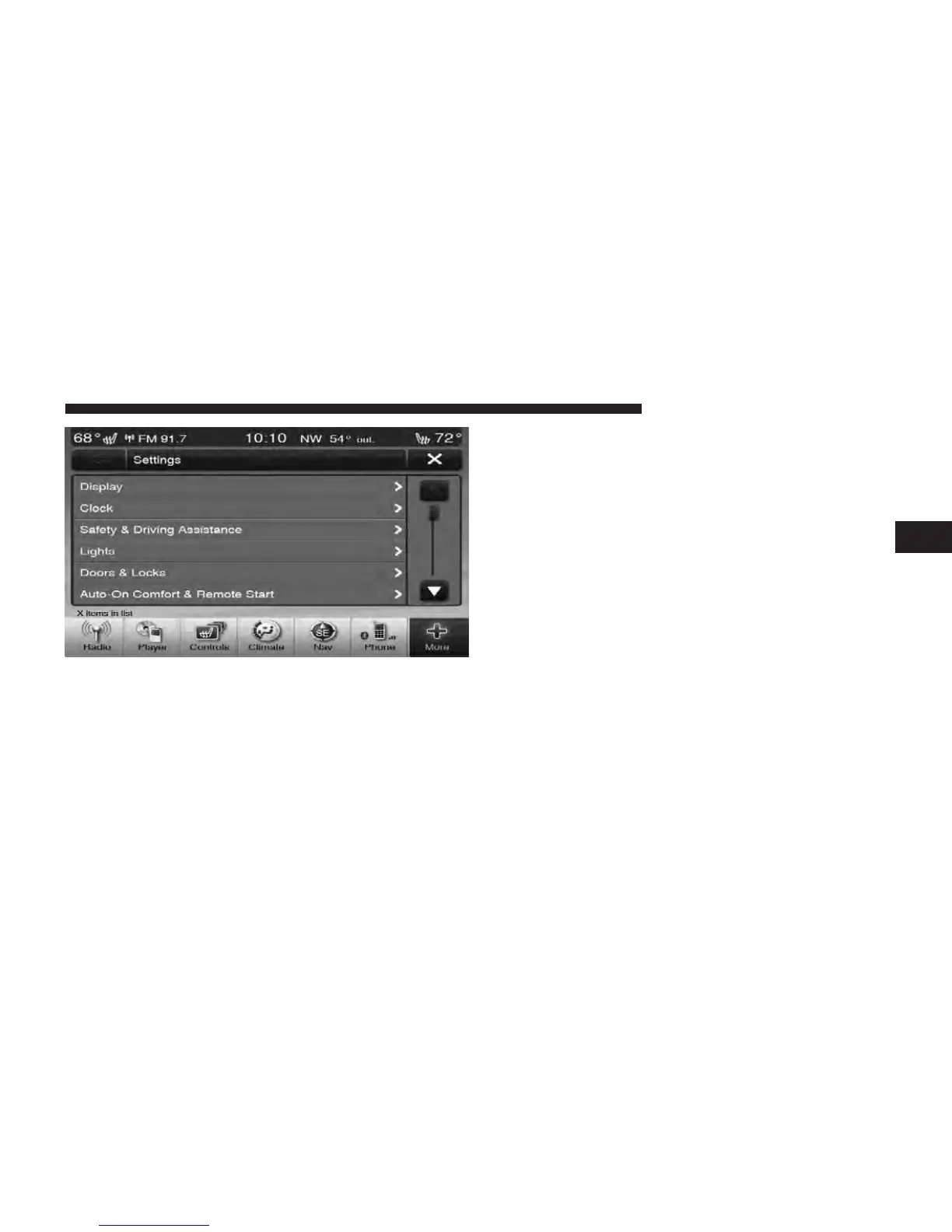
3. Press the Display soft-key to enter the Display Menu
4. The Display Menu shows the following options for
you to customize your display.
•
Display Mode
•
Display Brightness with Headlights On
•
Display Brightness with Headlights Off
•
Set Language
•
Units
•
Voice Response Length
•
Touchscreen Beep
•
Navigation Turn-by-Turn Displayed in the Cluster
(If Equipped)
•
Fuel Saver Displayed in the Cluster (If Equipped)
5. Touch the + or – soft-key to change the Brightness. Or
touch the check mark or empty box to change a selection.
NOTE: The check-mark indicates the current selection is
active.
6. Touch the X soft-key to exit from the Display Menu
and Settings.
3
Uconnect Touch™ 8.4 SYSTEM 111



 To Next Page