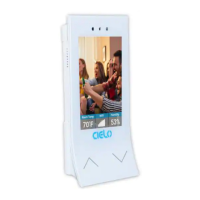
Need help?
Do you have a question about the Cielo Breez Lite and is the answer not in the manual?
Guides for positioning the Breez Lite for best performance and accurate readings.
Provides website, email, and phone number for customer support and inquiries.
Lists essential requirements for your smartphone and Wi-Fi router before installing the app.
Instructions on how to download and install the Cielo Home application from app stores.
Steps for logging into an existing account or creating a new one in the Cielo Home app.
Details required permissions like Location and Local Network Access for iOS devices during registration.
Details required permissions like Location for Android devices during registration.
Step-by-step guide on adding the Breez Lite device within the Cielo Home application interface.
Ensures the Breez Lite is powered on and the phone's Bluetooth is active before proceeding.
Guides the user to connect to the Breez Lite once detected and provides troubleshooting for connection issues.
Involves naming the device and connecting it to a Wi-Fi network for further setup.
Explains that the device appears on the home screen after Wi-Fi setup, ready for remote configuration.
Instructs the user to have their AC remote ready for the configuration process.
Guides on pointing the AC remote at Breez Lite and pressing the power button to initiate configuration.
Involves sending a test command to verify the remote configuration and confirming the completion of registration.
Explains the meaning of green (online) and red (offline) status indicators on the home screen.
Details how to refresh the home screen to get the latest device status updates.
Explains the meaning of different LED indicator patterns on the Breez Lite for troubleshooting.
Provides a step-by-step guide for manually selecting the correct remote control model for the AC.
Offers a tip on locating the remote control model number, typically found on the back of the remote.
Outlines the terms and conditions of the product's limited warranty for end-users.
Details the conditions for claiming warranty service and the process to follow.
Specifies exclusions and limitations of what is not covered under the product's limited warranty.
 General
| Device Type | Smart AC Controller |
|---|---|
| Connectivity | Wi-Fi (2.4 GHz) |
| Mobile App | Cielo Home (iOS & Android) |
| Voice Control | Amazon Alexa, Google Assistant |
| Power Supply | 5V DC, 1A (Micro USB) |
| Smart Home Integration | IFTTT |
| Features | Scheduling, Geofencing, Energy Monitoring |
| Compatibility | IR-based ACs (Window, Split, Portable) |

 To Next Page