EasyManua.ls Logo

Cielo Breez - User Manual

Cielo Breez
38 pages
Print Icon
To Next Page IconTo Next Page
Loading...
INSTRUCTIONS / ASSEMBLY
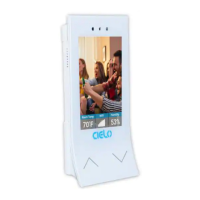
Step 1a: Unpacking and Plugging-in Cielo Breez Wi-Fi Air
Conditioner Controller
For best results, connect Breez with the provided USB cable and adapter. Mount your Breez on a wall in
AC/Heat Pump's line of sight and plug it into a power source.
For optimal placement and control:
Place Breez around 2-4 meters (8-14 feet) away and within line of sight of your air-conditioner or heat
pump.
To avoid deviated sensor readings, do not place Breez where it may be exposed to excessive sunlight
or other heat sources.
Best Case Scenario: It is strongly advised that whenever there is a need to use Remote Controller
for AC/heat Pump, point it towards Breez while performing any operation. This way, your AC/heat
pump and Cielo Home app will always be in sync.
Step 1b: Prior to App Installation
Your Mobile Phone
Make sure Wi-Fi is turned ON on your cell phone.
Question and Answer IconNeed help?

Do you have a question about the Cielo Breez and is the answer not in the manual?

Summary

Initial Setup and Preparation

Step 1 a: Unpacking and Plugging-in

Guide to unpacking the device and connecting it to a power source.

Step 1 b: Pre-App Installation Checks

Essential checks for mobile phone Wi-Fi and internet access before app installation.

App Installation and Account Management

Step 2 a: Install the Cielo Home App

Steps to download and install the Cielo Home application from app stores.

Step 2 b: Login or Register Account

Process for creating a new account or logging into an existing one.

Registering Cielo Breez (iOS)

Step 3 a: iOS Registration Process

Detailed steps for iOS users to connect the Cielo Breez to their home Wi-Fi.

Completing iOS Registration

Step 3 a Continuation

Continuation of iOS registration steps, including Wi-Fi connection and device naming.

Registering Cielo Breez (Android)

Step 3 b: Android Registration Process

Detailed steps for Android users to connect the Cielo Breez to their home Wi-Fi.

Completing Android Registration

Step 3 b Continuation

Continuation of Android registration steps, including Wi-Fi connection and device naming.

Device Registration Tips

Troubleshooting Android Registration

Tips for resolving common Android registration issues, like Wi-Fi connectivity.

Finding the Correct AC;Heat Pump Model

Guidance on selecting the correct remote model if the device is not working with the AC/heat pump.

Home Screen and Device Status

Step 4 a: Home Screen Overview

Description of the home screen displaying connected Cielo smart devices and their status.

Step 4 b: Refreshing Controller Status

Method to refresh the status of smart controllers by swiping downwards.

Step 4 c: Turning AC;Heat Pump ON

How to turn on the connected Air-Conditioner/Heat Pump using the app.

Operating the AC;Heat Pump

Step 4 c Continuation: Turning ON

Continuation of turning on the AC/Heat Pump via the app.

Understanding the Control Screen

Step 5: Control Screen Elements

Explanation of the various controls and indicators on the device's control screen.

Setting Up Schedules (iOS)

Step 6 a: Creating Schedules (iOS)

Guide to setting up automated schedules for AC/Heat Pump operations on iOS.

Managing Schedules (iOS)

Step 6 b: Deleting Schedules (iOS)

Instructions on how to remove a previously set schedule for AC/Heat Pump.

Setting Up Schedules (Android)

Step 6 a: Creating Schedules (Android)

Guide to setting up automated schedules for AC/Heat Pump operations on Android.

Completing Schedule Setup (Android)

Step 6 a Continuation: Saving Schedules

Continuation of setting up schedules, focusing on saving the configuration.

Managing Schedules (Android)

Step 6 b: Deleting Schedules (Android)

Instructions on how to remove a previously set schedule for AC/Heat Pump.

Location-Based Controls (iOS)

Step 7 a: Enabling Location Controls (iOS)

Setting up geofencing to automatically control AC/Heat Pump based on user's location.

Location-Based Controls (Android)

Step 7 b: Enabling Location Controls (Android)

Setting up geofencing to automatically control AC/Heat Pump based on user's location.

Completing Location Controls Setup

Step 7 b Continuation: Saving Location Settings

Continuation of Android location controls, focusing on saving the geofence settings.

Temperature Control Interface

Step 8: Adjusting Temperature

How to increase or decrease the AC/Heat Pump temperature using the app's controls.

Display Customization (Android)

Step 9 a: Changing Display Picture (Android)

Guide for Android users on how to change the device's display image.

Completing Display Customization (Android)

Step 9 a Continuation: Cropping and Saving Image

Continuation of changing display image, including cropping and saving the new picture.

Display Customization (iOS)

Step 9 b: Changing Display Picture (iOS)

Guide for iOS users on how to change the device's display image.

Completing Display Customization (iOS)

Step 9 b Continuation: Saving Display Image

Continuation of changing display image, including saving the new picture.

Display Screen Management (Android)

Step 10 a: Turning OFF Display (Android)

How Android users can turn off the Cielo Breez display screen.

Completing Display Screen Management (Android)

Step 10 a Continuation: Turning ON Display

How Android users can turn the Cielo Breez display screen back ON.

Display Screen Management (iOS)

Step 10 b: Turning OFF Display (iOS)

How iOS users can turn off the Cielo Breez display screen.

Creating Zones (Android)

Step 11 a: Create a New Zone (Android)

Steps for Android users to create a new zone for organizing devices.

Completing Zone Creation (Android)

Step 11 a Continuation: Naming and Saving Zone

Continuation of creating zones, focusing on naming and saving the new zone.

Creating Zones (iOS)

Step 11 b: Create a New Zone (iOS)

Steps for iOS users to create a new zone for organizing devices.

Completing Zone Creation (iOS)

Step 11 b Continuation: Naming and Saving Zone

Continuation of creating zones, focusing on naming and saving the new zone.

Adding Devices to Zones (Android)

Step 12 a: Add Device to Zone (Android)

How Android users can add an existing device to a created zone.

Adding Devices to Zones (iOS)

Step 12 b: Add Device to Zone (iOS)

How iOS users can add an existing device to a created zone.

Changing Device Zone (Android)

Step 13 a: Move Device Between Zones (Android)

Process for Android users to move a device from one zone to another.

Changing Device Zone (iOS)

Step 13 b: Move Device Between Zones (iOS)

Process for iOS users to move a device from one zone to another.

Managing Zones (Android)

Step 14 a: Edit or Delete Zone (Android)

How Android users can edit zone names/icons or delete zones.

Managing Zones (iOS)

Step 14 b: Edit or Delete Zone (iOS)

How iOS users can edit zone names/icons or delete zones.

Deleting Devices (iOS)

Step 15 a: Delete Cielo Breez (iOS)

Instructions for iOS users to remove a device from the Cielo Home app.

Deleting Devices (Android)

Step 15 b: Delete Cielo Device (Android)

Instructions for Android users to remove a device from the Cielo Home app.

Cielo Breez Specifications

General IconGeneral
BrandCielo
ModelBreez
CategoryController
LanguageEnglish

Related product manuals