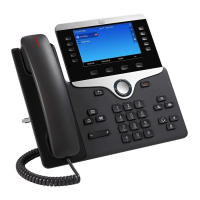
Placing a Call
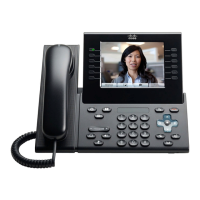
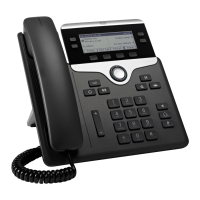
To place a call, pick up the handset and enter a 10-Digit number or, try
one of these alternatives:
Redial the last number
Press the Redial softkey to redial on your primary line.
Dial on-hook
1. Enter a number when the phone is idle
2. Lift the handset or press one of these: the Call softkey, the headset
button, or the speakerphone button
Answering a Call
New call indicators:
• A flashing amber line button
• An animated icon and caller ID
• A flashing red light on your handset
To answer the call, lift the handset. Or press the flashing amber line
button, the Answer softkey, or the unit headset or speakerphone button.
Transferring a Call
1. From a connected call (not on hold), press the Transfer button.
2. Enter the transfer recipient’s phone number. Alternatively, if you
have Speed Dials, you can press the button next to the speed dial.
3. Press the Transfer button or the Transfer softkey (before or
after the recipient answers).
Transferring a Call directly to Voicemail
1. From a connected call (not on hold), press the Transfer button.
2. Enter *55 + transfer recipient’s phone number, then hit the “Call”
Softkey.
Hold
1. Press the Hold button or Softkey. The hold icon appears.
2. To resume a call from hold, press the Resume softkey or Hold button.
Mute
1. While on a call, press the Mute button. The button glows to
indicate that Mute is on.
2. Press Mute again to turn off.
Call Park
1. While on an active call, use the far right softkey button to change
softkey screens until you see the “Park” option and select it.
2. Enter an extension to park the call on (generally your own) and select
the “Call” softkey.
Call UnPark
1. From any phone, use the far right softkey button to change softkey
screens until you see “UnPark” option and select it.
2. Dial the extension that the call is parked on and press “call” or lift-up
the handset.
Conference
1. From an active call, press Conference button or use
Conference softkey.
2. Enter the number you want to join and press Dial.
3. Once the call is connected, press Conference again.
Directories
1. Press the Contacts button.
2. Select a directory. (Use the Navigation bar and round Select button
to scroll and select).
3. Use your keypad to input search criteria.
4. Press the Search softkey.
5. To dial, scroll to a listing and press the Call softkey.
Voicemail
Initial setup of your voicemail box from phone.
1. Press the Messages button on your phone.
2. When prompted, enter the default passcode: 419946
3. You will now be asked to record you name and to change your
passcode.
4. To record your greeting after initial setup, select “1” to “enter your
mailbox” option.
5. Then select the options to record your busy and away greetings.
New message indicators
• A solid red light on your handset
• “New Voicemail” message on the screen
Listen to messages from your phone
1. Press the Messages button and follow the voice prompts.
2. To listen to messages for a specific line, select the line button first,
then press the Messages button.
Listen to messages from another IP phone
1. Press the Messages button.
2. Press * after the initial greeting.
3. Enter your mailbox ID (your extension).
4. Enter your passcode.
Speed Dials
Initial setup of Speed Dial
1. Press any unused line button and hold it down for 3 seconds.
2. Scroll to “Speed Dial” option and press “Select”
3. Enter Label for Speed dial and number
4. Select “Save”


 To Previous Page
 Loading...