EasyManua.ls Logo

Cisco CBS 220 Series - User Manual

Cisco CBS 220 Series
10 pages
Print Icon
To Next Page IconTo Next Page
Loading...
Get to Know Your Switch
This chapter contains the following sections:
Introduction, on page 1
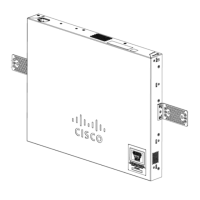
Rack Mounting Switch, on page 2
Wall Mounting a Switch, on page 3
PoE Consideration, on page 5
Front Panel, on page 6
Configuring Switches, on page 8
Introduction
Thank you for purchasing the Cisco CBS 220 Series Switch. The Cisco CBS 220 Series Switches are the next
generation of affordable smart switches that combine powerful network performance and reliability with a
complete suite of network features that you need for a solid business network. These expandable Gigabit
Ethernet switches, with Gigabit or 10-Gigabit uplinks, provide multiple management options, and rich security
capabilities. With an easy-to-use web user interface and Power over Ethernet Plus capability, you can deploy
and configure a complete business network in minutes.
Before You Begin
Before you begin installing your device, ensure that the following items are available:
RJ-45 Ethernet cables for connecting network devices. A category 6a and higher cable is required for
10G ports; a category 5e and higher cable is required for all other ports.
Tools for installing the hardware.
The rack-mount kit packed with the switch contains four rubber feet for desktop placement, and
two brackets and twelve screws for rack mounting.
If the supplied screws are lost, use replacement screws in the following size:
Diameter of the screw head: 6.9 mm
Length of face of screw head to base of screw: 5.9 mm
Shaft diameter: 3.94 mm
Get to Know Your Switch
1
Question and Answer IconNeed help?

Do you have a question about the Cisco CBS 220 Series and is the answer not in the manual?

Summary

Introduction

Before You Begin

Rack Mounting Switch

Wall Mounting a Switch

Wall Mount an 8 Port Switch

PoE Consideration

Front Panel

Front Panel LEDs

Configuring Switches

Configuring Your Switch Using the Web-based Interface

Access and manage the switch via its web interface, including default settings and steps.

Configuring Your Switch Using the Console Port

Access and manage the switch via its console port, including required parameters and steps.

Overview

This document describes the Cisco CBS 220 Series Switch, an affordable smart switch designed to provide powerful network performance and reliability for business networks. These switches offer a comprehensive suite of network features, making them suitable for various business environments. They are expandable Gigabit Ethernet switches, featuring both Gigabit and 10-Gigabit uplinks, which allows for flexible network scaling and high-speed connections.

Function Description

The Cisco CBS 220 Series Switches serve as the core networking component for small to medium-sized businesses, enabling the connection of various network devices such as computers, printers, IP cameras, VoIP phones, and wireless access points. They facilitate data transfer across the network, ensuring reliable communication and resource sharing. The switches support multiple management options, including a user-friendly web-based interface and a command-line interface (CLI) via a console port, catering to both novice and advanced users.

Many models within the CBS 220 Series support Power over Ethernet (PoE) and PoE+, allowing them to supply DC power to attached powered devices (PDs) directly through the Ethernet cable. This eliminates the need for separate power outlets for devices like VoIP phones and IP cameras, simplifying deployment and reducing cabling complexity. The PoE functionality is designed to detect and supply power to both standard and pre-standard legacy PoE PDs.

The switches are equipped with RJ-45 Ethernet ports for standard network connections and SFP+ ports (on some models) for fiber optic or high-speed copper connections to other switches or network devices. The SFP+ ports are compatible with various Cisco SFP 1G optical modules and Cisco SFP+ Copper Cable modules, offering versatility in uplink options.

Usage Features

The Cisco CBS 220 Series Switches are designed for ease of deployment and configuration. They can be installed in several ways:

  • Desktop Placement: The switches come with four rubber feet for stable placement on a desktop.
  • Rack Mounting: They can be mounted in any standard 19-inch (about 48 cm) wide rack, occupying 1 rack unit (RU) of space (1.75 inches or 44.45 mm high). The rack-mount kit includes two brackets and twelve screws for secure installation. When rack mounting, it is crucial to load the rack from bottom to top, placing the heaviest devices at the bottom to ensure stability and prevent tipping.
  • Wall Mounting: The switches can also be wall-mounted, either to wall studs or a firmly attached plywood mounting backboard. For 24-port switches, brackets are used, and the switch should be mounted with its front panel facing down or to the side to prevent airflow restriction and allow easier access to cables. For 8-port switches, mounting screws are used directly, guided by a screw template.

Initial configuration of the switch can be done through two primary methods:

  • Web-based Interface: This is the recommended method for most users due to its graphical and intuitive nature. To access it, a computer needs to be connected to any network port of the switch. The switch uses a default static IP address of 192.168.1.254/24. Users must configure their computer's IP address within the same subnet (e.g., 192.168.1.2 to 192.168.1.253) to establish communication. Alternatively, if a DHCP server is present, the switch can obtain an IP address automatically. Once connected, users open a web browser, enter the switch's IP address, and log in using the default username "cisco" and password "cisco." For security, users are prompted to change these default credentials upon the first login.
  • Console Port: For advanced users or specific debugging scenarios, the switch can be configured via a console port using a serial cable (RJ-45) or a mini USB connector. A console port utility (e.g., HyperTerminal) on a computer is used with specific parameters: 115200 bits per second, 8 data bits, no parity, 1 stop bit, and no flow control. Similar to the web interface, default credentials are "cisco" for both username and password, and users are advised to change them immediately.

The front panel of the switch features various LEDs that provide visual status indicators for the device and its ports:

  • System LED (Green/Amber): Indicates the overall status of the switch. A steady green light means the switch is powered on; flashing green indicates booting, self-tests, or IP address acquisition. Flashing amber signifies a hardware, firmware, or configuration file error.
  • LINK/ACT LED (Green): Located on the left of each port, this LED lights steady when a link is detected between the port and another device and flashes when traffic is passing through the port.
  • XG LED (Green): (If present on 10G ports) Lights steady when a 10 Gbps link is established. If off, the connection speed is under 10 Gbps or no cable is connected.
  • Gigabit LED (Green): (If present on 1G ports) Lights steady when a 1000 Mbps link is established. If off, the connection speed is under 1000 Mbps or no cable is connected.
  • PoE LED (Amber): (If present on PoE ports) Lights steady when power is being supplied to a device attached to the corresponding port.

Maintenance Features

The Cisco CBS 220 Series Switches incorporate features that aid in maintenance and troubleshooting:

  • Reset Button: A physical reset button is available on the front panel. Pressing it for less than 10 seconds reboots the switch.
  • Password Complexity: By default, password complexity rules are enabled, ensuring that new passwords are robust and secure, which is a critical security maintenance practice.
  • Configuration Saving: Users are reminded to save any configuration changes made through the web-based interface by clicking the Save icon. Exiting without saving will result in the loss of all changes, emphasizing the importance of this step for maintaining desired settings.
  • PoE Considerations: For PoE switches, specific guidelines are provided to prevent "false detection" where a PoE switch might mistakenly detect another PSE (Power Sourcing Equipment) as a PD (Powered Device). To mitigate this, users should disable PoE on ports connecting to other PSEs and power up PSE devices before connecting them to a PoE switch. If false detection occurs, disconnecting the device, power cycling it with AC power, and then reconnecting it is recommended.
  • Debug Access (Console Port): The console port provides additional interfaces for debug access, intended for Cisco Support Team personnel. These interfaces, which are password-protected, allow for viewing device settings, applying protocol and layer 1 debug commands, and settings during run-time. This includes U-BOOT access during the boot sequence and Linux Kernel access, facilitating in-depth diagnostics and troubleshooting by support staff.
  • IP Address Management: The system provides clear guidance on managing IP addresses, whether using the default static IP, DHCP, or manually configured static IPs. This helps prevent IP conflicts and ensures network accessibility. If the switch's IP address changes (e.g., via DHCP), users are informed that their access via the web-based interface will be lost unless they update their browser with the new IP. Console access, however, remains unaffected.

Overall, the Cisco CBS 220 Series Switches are designed to be robust, manageable, and secure, offering a reliable foundation for business networking needs with features that support both straightforward operation and advanced troubleshooting.

Cisco CBS 220 Series Specifications

General IconGeneral
LayerLayer 2
Jumbo Frame SupportUp to 9216 bytes
SeriesCBS220
Ports8
PoEAvailable on some models
ManagementWeb-based, CLI, SNMP
Energy Efficient EthernetYes
MountingRack-mountable
VLAN SupportYes (802.1Q)
Quality of Service (QoS)Yes
Security FeaturesACLs, 802.1X, Port Security
Power SupplyInternal
DimensionsVaries by model
WeightVaries by model
CertificationsCE, FCC
Uplink PortsSFP
Operating Temperature0°C to 40°C (32°F to 104°F)
Humidity5% to 90% non-condensing

Related product manuals