EasyManua.ls Logo

Cisco DPQ3212 - User Manual

Cisco DPQ3212
40 pages
Print Icon
To Next Page IconTo Next Page
Loading...
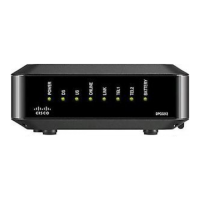
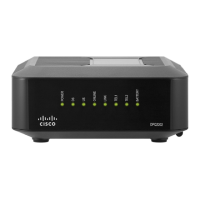
Cisco Model DPQ3212 8x4
DOCSIS 3.0 Cable Modem with
Embedded Digital Voice Adapter
User Guide
In This Document
IMPORTANT SAFETY INSTRUCTIONS ............................................................... 2
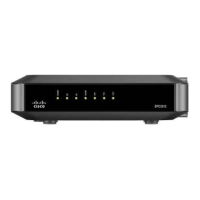
Front Panel Description ........................................................................................... 11
Back Panel Description ............................................................................................ 13
What Are the System Requirements for Internet Service? .................................. 15
How Do I Subscribe to High-Speed Internet and Telephone Service? ............. 16
Where Is the Best Location for My Cable Modem?.............................................. 18
How Do I Mount the Modem on a Wall? (Optional) ........................................... 19
What Are the Requirements for Telephone Service? ........................................... 22
How Do I Connect the Cable Modem for Internet and Telephone Service? .... 23
Installing USB Drivers .............................................................................................. 26
Frequently Asked Questions ................................................................................... 28
Having Difficulty? .................................................................................................... 33
Tips for Improved Performance ............................................................................. 34
Front Panel LED Status Indicator Functions ......................................................... 35
How Do I Maintain the Battery? ............................................................................. 37
Notices ........................................................................................................................ 39
Question and Answer IconNeed help?

Do you have a question about the Cisco DPQ3212 and is the answer not in the manual?

Cisco DPQ3212 Specifications

General IconGeneral
Modem TypeDOCSIS 3.0
Maximum Download Speed343 Mbps
Number of Downstream Channels8
Number of Upstream Channels4
Ethernet Ports1
Wi-FiNo
Telephony Ports2

Summary

Cable Modem Safety Instructions

Electrical Safety and Grounding

Warnings for proper electrical outlet use and coaxial cable system grounding.

Product Protection from Environmental Hazards

Instructions for protecting the product from lightning, overloads, and handling the battery.

FCC and Regulatory Compliance

United States FCC Compliance

Information regarding FCC rules, interference, and user guidance for compliance.

FCC Declaration of Conformity

Statement of compliance with Part 15 of FCC Rules for the device.

Front Panel LED Indicator Guide

Back Panel Ports and Functions

Internet Service System Requirements

Service Subscription Guide

Setting Up a New Internet Account

Steps to set up a new high-speed Internet account with a service provider.

Arranging Telephone Service

Steps and considerations for setting up telephone service with the cable modem.

Telephone Service Setup Requirements

Cable Modem Connection Guide

Internet and Telephone Connection Setup

Overview of connecting the cable modem for internet and telephone services.

Connecting Devices Procedure

Procedure for connecting the modem to power, coax, PC, and telephone lines.

Installing USB Drivers for PC Connection

USB Driver Installation for Windows 2000

Step-by-step guide for installing USB drivers on Windows 2000 systems.

USB Driver Installation for Windows XP

Step-by-step guide for installing USB drivers on Windows XP systems.

Cable Modem Frequently Asked Questions

IP Address Renewal FAQ

Procedures for renewing the PC's IP address for internet connectivity.

TCP;IP Configuration FAQ

Instructions for configuring TCP/IP settings on different operating systems.

Troubleshooting Common Cable Modem Issues

Ethernet Connection Problems

Solutions for issues related to registering Ethernet connections.

No Dial Tone Issues

Steps to resolve issues with no dial tone on telephone ports.

Front Panel LED Status Indicator Functions

Initial Power Up and Registration LEDs

Chart showing LED status during initial power up, calibration, and registration.

Normal Operations LEDs

Explanation of front panel LED status during normal operation.

Modem Battery Maintenance and Replacement

Related product manuals