3
Wireless Network Configuration: Windows 7
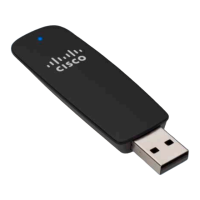
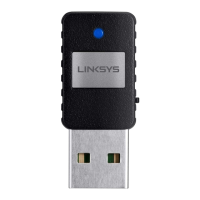
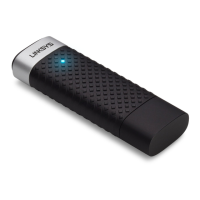
Linksys AE1200/AE2500
3
To configure the adapter’s wireless connection settings, use a wireless network
configuration utility. If you have installed such a utility on your computer,
or if your computer came with one already installed, refer to that utility’s
documentation for instructions on use. Otherwise, follow the instructions in
the appropriate section below to use your operating system’s built-in utility:
• “Windows 7” on page 3
• “Windows Vista” on page 4
• “Windows XP” on page 6
Windows 7
After you have installed the adapter, the Wireless Network Configuration
utility icon appears on your computer’s system tray. (If you do not see the
icon, click the Show hidden icons arrow in the system tray.)
When your mouse pointer hovers over the icon, the status information of
your wireless connection appears.
New Wireless Connection
To connect to a different wireless network:
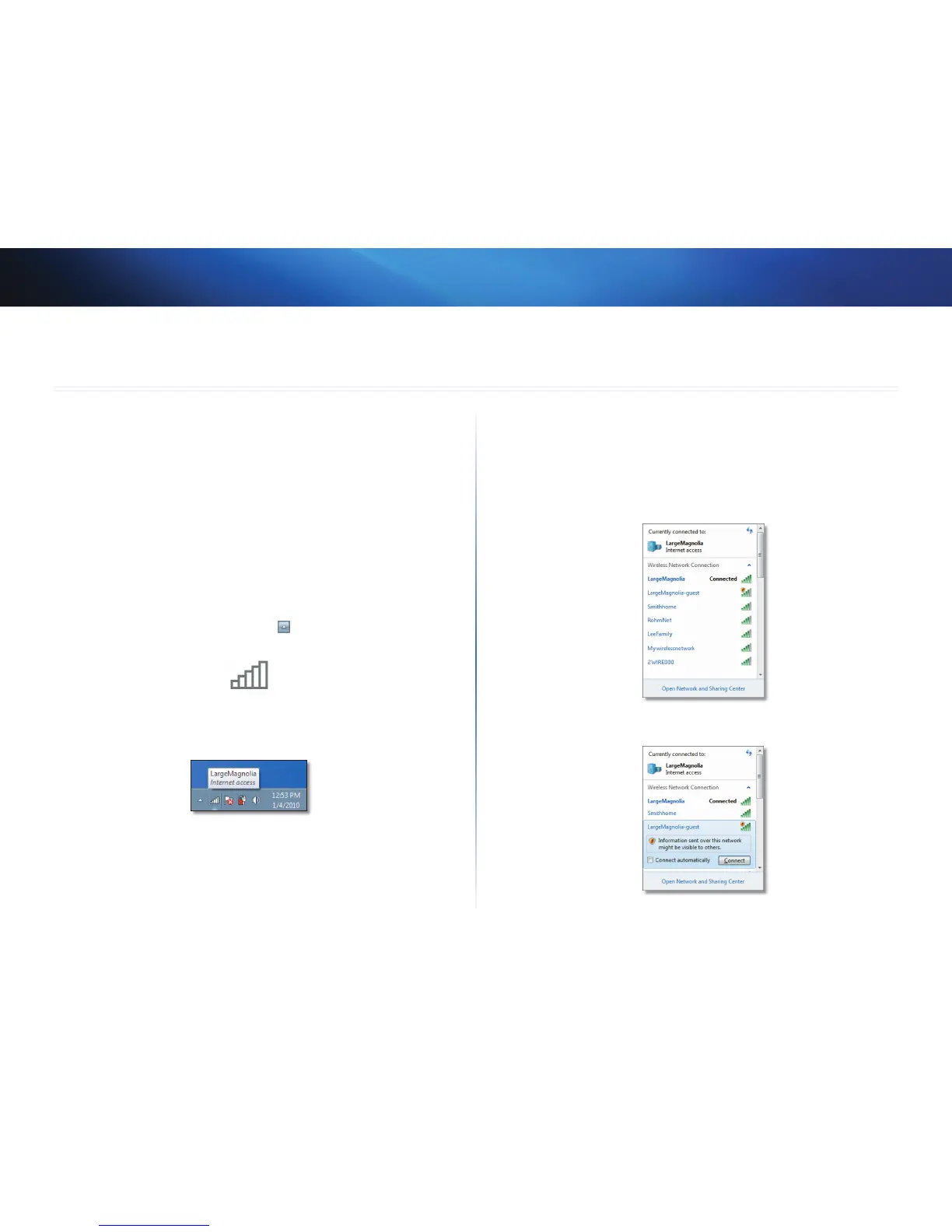
1. Click the Wireless Network Configuration utility icon. A list of available
wireless networks appears.
2. Select your network, and then click Connect.
3. If your network does not use wireless security, go to step 5.
Wireless Network Configuration



 To Next Page
 Loading...