In-Room Control on Touch10
for Cisco TelePresence
MX200 G2, MX300 G2,
MX700, MX800,
SX10, SX20, SX80
Collaboration Endpoint
software version CE8.2
D15358.02 - JULY 2016
www.cisco.com
© 2016 Cisco Systems, Inc.
All rights reserved.
12
Apply In-room Control panel to the video system
(Not available when using the offline editor. Instead, you should
export the in-room control panel to a file in order to save your work
for later.)
Apply the in-room control panel to the video system. You will see the
results immediately on the Touch 10.
• Choose Export > To codec
Check the result on Touch 10
(Not available when using the offline editor.)
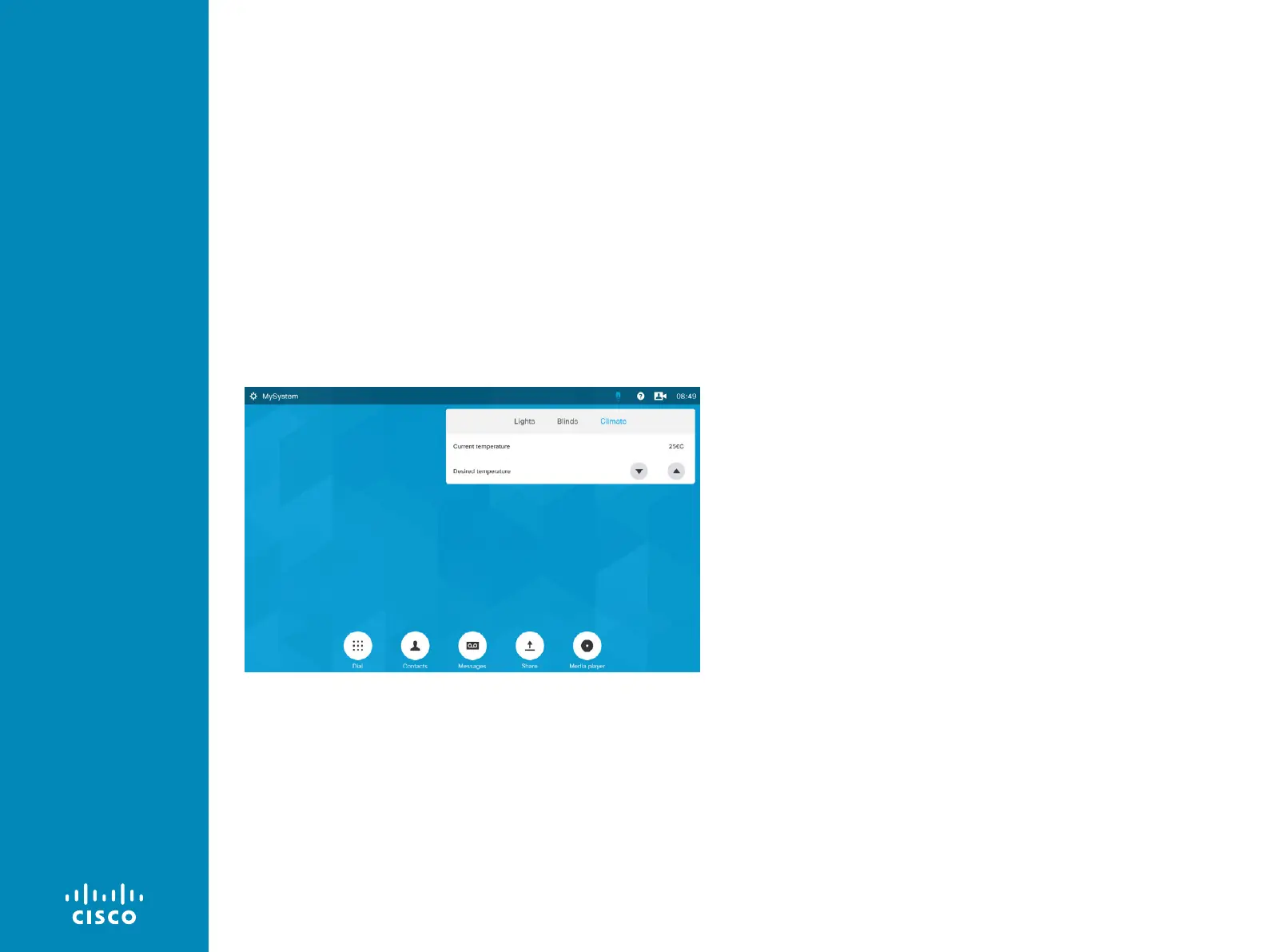
Tap the in-room control icon in the Touch 10 status bar to open the
in-room control panel.
Example of two sets of in-room control panels. The Global has been
selected (blue light bulb) and a panel consisting of three panes is shown.
To the right of the Share button, a in-room control Homescreen entry icon
has been added.
Which in-room control icons (entry icons) used is defined by the
Panel icon setting, as shown on the previous page.
Export the In-room Control panel to file
You may also export the in-room control panel to a file. This file can
be imported back into the editor at a later stage. Note that you will
export all your work (Global, Homescreen and In-Call panels)
• Choose Export > To file
If you are using the offline editor, this is the only way you can save
your work for later.
Exporting to file may also be useful as a way of creating a design
template if you are going to push the same in-room control panel to
multiple video systems.
Files exported while connected to a video system are in the same
format as files exported from an offline editor. This means that any
of these files can be imported into an editor launched from a video
system's web interface, and then pushed to the video system's
Tou ch 10.
Remove a panel from Touch 10
To remove a panel from the Touch 10, remove it from the editor and
then push your editor configuration to the video system. The panel’s
icon should disappear instantly.





 To Next Page