In-Room Control on Touch10
for Cisco TelePresence
MX200 G2, MX300 G2,
MX700, MX800,
SX10, SX20, SX80
Collaboration Endpoint
software version CE8.2
D15358.02 - JULY 2016
www.cisco.com
© 2016 Cisco Systems, Inc.
All rights reserved.
5
In-room controls
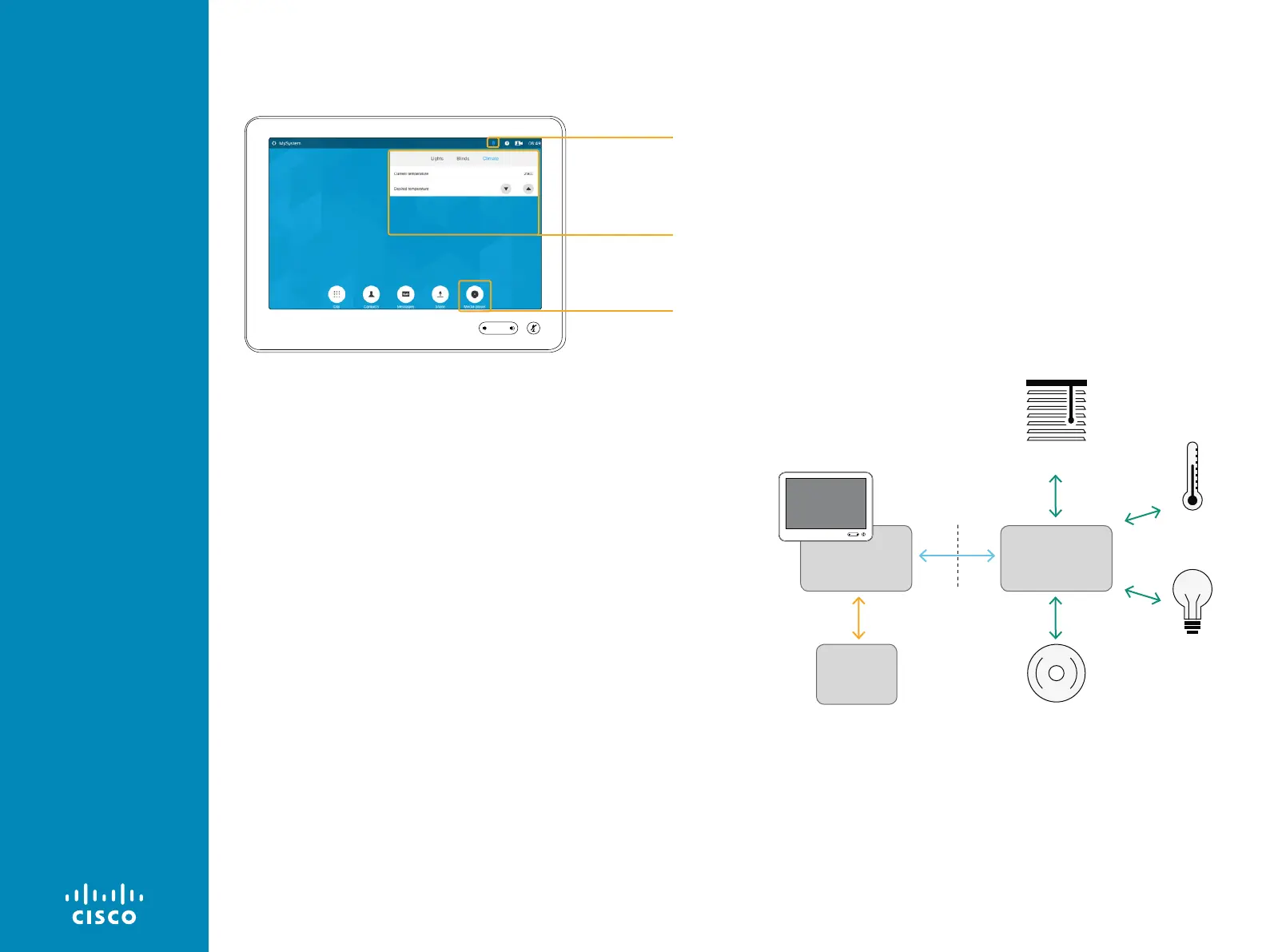
Example of Global and Homescreen in-room control panels on Touch
10. Any In-Call panel icons existing will be visible during calls only.
Global control
panel example
Global entry icon
example
You can customize the Touch 10 user interface to allow control of
peripherals in a meeting room, for example playback of a sound or
movie source, lights and blinds.
You can also add content sensitive controls appearing only when in a
call and/or only outside calls.
This means that altogether you have three sets of panels at your
disposal:
• Global panel has its entry icon in the status bar at the top of the
Touch 10 display. Once established, this entry icon is visible at all
times.
• Homescreen panel has its entry icon located to the right of the
buttons appearing along the bottom of the Touch 10 display. This
entry icon is visible outside calls only.
• In-Call panel has its entry icon located to the right of the buttons
appearing along the bottom of the Touch 10 display. This entry
icon is visible when in a call only.
You need a Cisco video system with a
Touch 10 user interface, and a
third-party control system, for example Crestron, AMX.
The video system’s API, referred to as the xAPI, is the link between
the video system and the control system. Use the events and
commands exposed by the xAPI when you program the control
system.
The simple drag-and-drop in-room control editor offers a library of
user interface elements, referred to as widgets. You can use these
widgets to create your own in-room control panel
for the Touch 10
user interface.
Together, all of this provides a powerful combination of the control
system’s functionality and the user-friendly Touch 10 user interface.
In-room control schematics
Video system
Blinds
Climate
Lights
Other...
In-room
control
editor
xAPI
Control system
Touch10
Homescreen
entry icon
example




 To Next Page