In-Room Control on Touch10
for Cisco TelePresence
MX200 G2, MX300 G2,
MX700, MX800,
SX10, SX20, SX80
Collaboration Endpoint
software version CE8.2
D15358.02 - JULY 2016
www.cisco.com
© 2016 Cisco Systems, Inc.
All rights reserved.
7
Create a user interface for the Touch 10
Use the in-room control editor to create customized panels for
peripheral controls on the video system’s Touch 10 user interface.
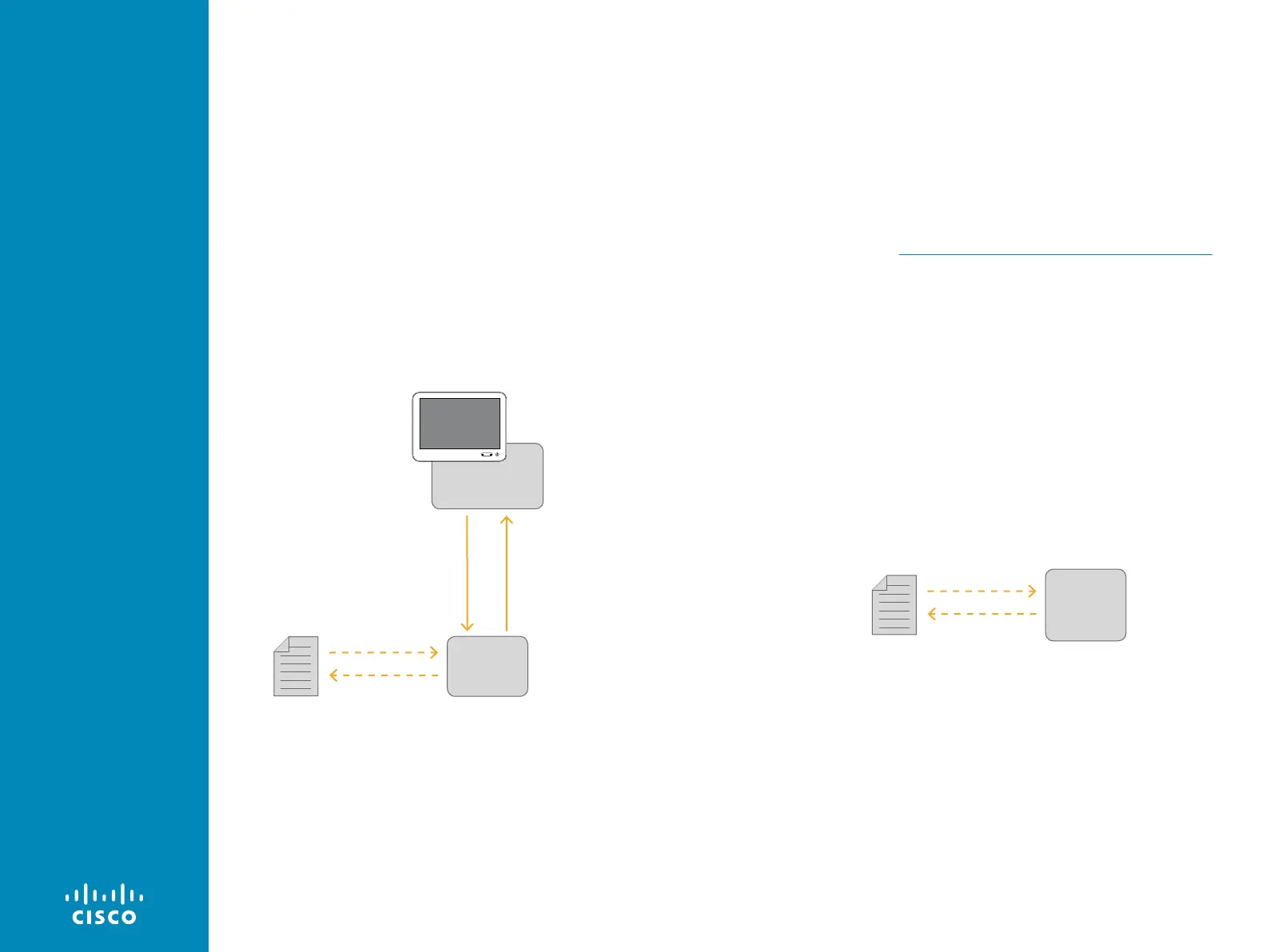
Connected to the video system
If you have access to the video system, you can launch the editor
from the video system’s web interface.
If an in-room control panel already has been created on the Touch 10,
this will automatically load into the editor, ready to act as a starting
point for your design.
When you push a new panel to the video system, you will
immediately see the result on the Touch 10.
In-room control editor launched from the video system's web interface
Push new in-room control
panel to video system
Import existing in-room control
panel from video system
Export new
in-room control
panel to file
Import an
in-room control
panel from file
Video system
Touch10
In-room
control
editor
Offline
There are two places you can download the offline editor from:
• Download from http://www.cisco.com/go/in-room-control-docs
• Or, sign in to a video system’s web interface with administrator
credentials, navigate to Integration > In-Room Control, and click
Download Editor.
If you choose to download the offline editor, extract the files from the
downloaded zip-file. Retain the folder structure.
When using the offline editor you will be working with files, rather
than communicating directly with the video system and Touch10.
Apart from this, the offline editor has full functionality.
The editor that you launch from the video system’s web interface and
the offline editor share the same file format, so files created in one
version can be opened and modified in the other.
Offline in-room control editor
Export new
in-room control
panel to file
Import an
in-room control
panel from file
Offline
in-room
control
editor





 To Next Page