In-Room Control on Touch10
for Cisco TelePresence
MX200 G2, MX300 G2,
MX700, MX800,
SX10, SX20, SX80
Collaboration Endpoint
software version CE8.2
D15358.02 - JULY 2016
www.cisco.com
© 2016 Cisco Systems, Inc.
All rights reserved.
8
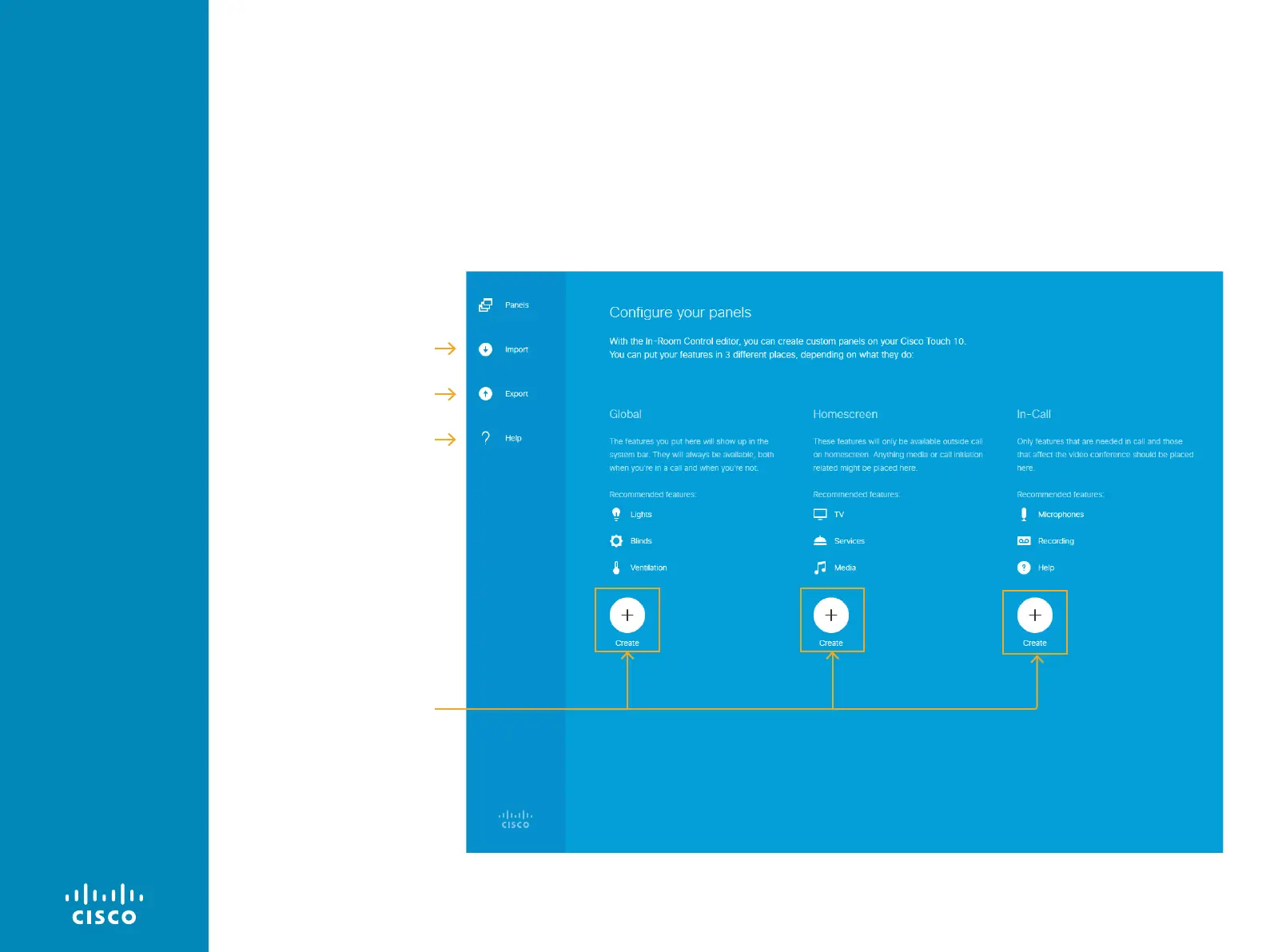
Export your panel to the video
system (codec), or export it to
a file that can be imported back
into the editor at a later stage
There are three sets of panels
available; Global, Homescreen
and In-Call. Each set may
contain multiple pages. To
create a panel, click here.
Link to online guides
Import the current panel from
the video system (codec), or
import a panel that has been
exported to a file on an earlier
occasion
Launch the In-room Control editor
Sign in to the video system's web interface with administrator
credentials, navigate to Integration > In-Room Control, and click
Launch Editor.
If there is a set of in-room control panels on the video system
already, it will load automatically into the editor. The Create icons
(as in the below example) will then read Edit wherever a panel has
already been created.
Offline version. If you are using the offline version of the editor,
open the index.html file that you find in the rceditor folder.




 To Next Page