!"#$%&'(&()%*+&,,--&.+/"+#&0#+/&12"3+
4 | Page
Buttons and Hardware
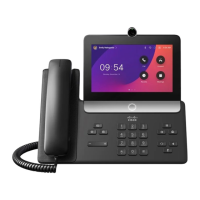
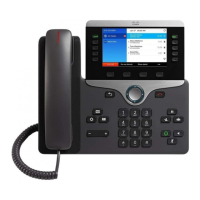
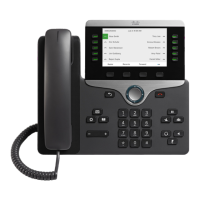
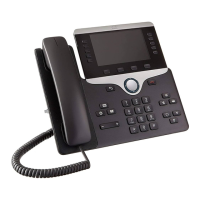
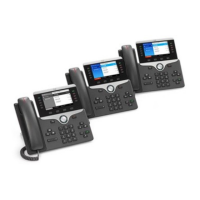
The Cisco IP Phone 8800 Series has two distinct hardware types:
• Cisco IP Phones 8841, 8851, and 8861—do not have a camera.
• Cisco IP Phone 8865—has a built-in camera.
Figure 2: Cisco IP Phone 8800 Buttons and Hardware
Handset and Handset light strip
Indicates whether you have an incoming call (flashing red)
or a new voice message (steady red).
Camera
(Cisco IP Phone 8865 only)
Use the camera for video calls.
Programmable feature buttons and line buttons
Access your phone lines, features, and call sessions.
Access functions and services.
Back, Navigation cluster, and
Release
Back Return to the previous screen or menu.
If you press and hold the back button for more than 0.5 secs
(long
press), you return to the main screen or the call screen. When
you are in the settings screens, the long press takes you to
the
main screen. If you are in one of the call screens, the long
press
takes you to the call screen.
Navigation cluster Navigation ring and Select button—
Scroll
through menus, highlight items and select the highlighted item.
Release End a connected call or session.
Hold/Resume, Conference,
and Transfer
Hold/Resume Place an active call on hold and resume
the held call.
Conference Create a conference call.
Transfer Transfer a call.


 To Next Page
 Loading...