Connect the Network Interface
Warning: Do not work on the system or connect or disconnect cables during periods of lightning activity.
Statement 1001
Warning
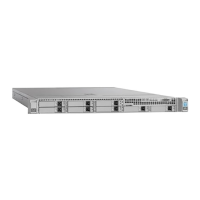
This section describes how to connect the Cisco SNS-3515 or Cisco SNS-3595 appliance Ethernet port.
The Ethernet connector supports Serial over LAN (SOL) cables. The RJ-45 port supports standard
straight-through and crossover Category 5 unshielded twisted-pair (UTP) cables. Cisco does not supply
Category 5 UTP cables; these cables are available commercially.
To connect the cable to the appliance Ethernet port:
Step 1
Verify that the appliance is turned off.
Step 2
Connect one end of the cable to the GigabitEthernet 0 port on the appliance.
Step 3
Connect the other end to a switch in your network.
Ethernet Port Connector
The Cisco SNS 3515 or Cisco SNS-3595 appliance comes with six integrated dual-port Ethernet controllers.
The controllers provide an interface for connecting to 10-Mb/s, 100-Mb/s, or 1000-Mb/s networks and provide
full-duplex (FDX) capability, which enables simultaneous transmission and reception of data on the Ethernet
LAN. Cisco ISE supports multiple NICs.
To access the Ethernet port, connect a Category 3, 4, 5, 5E, or 6 unshielded twisted-pair (UTP) cable to the
RJ-45 connector on the back of the appliance.
The following table describes the UTP cable categories.
DescriptionType
EIA Categories 3, 4, or 5 UTP (2 or 4 pair) up to 328
ft (100 m)
10BASE-T
EIA Category 5 UTP (2 pair) up to 328 ft (100 m)100BASE-TX
EIA Category 6 UTP (recommended), Category 5E
UTP or 5 UTP (2 pair) up to 328 ft (100 m)
1000BASE-T
Cisco SNS 3500 Series Appliance Hardware Installation Guide
26
Install the Cisco SNS 3515 and Cisco SNS 3595 Hardware Appliances
Connect Cables



 To Next Page