EasyManua.ls Logo

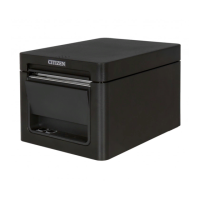
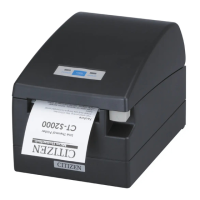
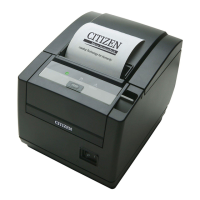
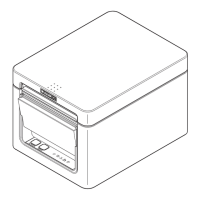
Citizen CT-D151 - User Manual

Citizen CT-D151
54 pages
Print Icon
To Next Page IconTo Next Page
Loading...
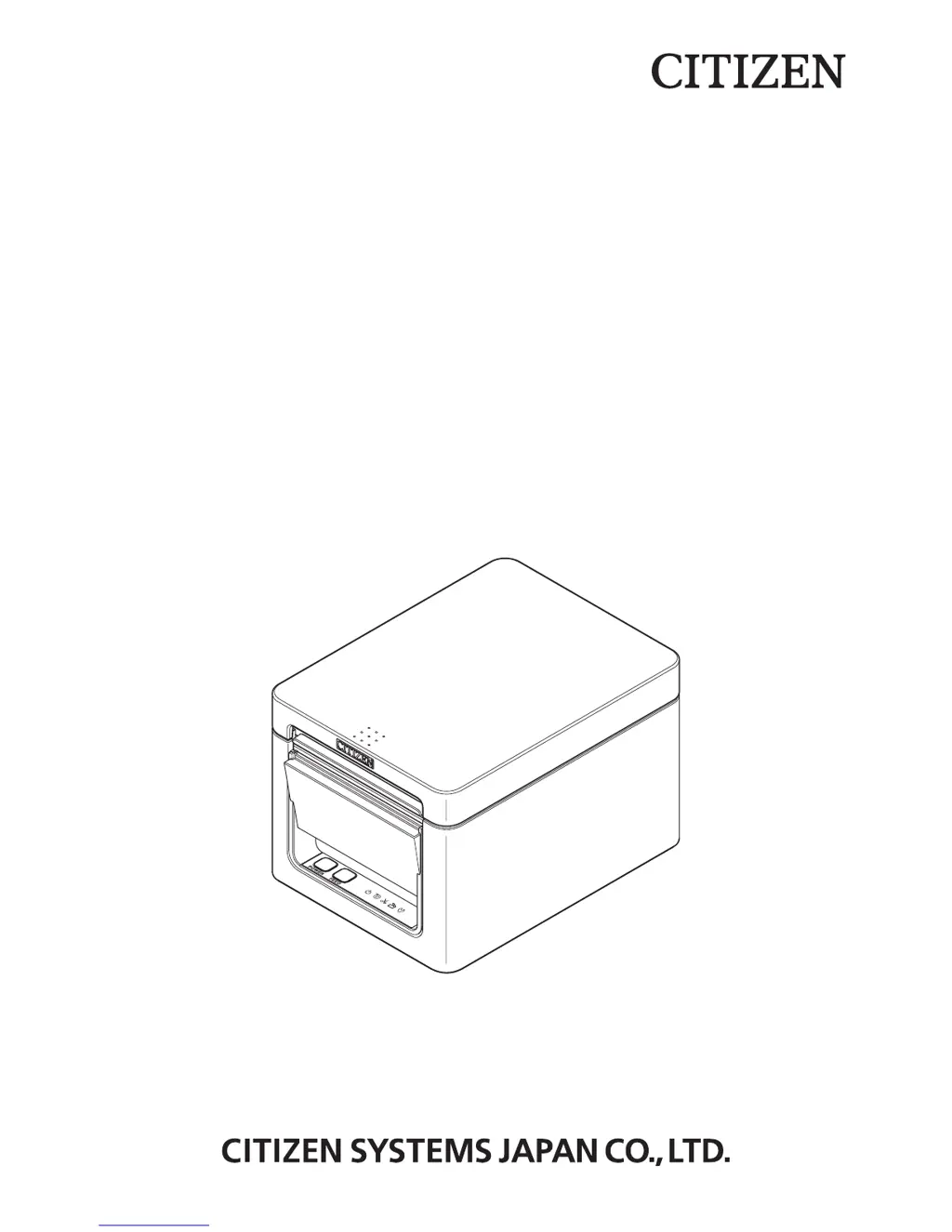
LINE THERMAL PRINTER
MODEL CT-D151
User’s Manual

Other manuals for Citizen CT-D151

Questions and Answers

  • P
    Peter HaneyAug 20, 2025
    How to fix cutter error on Citizen Printer?
    • D
      Daniel ClarkAug 20, 2025
      If you encounter a cutter error on your Citizen Printer (the auto cutter stops with the blade open), it's likely due to foreign matter or a paper jam. To fix this, turn off the printer, open the paper cover, and remove any jammed paper or scraps. Then, reload the paper roll, close the cover, and turn the power back on.
  • H
    Heather ShortAug 22, 2025
    What to do if cutter cannot move on Citizen Printer?
    • S
      Sarah PerryAug 22, 2025
      If the cutter on your Citizen Printer cannot move due to a paper jam or another obstruction, remove the cause of the trouble and press the FEED button. If the auto cutter still does not move and the paper cover cannot be opened, refer to 'Clearing a Cutter Error.'
  • E
    ebony61Aug 25, 2025
    Why is my Citizen CT-D151 Printer printing white lines?
    • S
      Steven KnightAug 25, 2025
      If your Citizen Printer is printing white lines or not feeding paper correctly, it could be due to changes in printing speed. To fix this, enable MSW2-3 (buffering), increase the baud rate of MSW7-1 (serial baud rate), or change MSW10-2 (print speed) to a lower level.
  • G
    Gabriel CooperAug 26, 2025
    What to do if paper jam occurs in Citizen CT-D151?
    • J
      jameslorraineAug 27, 2025
      If paper gets jammed in your Citizen Printer, it means paper cannot get out of the printer. To resolve this, open the paper cover and carefully pull the paper out. This is usually caused by obstruction of the paper outlet or paper jamming around the outlet during printing.
  • J
    Jennifer WebbAug 28, 2025
    How to clean print head on Citizen CT-D151 Printer?
    • A
      amanda03Aug 28, 2025
      To maintain the printing quality of your Citizen Printer and prevent malfunctions, clean the printer periodically (every 2 to 3 months). Use a cotton swab dampened with ethyl alcohol to wipe off any dirt and dust that is on the print head and platen.
  • F
    frances18Aug 30, 2025
    What to do if Citizen CT-D151 Printer detects paper end?
    • M
      Monica AdkinsAug 30, 2025
      If your Citizen Printer detects the end of the paper roll, it means the roll is finished. Simply load a new paper roll to continue printing.
  • P
    pkingAug 31, 2025
    What does paper near-end detected mean on Citizen CT-D151 Printer?
    • M
      Michael CookSep 1, 2025
      When your Citizen Printer detects paper near-end, it indicates that the end of the roll of paper is approaching. Prepare a new paper roll to avoid interruptions.
  • E
    ewoodSep 3, 2025
    What happens if cover opened during printing Citizen Printer?
    • E
      Edward SmithSep 3, 2025
      If the cover of your Citizen Printer is opened during printing, check the paper, pull it straight out of the printer by a couple of centimeters, and then close the cover. Printing should restart automatically.
  • S
    Sherry PerezSep 5, 2025
    What to do if Citizen CT-D151 paper is jamming during printing?
    • C
      Christian DaltonSep 5, 2025
      If the Citizen printer paper is jamming during printing, open the paper cover and carefully pull the paper out.
  • M
    Madison SmithSep 6, 2025
    What to do if my Citizen Printer says cover open?
    • A
      Angela TurnerSep 6, 2025
      If your Citizen printer indicates that the cover is open, check the paper, pull it straight out of the printer by a couple of centimeters, and then close the cover.

Citizen CT-D151 Specifications

General IconGeneral
Printer TypeDesktop
Resolution203 dpi
ConnectivityUSB, Serial
Paper Width58/60/80 mm
Power SupplyAC 100-240V, 50/60Hz
Print Width72mm (576 dots)

Related product manuals