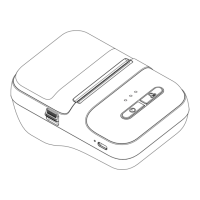
This document provides a quick installation guide for the Clabel CT221B Label Printer, detailing its components, label installation process, key functions, indicator light descriptions, software download instructions, precautions, and cleaning procedures.
Function Description:
The Clabel CT221B is a label printer designed for easy and quick label printing. It supports both iOS/Android and Windows operating systems, allowing users to create and print labels from mobile devices or computers. The printer features a simple interface with a power switch, a reset button, and an indicator light to communicate its status. It is designed for thermal printing, utilizing thermosensitive label paper.
Important Technical Specifications:
- Model: CT221B
- Printing Technology: Thermal printing
- Connectivity: USB (for data cable), Bluetooth (for mobile devices)
- Supported Operating Systems: iOS, Android, Windows
- Power: The device is powered on/off by holding the power button for 2 seconds.
- Indicator Light States:
- Bluetooth Status Light (Blue): Flashing indicates not connected, Normally on indicates connected.
- Abnormal Status Light (Red): Flashing indicates low battery, Normally on indicates the top cover is not closed, paper bin is out of paper, or print head temperature is too high.
- Charging Status Light (Green): Flashing indicates charging in progress, Normally on indicates fully charged.
- Light Display Priority: Charging status light > abnormal status light > Bluetooth status light. To observe abnormal or Bluetooth status while charging, charging must be ended or checked via the mobile app.
Usage Features:
- Unpacking Checklist: Includes the printer, data cable, and installation guide.
- Components:
- Rubber Roller: Helps feed the paper.
- Paper Loading Reel: Holds the label paper.
- Indicator Light: Displays printer status.
- Paper Bin Cover: Protects the paper bin.
- USB Connector: For data cable connection.
- Reset Button: To reset the printer.
- Printhead: The thermal printing component.
- Power Switch: To turn the printer on/off.
- Label Installation:
- Open the paper bin cover by pinching the force points on both sides and pulling up.
- Push the paper card lock switch to the OPEN state.
- Place the thermosensitive label paper into the paper bin, close to the left side.
- Push the paper holder to the left until the label is tightly attached.
- Push the locking switch of the paper card to CLOSE and lock it.
- Pull out a portion of the label paper and close the bin cover, ensuring both sides are properly closed.
- Key Functions:
- Start Up/Shutdown: Hold the power button for 2 seconds.
- Print Self-Test Page: Double-click the power button when paper is loaded and the machine is on.
- Print One Piece of Paper: Click the power button when paper is loaded and powered on.
- Pause Printing: Click the power button during printing.
- Continue Printing: Click the power button in a paused printing state.
- Software Download:
- iOS/Android: Scan the QR code provided in the guide or search for "Clabel trade" on Google Play Store or Apple App Store.
- Windows: Visit https://ga.ctaiot.com/pc to download "Clabel trade" and the necessary driver.
- Software usage guidance is available within the software help center.
Maintenance Features:
- Precautions:
- Do not disassemble the printer without permission.
- Do not open the paper bin cover while the printer is working to avoid damage.
- Avoid touching the printhead immediately after printing, as it may be hot.
- For long-lasting documents, use long-lasting thermal printing paper. High-quality printing paper is recommended for optimal print quality and product life.
- Prevent water or conductive substances (e.g., metal) from entering the printer. If this occurs, turn off the power immediately.
- Ensure the power is off during routine maintenance.
- Do not use tools like tweezers to scratch the print head, print rollers, or sensor surfaces.
- Printer Cleaning:
- When to Clean: If print is unclear, vertical columns are unclear, or a grinding noise is heard during paper feeding.
- Cleaning Steps:
- Turn off the printer, open the cover, and remove any paper.
- Allow the printhead to cool if it was recently used.
- Gently wipe dust and particles off the thermal printhead surface using a soft cotton cloth dipped in absolute ethyl alcohol.
- Only use the printer for printing after the cleaning alcohol has completely evaporated and the cover is closed.
- Cleaning Notes:
- Always turn off the printer before maintenance.
- Do not touch the printhead surface with fingers or metallic objects. Avoid abrading the printhead, rubber roller, and sensor surface with tweezers or other tools, as this can cause damage.
- Do not use gasoline, acetone, or other organic solvents for cleaning.
- Only use the printer for printing after the cleaning alcohol has completely evaporated.

 Need help?
 General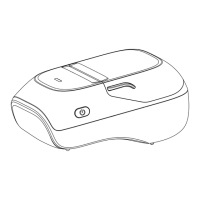

 To Next Page