EasyManua.ls Logo

Clarion VX404AU - User Manual

Clarion VX404AU
59 pages
Print Icon
To Next Page IconTo Next Page
Loading...
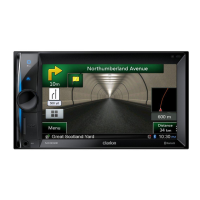
DVD MULTIMEDIA STATION WITH 6.2” TOUCH PANEL CONTROL
VX404AU
Owner’s manual

Table of Contents

Questions and Answers

  • S
    Susan FreemanSep 4, 2025
    What to do if USB/SD device cannot be inserted into Clarion VX404AU?
    • C
      Charles MendezSep 4, 2025
      If a USB/SD device cannot be inserted into your Clarion Car Receiver, it might be because it has been inserted in the wrong direction. Try reversing the connection direction and try again. Also, the USB/SD connector may be broken; in that case, replace it with a new USB/SD device.
  • J
    John McfarlandSep 18, 2025
    Why is the image not displayed on my Clarion Car Receiver?
    • E
      Emily HuertaSep 18, 2025
      If the image is not displayed on your Clarion Car Receiver, check that the parking brake is engaged.
  • S
    Stephen CruzSep 16, 2025
    What does 'PARENTAL VIOLATION' mean on my Clarion Car Receiver?
    • A
      Anna ChaseSep 16, 2025
      If your Clarion Car Receiver displays “PARENTAL VIOLATION” and the disc cannot play, the feature exceeds the set parental level. Release the view limitation or change the parental level. See the subsection “Setting up the parental level.”
  • J
    joserodriguezSep 14, 2025
    Why is the video image of my iPod/iPhone disturbed on my Clarion Car Receiver?
    • J
      Jared PierceSep 15, 2025
      If the video image of your iPod/iPhone is disturbed on your Clarion Car Receiver, the TV Signal setting of the iPod/iPhone is not set correctly. Set the TV Signal setting (NTSC/PAL) of the iPod/iPhone correctly.
  • S
    Samantha ForbesSep 12, 2025
    Why is the audio quality poor after Bluetooth connection with Clarion VX404AU?
    • J
      Justin WilsonSep 12, 2025
      If the audio quality is poor after connecting a Bluetooth enabled device to your Clarion car audio system, the Bluetooth reception may be poor. Move the device closer to the car audio system or remove any obstacle between the device and the system.
  • A
    Andrea WatsonSep 12, 2025
    Why is there no sound and 'NO FILE' displayed on my Clarion VX404AU?
    • L
      Lauren OrtizSep 12, 2025
      If you hear no sound and the display shows “NO FILE” on your Clarion Car Receiver, it means no MP3/WMA file is stored in the USB/SD device. Store these files properly in the USB/SD device.
  • E
    Erik BurkeSep 9, 2025
    Why does Clarion VX404AU Car Receiver sound skip when playing MP3/WMA files?
    • J
      Jason SmithSep 9, 2025
      If the sound from your Clarion Car Receiver skips or is noisy, the MP3/WMA files may not be encoded properly. Use MP3/WMA files encoded properly.
  • B
    Brittany ArmstrongSep 7, 2025
    Why is the display dark on my Clarion VX404AU?
    • D
      David Morris DVMSep 7, 2025
      If the display on your Clarion Car Receiver is dark, the Dimmer control might be set too low. Adjust the Dimmer properly. Also, if the operating condition is not good, set to an appropriate temperature (25°C or so) and check it again. The headlight of the vehicle may be lit, so adjust the Dimmer properly.
  • B
    bowenmichaelSep 5, 2025
    Why is the sound bad directly after power is turned on in my Clarion VX404AU Car Receiver?
    • J
      Jason VasquezSep 5, 2025
      If the sound quality from your Clarion Car Receiver is poor immediately after turning it on, condensation may have formed on the internal lens. Let it dry for about 1 hour with the power on.
  • A
    Anthony BaileyAug 20, 2025
    How to reset Clarion Car Receiver when buttons don't work?
    • L
      Lisa EllisAug 21, 2025
      If nothing happens when you press the buttons on your Clarion Car Receiver and the display is not accurate, the microprocessor may have malfunctioned. Press the reset button with a thin rod. Note that when the Reset button is pressed, turn off the ACC power. When the Reset button is pressed, frequencies of radio stations, titles, etc. stored in memory are cleared.

Summary

Clarion VX404 AU Owners Manual

Features Overview

Precautions and Safety

Handling Precautions

Operation Panel Precautions

Safety and operational guidelines for the unit's front panel.

USB Port Handling

Instructions for using and connecting USB devices.

Equipment Cleaning

How to clean the unit's cabinet and display screen.

Disc Handling and Storage

Proper methods for handling and storing discs.

Disc Cleaning Instructions

Guidelines for cleaning discs to ensure playback.

Operational Panel Overview

Functions of Buttons

Explains the purpose and operation of each button on the unit.

Remote Control Guide

Replacing Remote Batteries

Guide on how to replace the batteries in the remote control.

Remote Control Functions

Details the functions of each button on the remote control.

Main Menu Navigation

DVD Video Player Operations

DVD System Settings

Adjust screen size, parental controls, and other DVD settings.

Watching to a Disc

Steps for loading and playing a DVD disc.

Ejecting a Disc

Procedure for safely removing a disc from the player.

DVD Player Menu Operations

Navigating and controlling playback using the DVD menu.

DVD Video File Playback

Instructions for playing MP4, DivX, and other video file formats.

DivX Registration and Playback

Steps for registering and playing DivX video-on-demand content.

CD Player Operations

Listening to and Ejecting CDs

How to play and remove CD discs from the player.

CD Player Menu Operations

Navigating and controlling playback via the CD player menu.

CD Playback Controls

Controls for playback, including play/pause and fast forward/backward.

Tag Display Function

Information on displaying ID3 tags for audio files.

USB;SD Audio Operations

Notes on USB;SD Memories

General information and limitations for USB/SD storage devices.

Select USB;SD Audio Mode

How to connect and select USB/SD for audio playback.

Playing USB;SD Audio Files

Steps and controls for playing audio files from USB/SD.

USB;SD Video Operations

Notes on USB;SD Memories

Information and limitations for USB/SD storage devices for video.

Select USB;SD Video Mode

How to connect and select USB/SD for video playback.

Playing USB;SD Video Files

Steps and controls for playing video files from USB/SD.

Playable Video Formats

List of supported video file formats and their specifications.

iPod;iPhone Operations

Notes on iPod;iPhone Use

Important notes regarding connecting and operating iPod/iPhone devices.

iPod Audio Operations

How to play audio content from iPod/iPhone.

iPod Video Operations

How to play video content from iPod/iPhone.

Pandora Operations

Selecting the Pandora Mode

Steps to activate and use the Pandora application.

Pandora Bluetooth Mode

How to use Pandora via a Bluetooth connection.

Bluetooth Audio Player Operations

Select Bluetooth Audio Mode

Steps to connect and select a Bluetooth audio player.

Register Bluetooth Audio Player (Pairing)

Process for pairing a Bluetooth audio device with the system.

Control Bluetooth Audio Player

Manage playback and browse content from a Bluetooth player.

Bluetooth Telephone Operations

Select BT Phone Mode

How to activate and connect the Bluetooth telephone function.

Bluetooth Telephone Settings

Configuration options for Bluetooth phone connectivity.

Register Cellular Phone (Pairing)

Process for pairing a cellular phone with the system.

Telephone Operations

Making calls, using phone book, and handling calls.

Tuner Operations

Listening to the Tuner

How to tune into radio stations and select bands.

RDS Function Setting

Configuration for Radio Data System features like TA and AF.

Auto Store and Preset Scan

Functions for automatically storing and scanning radio presets.

DAB Operations

Listening to DAB

How to tune and select DAB radio stations and services.

Service Scan

Updating lists of available DAB services.

HDMI Mode

HDMI Wire Connection

Diagrams showing how to connect devices via HDMI.

Select HDMI Source

Choosing the input source for HDMI display.

AUX Input

Switching to AUX IN

Connecting and selecting external audio/video devices via AUX.

Camera Input Operations

Switching to Camera Mode

Activating and displaying video from a connected camera.

Setting Camera Audio

Configuring audio settings for the camera input.

Rear Source Operations

Multi-Zone Operation

Playing different sources simultaneously on front and rear screens.

DVD Video Rear Source Control

Managing DVD playback for rear passengers.

Setting Operations

General Setup Menu

System-wide settings like language, time, and Bluetooth.

Video Setup Menu

Adjusting video display settings like screen mode and dimmer.

Audio Setup Menu

Configuring audio parameters like balance, fader, and EQ.

Anti-Theft Code Settings

Procedure for setting or unlocking the anti-theft code.

Troubleshooting Guide

General Troubleshooting

Solutions for common issues with power and display.

DVD Player Troubleshooting

Resolving problems related to disc loading and playback.

USB;SD Device Troubleshooting

Addressing issues with USB/SD device recognition and playback.

Bluetooth Troubleshooting

Solutions for Bluetooth pairing and audio quality problems.

TFT Screen Troubleshooting

Diagnosing issues with the display screen, such as darkness or points.

Error Display Messages

DVD Player Error Displays

Explains common error messages for the DVD player and their solutions.

Specifications

FM;AM Tuner Specifications

Technical details for the FM and AM radio tuners.

DVD Player System Specifications

Technical details of the DVD playback system.

USB;SD Specifications

Technical details for USB and SD card compatibility and formats.

Bluetooth Specifications

Technical details of the Bluetooth module and profiles.

General System Specifications

Overall system specifications, power, and amplifier details.

Wire Connection Guide

HDMI Wire Connection Diagram

Visual guide for connecting devices via HDMI cable.

Clarion VX404AU Specifications

General IconGeneral
BrandClarion
ModelVX404AU
Resolution800 x 480 pixels
DVD PlayerYes
NavigationNo
Rear View Camera InputYes
AM/FM TunerYes
Built-in AmplifierYes
Steering Wheel ControlYes
Display Size6.2 inches
BluetoothYes
USB PortYes
Audio Formats SupportedMP3, WMA, AAC
Video Formats SupportedMPEG-1, MPEG-2
AUX InputYes
Dimensions178 mm x 100 mm x 165 mm

Related product manuals