EasyManua.ls Logo

Clarion VX404 - User Manual

Clarion VX404
57 pages
Print Icon
To Next Page IconTo Next Page
Loading...
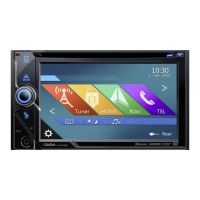
DVD MULTIMEDIA STATION WITH 6.2” TOUCH PANEL CONTROL
VX404
Owner’s manual

Table of Contents

Other manuals for Clarion VX404

Questions and Answers

  • P
    Patricia BowmanAug 20, 2025
    How to reset a Clarion VX404 Car Receiver when buttons don't work?
    • M
      masonkevinAug 20, 2025
      If nothing happens when you press the buttons and the display is inaccurate on your Clarion Car Receiver, the microprocessor may have malfunctioned. Press the reset button with a thin rod. Note that when the reset button is pressed, turn off the ACC power. Also, frequencies of radio stations, titles, etc. stored in memory will be cleared.
  • T
    Timothy SchwartzAug 22, 2025
    Why does the sound skip or is noisy on my Clarion Car Receiver?
    • C
      Carolyn HartAug 22, 2025
      If the sound skips or is noisy on your Clarion Car Receiver, the disc may be dirty. Clean it with a soft cloth. Alternatively, the disc might be heavily scratched or warped, in which case you should replace it with a disc in good condition.
  • A
    alexander47Aug 25, 2025
    Why is the Bluetooth audio quality poor on my Clarion VX404 Car Receiver?
    • H
      harrisonronaldAug 25, 2025
      If the audio quality is poor after connecting a Bluetooth enabled device to your Clarion Car Receiver, the Bluetooth reception may be weak. Move the device closer to the car audio system or remove any obstacle between the device and the system.
  • R
    Raymond WardAug 26, 2025
    Why can't I pair my device via Bluetooth with my Clarion VX404?
    • Z
      zwilliamsAug 26, 2025
      If you cannot pair your Bluetooth enabled device with the Clarion car audio system, it may be because the device does not support the profiles required for the system. Use another device to connect. Also, the Bluetooth function of the device may not be enabled. Refer to the user manual of the device for how to enable the function.
  • L
    larrygalvanAug 28, 2025
    Why won't my Clarion VX404 Car Receiver turn on?
    • L
      lovemeganAug 28, 2025
      If your Clarion Car Receiver isn't powering on, the fuse may be blown. Replace it with a fuse of the same amperage. If it blows again, consult your store of purchase. Also, check for incorrect wiring; if found, consult your installation center.
  • K
    Kendra MontgomeryAug 30, 2025
    What to do if video images are not displayed on Clarion VX404 Car Receiver?
    • M
      Michael HurleyAug 30, 2025
      If video images are not displayed on your Clarion Car Receiver, make sure the parking brake is engaged.
  • A
    Amber WalkerSep 1, 2025
    Why is the image not displayed on my Clarion VX404?
    • A
      Adrienne CookSep 1, 2025
      If the image is not displayed on your Clarion Car Receiver, ensure that the parking brake is engaged.
  • L
    Lee VillarrealSep 3, 2025
    What to do if Clarion VX404 doesn't recognize USB/SD device?
    • K
      Kelsey HernandezSep 3, 2025
      If your Clarion Car Receiver doesn't recognize the USB/SD device, disconnect and reconnect it. If it's still not recognized, try replacing it with a different USB/SD device. Also, check if connectors are loose.
  • A
    Amy CaseySep 5, 2025
    How to fix a dark display on Clarion VX404 Car Receiver?
    • K
      kyle33Sep 5, 2025
      If the display on your Clarion Car Receiver is dark, the dimmer control might be too low. Adjust the dimmer properly. Also, the operating condition might not be good, so set to an appropriate temperature (25°C or so) and check it again. The headlight of the vehicle may be lit, so adjust the Dimmer properly.
  • K
    karl37Sep 7, 2025
    Why does my Clarion VX404 Car Receiver sound bad when first turned on?
    • S
      Shaun LunaSep 7, 2025
      If the sound quality of your Clarion Car Receiver is poor immediately after turning it on, condensation may have formed on the internal lens due to parking in a humid place. Let it dry for about 1 hour with the power on.

Summary

CLARION PRODUCT REGISTRATION INFORMATION

1. FEATURES

Expanding Systems

Explains how the system expands audio and visual features.

2. PRECAUTIONS

INFORMATION FOR USERS

3. CAUTIONS ON HANDLING

Operation Panel

Cautions for operating the unit's front panel.

USB Port

Notes on using USB memory sticks.

Cleaning

Instructions for cleaning the cabinet and LCD panel.

Handling Discs

Storage

Guidelines for storing discs to prevent damage.

Cleaning

How to clean discs to ensure proper playback.

On Discs

Important notes about disc usage and power management.

4. OPERATIONAL PANEL

Functions of Buttons

Explains the function of each button on the operational panel.

5. REMOTE CONTROL

Replacing the batteries

Instructions for replacing the remote control's batteries.

Remote Control Functions

Explains the operation of each button on the remote control.

6. MAIN MENU

Scrolling the menu

How to navigate through the main menu screens.

Moving the menu position

How to reposition icons on the main menu.

7. DVD VIDEO PLAYER OPERATIONS

Discs

Lists the types of discs the player can handle.

Change DVD System Settings

Settings for DVD system, screen size, and parental control.

Watching to a Disc

Instructions on how to load and watch a disc.

Ejecting a disc

How to properly eject a disc from the player.

Showing DVD Player mode screen

How the DVD player mode screen is displayed.

Operate the DVD Player Menu

How to use the DVD player menu for playback control.

Switching Audio

How to switch audio languages for DVD playback.

Switching Subtitles

How to switch subtitle languages for DVD playback.

Displaying the playback status

How to view the current playback status.

Play MP4;DivX video files

How to play MP4 and DivX video files.

Showing video files Player mode screen

How the video file player screen is displayed.

Operating Video Files Player Menu

How to control video file playback.

Play DivX Video-On-Demand Files

Information on playing DivX Video-On-Demand files.

Getting DivX Registration Code and Registering Your Device

Steps to register the device for DivX VOD.

Deregister your device

How to deregister the device for DivX VOD.

Playable Video Disc Formats

Lists supported video disc file formats.

8. CD PLAYER OPERATIONS

Listening to a Disc;Ejecting a Disc

How to play and eject a CD.

Showing CD Player Mode Screen

How the CD player mode screen is displayed.

Operate the CD Player Menu

How to control CD playback using the menu.

Scanning the Tracks

How to scan tracks on a CD.

Searching with the Track Number

How to search for tracks by number.

Rotation Effect On;Off

How to turn the rotation effect on or off.

Listening to Compressed Audio

How to play compressed audio files like MP3/WMA/AAC.

Tag Display Function

Information about ID3 Tag compatibility.

Displaying MP3;WMA;AAC TAG titles

How TAG titles are displayed for audio files.

Precautions when creating MP3 disc

Guidelines for creating MP3 discs for playback.

9. USB;SD AUDIO OPERATIONS

Notes on Using USB;SD Memories

General notes and file format details for USB/SD audio.

Notes on the Tag titles

Limitations on TAG title display.

Select USB;SD Audio Mode

How to select the USB/SD audio mode.

Playing Audio Files in USB;SD Memory

How to play audio files from USB/SD memory.

Playback and Navigation Controls

Controls for seeking, selecting, scanning, and searching tracks.

10. USB;SD VIDEO OPERATIONS

Playable Video Format

Lists supported video file formats for USB/SD.

Notes on Using USB;SD Memories

General notes and folder structure for USB/SD video.

Notes on the Tag titles

Limitations on TAG title display for video.

Select USB;SD Video Mode

How to select the USB/SD video mode.

Playing Video Files in USB;SD Memory

How to play video files from USB/SD memory.

Playback Controls

Controls for playback, repeat, seeking, and menu navigation.

11. iPod;iPhone OPERATIONS

Notes on using iPod;iPhone

Important notes for connecting and using iPod/iPhone.

iPod Audio Menu Operations

How to operate iPod/iPhone audio via USB connection.

iPod Audio ID3 Information

Information displayed for iPod/iPhone audio ID3 tags.

iPod;iPhone Audio Playback Controls

Controls for playback, fast forward, repeat, shuffle, and seeking.

iPod;iPhone Audio Metadata and Navigation

Display of ID3 info, album art, and category lists.

iPod;iPhone Audio Mode Screens

Displays for playlist and audio list modes.

Simple Control Mode

How to use Simple Control Mode for iPod/iPhone.

iPod Video Menu Operations

How to operate iPod/iPhone video via USB connection.

iPod Video ID3 Mode Screen

Display of iPod/iPhone video ID3 information.

Skipping a Track (Simple Control Mode)

How to skip tracks in Simple Control Mode.

iPod Video Simple Control Mode Screen

Display of iPod/iPhone video in Simple Control Mode.

iPod Video Play Mode Screen

Display of iPod/iPhone video in Play Mode.

iPod;iPhone Video Playback Controls

Controls for playback, repeat, and switching files.

Fast Forward;Fast Backward

How to fast forward or backward iPod/iPhone video.

iPod Audio Bluetooth Mode

How to use iPod audio via Bluetooth connection.

12. Pandora OPERATIONS

Selecting the Pandora Mode

How to select and start the Pandora mode.

Pandora Mode Station List

How to view and manage Pandora stations.

Pandora Bluetooth Mode

How to use Pandora via Bluetooth connection.

13. Bluetooth AUDIO PLAYER OPERATIONS

Selecting the Bluetooth Audio Mode

How to select the Bluetooth audio mode.

Registering your Bluetooth Audio Player (Pairing)

Steps to pair a Bluetooth audio player.

Bluetooth Audio Player Settings

Information on Bluetooth interface features.

Bluetooth Audio Player Controls

Controls for playback, pausing, skipping, stopping, and showing track lists.

14. Bluetooth TELEPHONE OPERATIONS

Select the BT Phone Mode

How to select the Bluetooth telephone mode.

Setting Automatic Connection

How to set automatic connection for Bluetooth phones.

Setting Automatic Answer

How to set automatic answer for incoming calls.

Setting Microphone Gain

How to adjust microphone gain for calls.

Bluetooth Telephone Settings

Overview of Bluetooth telephone interface settings.

Registering Your Cellular Phone (Pairing)

Steps to register (pair) a cellular phone.

Select the Cellular Phone

How to select a different registered cellular phone.

Obtaining the Phone Book Data

How to transfer phone book data for calls.

Telephone Operations

General operations for Bluetooth telephone.

Making a call using the Ten-Key pad

How to make calls using the keypad.

Making a Call Using the Phone Book

How to make calls using the phone book.

Making a Call Using the History

How to make calls using call history.

Answering to an incoming call

How to answer incoming calls.

15. TUNER OPERATIONS

Listening to the Tuner

How to listen to radio stations.

Manual memory

How to manually store favorite radio stations.

Preset Scan

How to scan and store preset radio stations.

Auto Store

How to automatically store radio stations.

Mode Setting

Settings for tuner sensitivity (DX/Local).

16. HDMI MODE

Wire Connection of HDMI

How to connect devices via HDMI.

Select HDMI source

How to select the HDMI source.

Select DISP source

How to select the display source for HDMI.

17. AUX

Switching to AUX IN

How to switch to AUX input modes.

18. CAMERA INPUT OPERATIONS

Switching to Camera mode

How to switch to the camera input mode.

Setting Camera audio

How to set camera audio options.

19. REAR SOURCE OPERATIONS

Rear Zone DVD Video Operations

How to play and control DVD video in the rear zone.

Rear Zone Access and Control

How to access and exit rear zones, and control other rear sources.

AUX1

How to use AUX1 for rear zone.

AUX2

How to use AUX2 for rear zone.

iPod Video in Rear

How to play iPod video in the rear zone.

iPod Video Rear Source Control Play Mode

Display of iPod video control in rear mode.

20. SETTING OPERATIONS

General Setup Menu

Settings for system language, time, beep, and Bluetooth.

Video Setup Menu

Settings for video display, including screen size and dimmer.

Audio Setup Menu

Settings for audio balance, fader, EQ, and filters.

Others Setup Menu

Settings for password, parental control, language, and LED.

Set the Anti-Theft code

How to set and manage the anti-theft code.

21. TROUBLESHOOTING

GENERAL

General troubleshooting for power, buttons, and remote.

DVD PLAYER

Troubleshooting specific to the DVD player.

USB;SD DEVICE

Troubleshooting issues with USB/SD devices.

Bluetooth

Troubleshooting Bluetooth connection and audio quality.

TFT screen

Troubleshooting issues related to the TFT display.

22. ERROR DISPLAY

DVD PLAYER

Error messages and solutions for the DVD player.

23. SPECIFICATIONS

Tuner and Bluetooth Specifications

Specs for FM/AM tuners and Bluetooth features.

Media Playback Specifications

Specs for DVD, USB, SD playback formats and systems.

Input;Output and General Specifications

Specs for audio/video I/O, power, and general system details.

Amplifier Specifications

Technical specifications for the unit's amplifier.

24. WIRE CONNECTION GUIDE

Clarion VX404 Specifications

General IconGeneral
Display Size6.2 inches
Resolution800 x 480 pixels
TouchscreenYes
BluetoothYes
USB Ports1
DVD PlayerYes
NavigationNo
Rear View Camera InputYes
Channels4
Built-in AmplifierYes
CD PlayerYes
Radio TunerAM/FM
Preset Stations18 FM, 6 AM
Remote ControlYes
Weight3.5 lbs
Audio Formats SupportedMP3, WMA
Video Formats SupportedMPEG-1, MPEG-2, MPEG-4
Power Output50W x 4
DisplayLCD
Preamp Voltage4V

Related product manuals