5
English
Ifthedevice responds correctly to your keypresses, you have entered theright control
code. Ifnot, you will have to repeat theabove procedure using theother control codes
available for your make of device until thedevice responds correctly to your keypresses
and until most of thebuttons work correctly.
Use thesame procedure to enter thecontrol codes for any other devices.
Itis important to remember to press thedevice type button in step 4 above.
5.3 Searching through thelibrary
If you cannot find acode in thelist, you can search thelibrary.
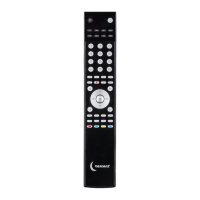
1. Manually switch on theTV set (for example).
2. Press and hold down
followed by therelevant device, eg . TheLED lights up.
3. Release both buttons.
4. Press again. TheLED flashes. Theremote control is now ready to search.
5. Aim theremote control at your TV and press repeatedly until
theTV switches off. Everytime you press theremote control goes to thenext
code and sends asignal in an attempt to switch off thedevice.
6. When thedevice has switched off, press therelevant device button, eg ,
to lock thecode. TheLED goes out.
Switch thedevice, eg theTV, on again and try out thebuttons. Ifyour TV set
responds correctly, theremote control has found thecorrect code. Ifnot, repeat
theabove procedure.
If you happen to press
after your device has been switched off, switch thedevice
on immediately, press on theremote control (for every press on you go back
one step in thelist of codes) and then repeat steps 5-6. The remote control times out
of search mode automatically after 30 seconds. If you want to exit setting mode,
press thecorresponding device button.
Important!
If theon/off function of your device is not infrared-controlled, you will have to follows
steps 2 to 4. Press and any other function button until thedevice responds to
thecorresponding function, then press theassociated device button to save.
5.4 Autosearch
1. Switch on theTV set (for example) manually.
2. Choose adevice on theremote control, eg .
3. Press and hold down followed by for three seconds until
theLED indicator lights up.
4. Release both buttons.
5. Aim theremote control at theTV. Theremote control transmits automatically.
6. When thedevice switches off, press therelevant device button, eg , to lock
thecode. TheLED goes out.


 To Next Page