SET UP BY USING THE LIBRARY SEARCH FACILITY.
If you cannot identify the correct code for your device from the device code list
use the code search facility.
1) Switch on the device you wish to control (e.g. your TV)
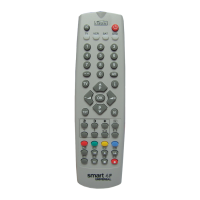
2) Press and hold down the required device key on the smart 4 (e.g. TV) and
at the same time press and hold down the OK key. Keep both keys pressed
down for approximately two seconds until the indicator light on the device
key being held down lights and remains on. Release both keys.
3) Point the smart 4 towards the device you wish to control (e.g. your TV) and
press either the P up or P down key repeatedly until your device switches
off. The P up key searches forwards through the library and the P down key
searches backwards through the library. Alternatively hold down the P up or
P down key and the smart 4 will search through each available code at
approximately one-second intervals.
4) When your device switches off stop pressing the key. Should you
accidentally press the key after your device has switched off you can back
up by pressing the opposite key.
5) Press and release the device mode key (TV in this example) and the
indicator will blink 3 times. This indicates that you have now stored the code
into the handset.
6) Switch your device back on and try all of the functions of the remote control.
7) If your device does not respond correctly to the commands from the remote
control continue the search process until you find a suitable code by
repeating steps 1 to 5. The handset will continue its search from the last
code you selected.
Please be patient when searching by this method as the library contains a
large number of codes and it may take some time to find a suitable code.
READ OUT THE STORED CODE NUMBER.
Having found a suitable code by the search method it is useful to identify the code
number and record this in the battery compartment for future use.
1) Press and hold down the required device key on the smart 4 (e.g. TV) and
at the same time press and hold down the OK key. Keep both keys pressed
down for approximately two seconds until the indicator light on the device
key being held down lights and remains on. Release both keys.
2) Press and release the Mute key.
3) The indicator light will then blink the number of the first digit, pause, blink the
number of the second digit, pause and then blink the number of the third
digit. (e.g. 1 blink = digit 1, 6 blinks = digit 6. Note 10 blinks = digit 0).
4) The handset will then automatically return to normal operation.
HOW TO ADJUST COLOUR, CONTRAST, BRIGHTNESS, BASS
TREBLE AND BALANCE ON YOUR TV.
With the smart 4 in TV device mode:
1) Press and release the desired function key. (e.g. colour)
2) Within 5 seconds press the vol + or vol Ð key to adjust the setting
3) After adjustment the handset will revert to normal operation within 5
seconds.
VOLUME PUNCH THROUGH.
You can programme the smart 4 to control the TV volume even when it is
switched to another device mode.
1) Press and hold down the required device key on the smart 4 (e.g. VCR) and
at the same time press and hold down the OK key. Keep both keys pressed
down for approximately two seconds until the indicator light on the device
key being held down lights and remains on. Release both keys.
2) Press and release the TV device key
3) The indicator will blink.
4) Press and release the vol + key.
5) The indicator will blink 3 times.
The volume/mute keys will now still control the TV even when the
smart 4 is switched to the selected device mode.
Repeat steps 1 to 5 selecting SAT or DVD as required.
You can switch off this function by repeating steps 1 to 5 but at step 4 press vol - .
Please note that when the smart 4 is in the programming mode, if no key is
pressed within 20 seconds the handset will return to normal operation mode.
LOW BATTERY WARNING.
Whenever the batteries in the smart 4 fall to a low level all the device indicators
will blink sequentially twice each time the Power button is pressed. This indicates
that you should replace the batteries as soon as possible. If the batteries are
allowed to go completely flat or you leave your Smart 4 without batteries for a
period of time your stored codes will be lost and you will have to re enter them
from the list you made in the battery compartment.
2
GB GB
3





 To Next Page