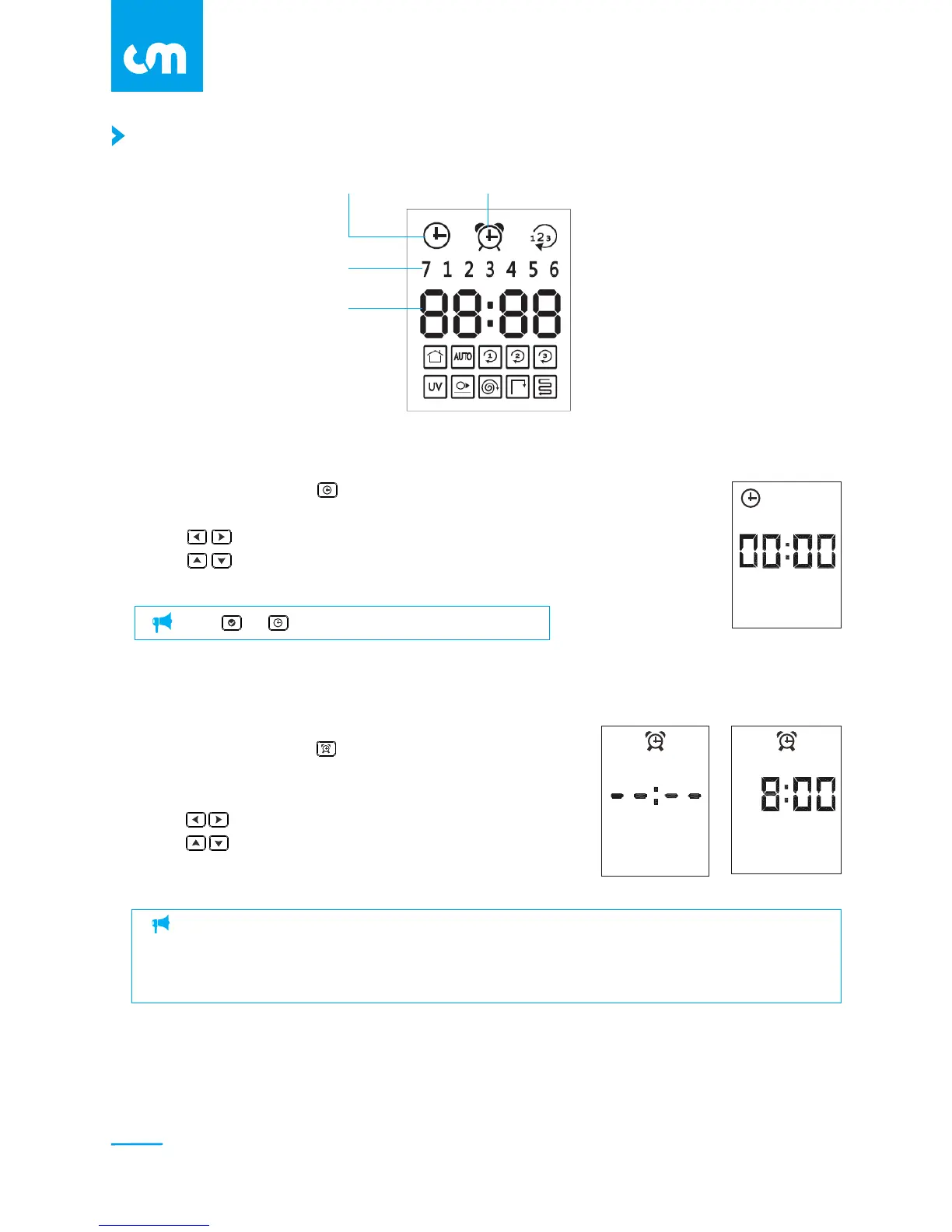
Local Time
ScheduleCleaning
Days
Time
1. As illustration, press to activate local time setting.
The hour figure blinks in default.
2. Use to switch between hour, minute and weekday.
3. Use to increase or decrease the figures.
Speed setting is available by pressing it for 2 seconds.
When schedule cleaning time for multiple days, press the Up button to confirm the desired weekday
until the figure doesn't blink; press the Down button to cancel it; press the Enter button or Time setting
button to save and exit. (The robot will beep once which indicate setting successfully) To cancel the
scheduled time, use the Left button to the Default Screen (Showed as Pic1) then save and exit.
Pic1
Setting time and Cleaning Schedule
7 1 2 3 4 5 6 7 1 2 3 4 5 6
1
Press or to save and exit.
Pic2
Local Time Setting
Schedule Cleaning
1. As illustration, press to schedule cleaning time.
2. Pic1 displays in default setting.
3. As illustration, pressto initiate the setting.
4. Use to switch between hour, minute and weekday.
5. Use to increase or decrease the figures.
Speed setting is available by pressing it for 2 seconds.
14
C L E A N M A T E



 To Next Page