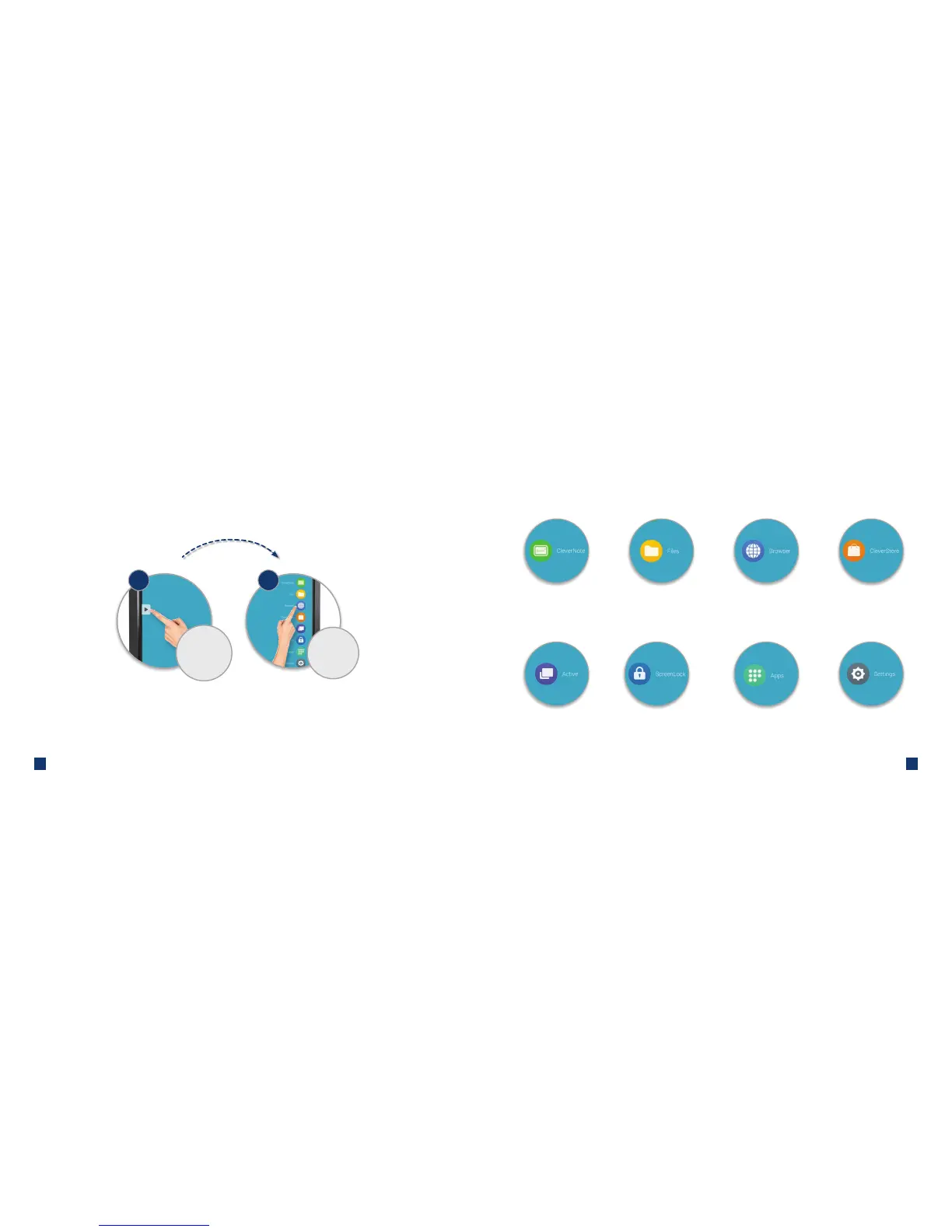
Touch the side
of the screen to
open the menu
1 2
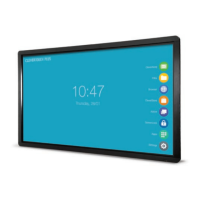
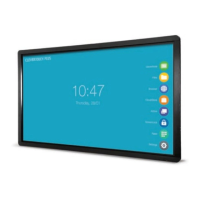
You can use the
menu on the
left or the right
hand side
How do I access the LUX menu? How do I use the LUX menu?
Use Clevernote as a whiteboard
make notes, diagrams or images,
add and scroll through multiple
pages, insert an image or change
the background colour
The Cleverstore contains
hundreds of free apps with no
pop-ups, adverts, or inappropriate
content. All apps are tested and
meet curriculum requirements
Double click on les to open them,
as well as easily copy, cut and paste,
so it’s just like using a PC
Easily go back to recently used
apps using the Active button
Explore the internet without
needing to connect to a
computer, using the Clevertouch
Plus browser which is YouTube
compatible (new models only)
Protect your Clevertouch with a
password by using ScreenLock
All of the integrated apps and the
apps you’ve downloaded from
the Cleverstore can be found here
Set up Wi-Fi, Bluetooth,
network, sound, language
and more in the Settings


 To Next Page