19
Connecting to a Computer
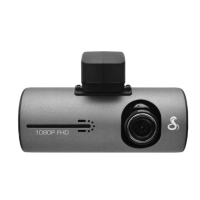
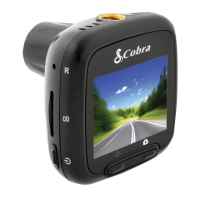
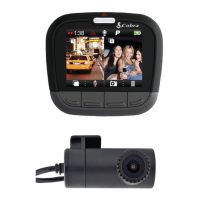
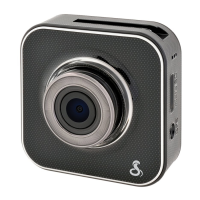
Your Dash Cam
To connect your camera to a Computer
•
Connect the camera to your computer using the
included USB to Mini-USB Cable.
By default, your device connects to your
computer in Mass Storage mode, and acts like
a ash drive. Videos can be viewed with any
standard video player that supports .avi les.
NOTE: Quicktime, the native video
player for Mac, only supports specic
types of .avi les and cannot playback
this camera’s videos. For links to
third party players that will work on
Mac, visit www.cobra.com/support/
software-downloads.
Movies that are locked begin with “SOS_” and
movies that are not locked begin with “MOV_”.
Note that if the Memory card gets too full,
videos that are not locked will be overwritten
to make room for new videos. If you want to
save any videos that begin with “MOV_” you
should copy them to your computer, or Lock
the les.
To switch the camera’s USB function
If you prefer to connect your camera to your PC as
a web or video camera, you can change this set-
ting in the settings menu.
Disconnect the camera from your PC, enter General
Settings, and change the USB Function to PCAM.
Then, when you reconnect your camera to your PC,
it will use this function.
If you want to review the
videos alongside the GPS
position on a map, then
you’ll need to download
Cobra’s Video player
from:
www.cobra.com/
dashcamsoftware
See the next page for
how to use this software.
NOTE: Start your web cam application before
connecting the camera.


 To Next Page