Operation
9 10
Operation
DRIVE SMARTER
®
CONNECTION INSTRUCTIONS
1. Start the Drive Smarter
®
app and log in/create an account.
2. Follow the instructions in the Drive Smarter
®
app to create a vehicle and connect the dash cam.
3. When complete, a chime will sound on the dash cam and it will appear as Connected in the Drive
Smarter
®
app.
360 ALERTS
Connecting to the Drive Smarter
®
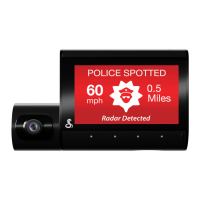
app enables your dash cam to receive real-time driver alerts about
what is on the road ahead, including:
Red Light Dash cam
Live Police
Caution Areas
Speed Dash cam
Speed Traps
PARKING LIVE VIEW
Enables security recording and live viewing of your dash cams. (Hardwire kit and WiFi hotspot required)
TRIP CLIPS
Create time-lapse videos of your drives to easily share with friends and family.
HEADS-UP NAVIGATION
Connecting your dash cam to the Drive Smarter
®
will also enable you to receive navigation instructions
using the Drive Smarter app.
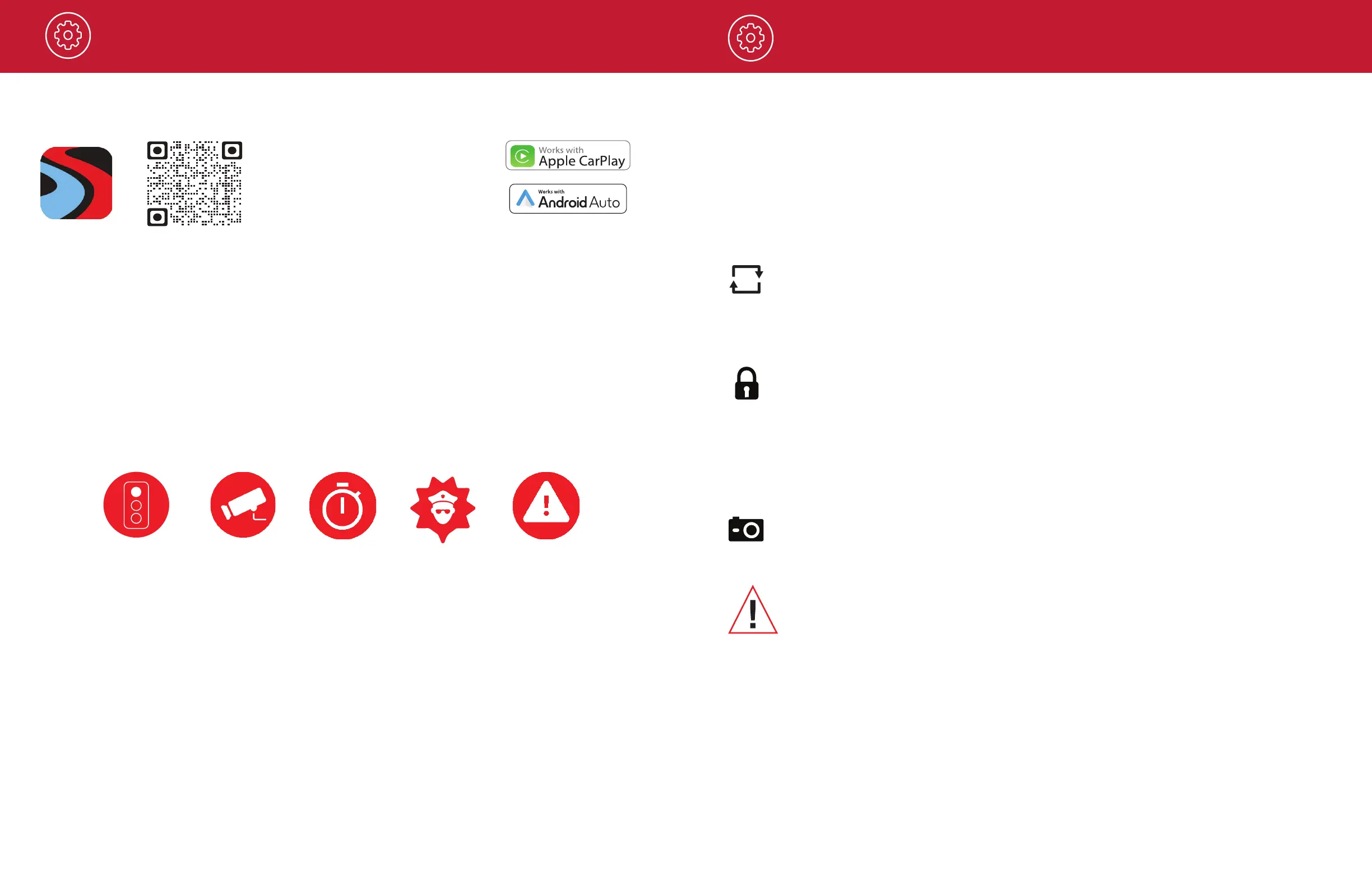
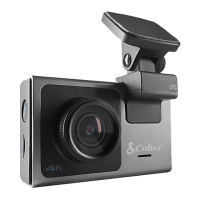
Simply connect your SC 110 / SC 120 to Drive Smarter
®
app, nd a route in the app, and drive using your
smart phone or in-car display for guidance!
VIDEO SETTINGS
Video Resolution
This setting allows you to set the following resolutions on your SC 110 / SC 120.
Lower resolution
settings result in smaller le sizes, which makes the les easier to transfer and share
.
The available resolutions are:
• 1440P QHD .................... 2560 x 1440 30 Frames per Second
• 1080P Full HD ................. 1920x1080 30 Frames per Second
Loop Recordings
Once the SD card is full, the dash cam will continuously overwrite the oldest footage recorded with
recent recordings. To protect a clip so that it will not be overwritten, press the Action Button so that the
clip is moved into the locked content partition.
Emergency Recordings
An Emergency Recording is triggered when the Action Button is pressed or when the G-Sensor
registers a signi cant impact (hard braking or collision). Emergency Recordings create locked les
that are not overwritten by Continuous Loop Recording. To ensure that important footage is not lost
surrounding an incident, the adjacent clip is locked if the incident happens within 30 seconds of the
beginning or end of a clip.
Photos
Photos are automatically saved in the Locked partition of the SD card.
You may be occasionally asked to “Format the SD Card” by the dash cam. This will delete
all SD card content and to help the memory card continue operating properly. Please
save all important footage by downloading via the Drive Smarter
®
app or by manually
uploading to your PC before doing this.


 To Next Page