EXPLORER MODE
Enter Explorer mode to view and manage the folders and les on your player.
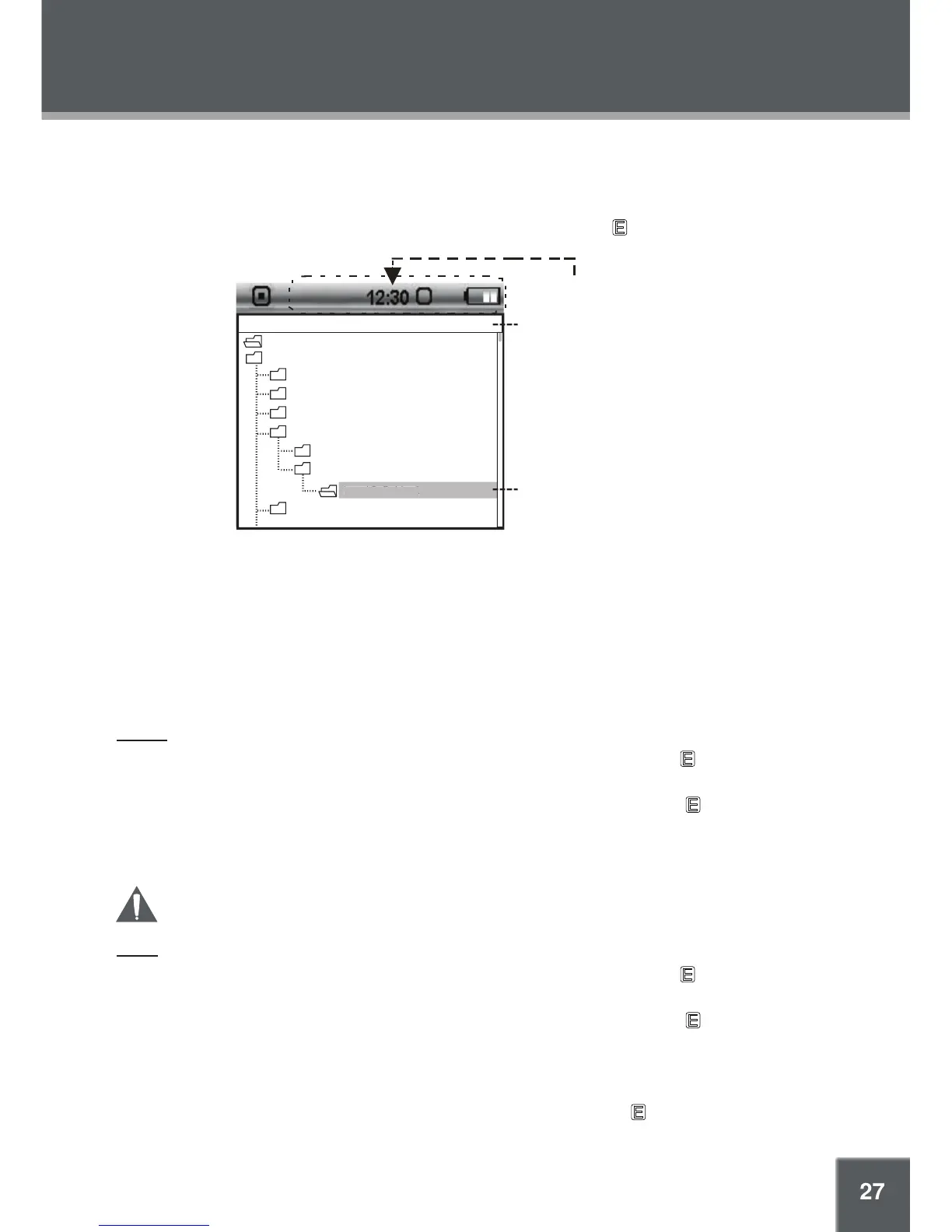
To enter Explorer mode, select and conrm EXPLORER from the Main menu. Upon entering
Explorer mode, you will see a “Tree View” which will display all of the folders on your player (see
gure below). Use the Navigation keys to select a folder and touch to view its contents.
Note:
Tree View will display all your folders and subfolders, only. Select and conrm the folder ROOT
to access all les and folders on your player.
You can use the Explorer File Browser to delete, copy, cut (move), and view information about
your les and folders.
Delete
From “Tree View”, use the Navigation keys to select a folder and touch to view its
contents.
Use the Navigation keys to select a le/folder to delete. Touch and hold , and then select
and conrm DELETE.
Select and conrm NO to cancel, or YES to delete the le or folder.
Do NOT delete the following les: “sample.hds” and “wmpinfo.xml”.
Copy
From “Tree View”, use the Navigation keys to select a folder and touch to view its
contents.
Use the Navigation keys to select a le/folder to delete. Touch and hold , and then select
and conrm COPY.
Select and conrm NO to cancel, or YES to copy the le/folder. The player will prompt you
to select a destination folder and will display the Tree View of your folders.
Use the Navigation keys to select a destination folder and touch to conrm.
1.
2.
3.
1.
2.
3.
4.



 To Next Page