EasyManua.ls Logo

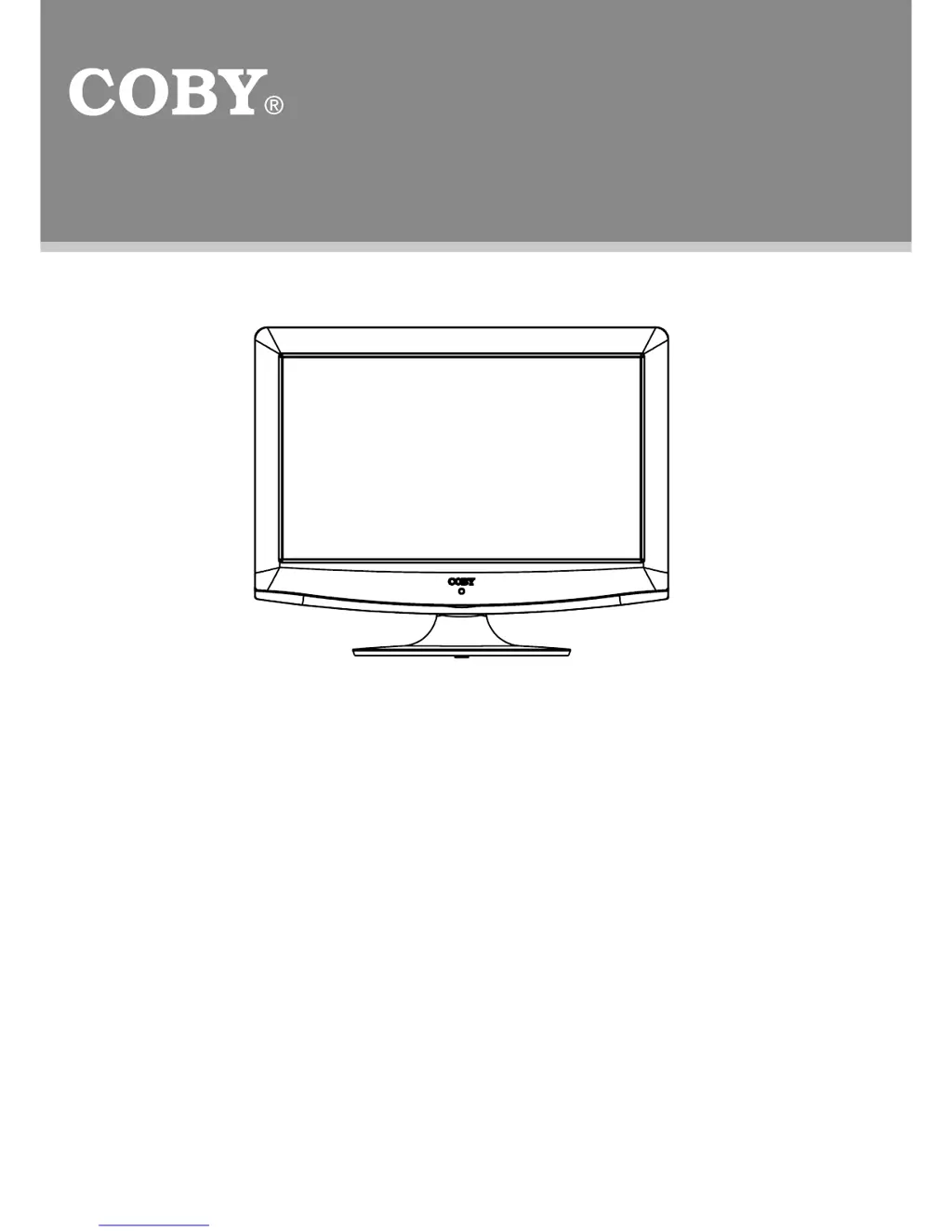
Coby TFTV1525 - User Manual

Coby TFTV1525
21 pages
Print Icon
To Next Page IconTo Next Page
Loading...
TFT LCD Widescreen Television
Instruction Manual
Please read this manual carefully before connection and use
TFTV1525

Questions and Answers

  • C
    clarkamyJul 28, 2025
    How to fix a Coby TFTV1525 LCD TV with no power?
    • J
      Joel BallJul 29, 2025
      If your Coby LCD TV has no power, ensure it has been powered on manually. Also, check if the power cord is properly connected to the power outlet and that the main power switch is on.
  • M
    Matthew ThomasAug 1, 2025
    What to do if my Coby TFTV1525 LCD TV has no sound?
    • D
      David WallaceAug 2, 2025
      If your Coby LCD TV has no sound, first increase the volume. Then, check if the MUTE function is activated. Also, verify that the sound system is properly set and the AV audio signal input cable is correctly connected.
  • C
    Carl LoveAug 5, 2025
    Why is my Coby LCD TV remote control not working?
    • V
      vwilsonAug 5, 2025
      If your Coby LCD TV remote control isn't working, first ensure the POWER button on the unit is manually turned on. Remove any obstacles between the remote and the TV, and point the remote towards the remote sensor. Check the batteries are loaded with correct polarities or try replacing them.
  • A
    Amanda KelleyAug 10, 2025
    What to do if my Coby TFTV1525 has no picture?
    • F
      flynntonyaAug 10, 2025
      If your Coby LCD TV shows no picture, try switching to another TV channel. Check that the system connection is proper and secure, and inspect the connection cables for any damage.
  • B
    Becky MortonAug 14, 2025
    How to fix color distortion on Coby TFTV1525?
    • G
      gordonamyAug 14, 2025
      To fix color distortion on your Coby LCD TV, reset the color system of the unit. Check if the system is properly connected and ensure the AV video signal input cable is correctly connected.
  • R
    Rita WilliamsAug 19, 2025
    What to do if picture and sound are interfered on Coby TFTV1525 LCD TV?
    • J
      Jordan JohnsonAug 19, 2025
      If the picture and sound are interfered on your Coby LCD TV, check if the system has been properly connected. If you're using an antenna, try adjusting it.
  • M
    Madison JamesAug 23, 2025
    What to do if my Coby TFTV1525 LCD TV is malfunctioning?
    • T
      Travis KleinAug 23, 2025
      Should your Coby LCD TV develop a malfunction, unplug it for 30 minutes. After that, power it on; the restore function should reset the player.

Summary

Precautions

Power Supply

Details on connecting the power cord to the unit and the AC wall outlet.

Power Management

Guidelines for managing power usage and battery removal for long periods of non-use.

Product Compliance and Information

FCC Statement

Statement regarding compliance with FCC rules for digital devices and potential interference.

LCD Information

Explains the TFT LCD panel technology and the occasional appearance of spots.

Copyright Protection

Information on restrictions related to unauthorized copying, broadcasting, and use of copyright protection technology.

Main Features

Multiple Mode

Lists various input modes supported by the TV, including TV, AV, S-Video, Component, HDMI, VGA.

High Quality Property

Highlights features like High Resolution, Superior Sound (Dolby Digital), and Screen aspect ratios.

LCD (Liquid Crystal Display)

Describes the TFT LCD technology used for crisp, clear pictures, noting occasional spots are normal.

Package Contents

Unit View

Wall Mounting

Instructions on how to attach the TV case to the wall using VESA standard mountings.

Remote Control Drawing

Remote Control Operations

Preparation

Instructions for inserting batteries into the remote control and replacing the cover.

Warnings

Safety warnings regarding battery handling, such as avoiding recharge, disassembly, incineration, or heating.

Using the Remote Control

Guidance on how to operate the remote control, including pointing at the sensor and operating distance.

Cable Connections

Antenna;Power Connection

How to connect TV RF sources to the antenna port and the power cord to the wall outlet.

VGA Input - PC Connection

Connects the TV's VGA port and PC Audio In jack for computer monitor use.

Coaxial Output - Digital Audio Output Connector

Transmits Dolby Digital or MPEG audio bitstream for connection to external decoders.

Phone Connection

How to connect earphones, with a caution about high volume.

HDMI Input - AV Signal Input

Describes HDMI as a new connection type for digital audio/video signals up to 1080p.

Video Input Types

Component Input

Connects high-definition signals from standard video sources via component cable.

S-Video Input

Connects signals from standard video sources using an S-Video cable.

RCA Input

Connects standard video sources using CVBS port and AV cable for video and audio signals.

TV Function

Preparations

Connect cables, turn on the player, select TV signal mode, and scan channels.

TV Setup Menu

Explains how to access and navigate the TV setup menu for Picture, Audio, Time, Setup, Lock, and Channel options.

Audio and Time Settings

Audio Menu

Details settings for Sound Mode, Bass, Treble, Balance, Surround, AVC, and Audio language.

Time Menu

Describes Sleep Timer, Time Zone, Daylight Saving Time, and Clock settings.

System Setup and Lock

Setup Menu

Covers menu language, transparency, zoom mode, noise reduction, closed caption, DLC, and restore defaults.

Lock Menu

Explains entering, changing passwords, system lock, and parental control settings for US and Canada.

Channel Menu Options

AV Function

AV Setup Menu

Explains accessing and navigating the AV menu for Picture, Audio, Time, Setup, and Lock settings.

PC Function

PC Setup Menu

Details accessing and navigating the PC menu for Picture, Audio, Time, and Setup options.

Adjust the PC Screen

Steps to manually adjust the PC screen settings like Auto, H-Pos, V-Pos, Clock, and Phase.

Troubleshooting

Specification

Coby TFTV1525 Specifications

General IconGeneral
3DNo
Pixel pitch0.252 x 0.252 mm
Response time8 ms
Display diagonal15.6 \
Display brightness220 cd/m²
Display resolution1366 x 768 pixels
Display technologyLCD
Native aspect ratio16:9
Supported video modes1080i, 1080p, 480i, 480p, 720p
Display number of colors262144 colors
Supported graphics resolutions1366 x 768
Operating temperature (T-T)0 - 40 °C
Number of OSD languages3
On Screen Display (OSD) languagesENG, ESP, FRE
CertificationETL, FCC, HDMI
Composite video out0
Digital audio optical out1
Product colorBlack
Panel mounting interface75 x 75 mm
Package depth160 mm
Package width419 mm
Package height378.5 mm
Cables includedAV
AC input voltage100 - 240 V
AC input frequency50 - 60 Hz
Power consumption (typical)40 W
RMS rated power3 W
Number of speakers2
Tuner typeAnalog & digital
Analog signal format systemNTSC
Digital signal format systemATSC
Weight and Dimensions IconWeight and Dimensions
Depth (with stand)134.6 mm
Width (with stand)346 mm
Height (with stand)353 mm
Depth (without stand)63.5 mm
Height (without stand)300 mm

Related product manuals