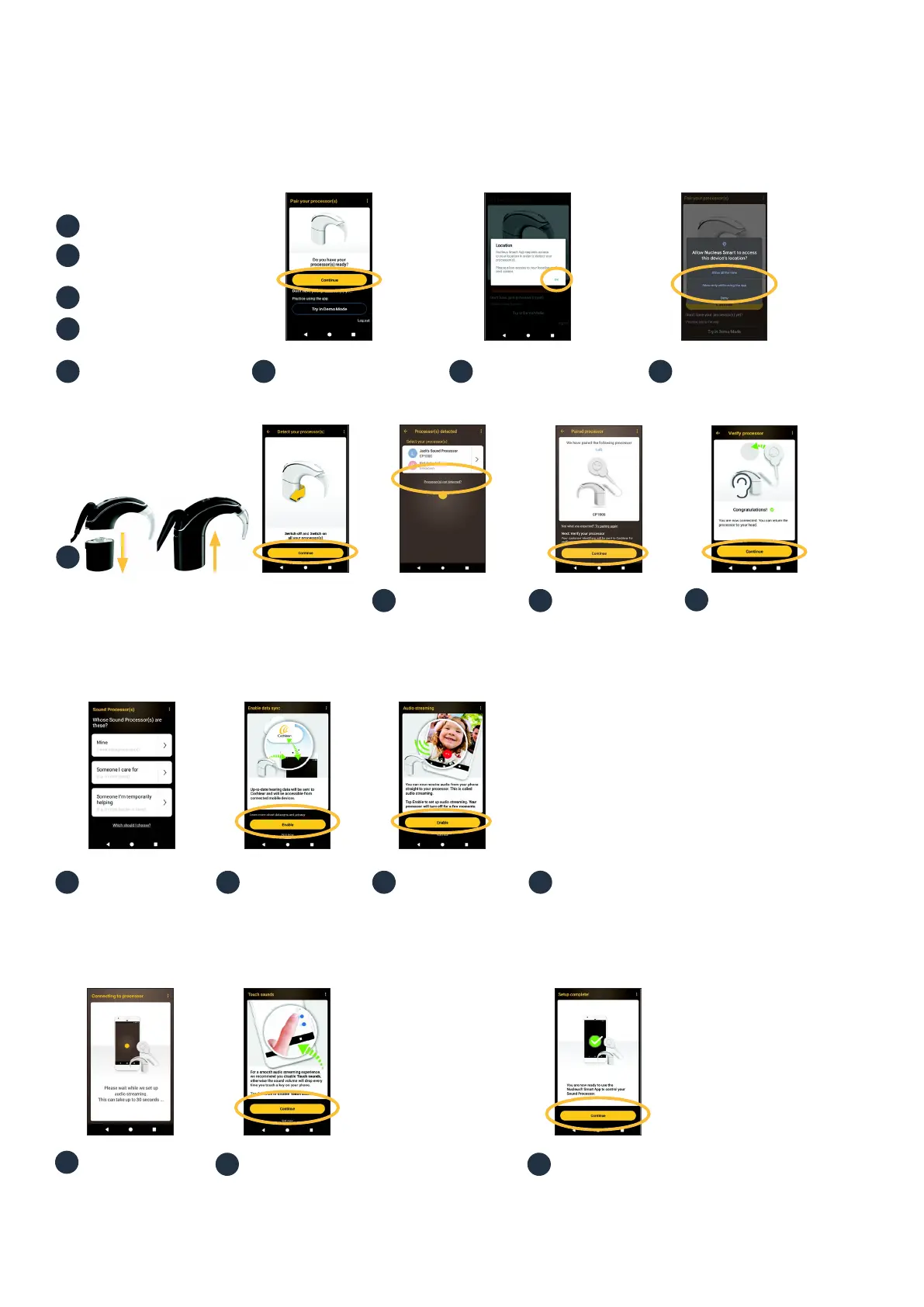
If you have Touch sounds enabled on your
smartphone, the Touch sounds screen displays.
Follow the screen prompts to disable Touch sounds,
then tap the back button to return to the Nucleus
Smart App.
1918
Notes:
• To pair additional
compatible devices,
you must first disable
Bluetooth on existing
paired devices.
• For more
information, see
the Nucleus Smart
App User Guide
and the Nucleus 7
Sound Processor
User Guide.
When the Setup
complete! screen
displays, tap ‘Continue’.
Tap an option in the
Sound Processor(s)
screen and if prompted,
enter user details.
The Enable data sync
screen displays.
If you would like to
use this feature, tap
‘Enable’.
When the Audio
streaming screen
displays, tap ‘Enable’.
Your sound processor
will turn o for a few
moments.
14 15 16
17
Create your Cochlear account
or
login if you have an account.
The Pair your processor(s)
screen displays. Tap
‘Continue’.
In the Location
popup, tap ‘OK’.
Enable location services.
6 7 85
Have your processor ready.
Switch on Bluetooth on your
Android smartphone.
Run Nucleus Smart App.
Swipe through the
Welcome screens.
1
2
3
4
13
12
When your processor
displays, tap once to
start pairing. Note
that your paired
hearing aid may not
display on this screen.
The Paired processor
screen displays when
pairing is complete.
Tap ‘Continue’.
When the Verify
processor screens
display:
A. Remove your
processor and press
the processor button
B. Place your processor
on your head and tap
‘Continue’.
The Detect your processor(s) screen displays.
Turn your processor ‘OFF’, then ‘ON’. Tap ‘Continue’.
10 11
9
If other sound processor(s) are already paired or
streaming to your smartphone you need to ‘Forget’
them now.
Follow the screen prompts to ‘Forget’ the
processor(s), then tap the back button to return to
the Nucleus Smart App.
Wait while the
Connecting to
processor screen
displays.
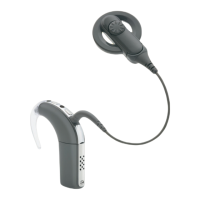
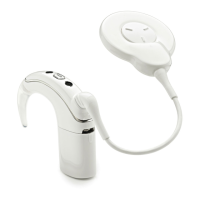
Nucleus 7 Sound Processor
To pair with a compatible Android device you will need to use the Nucleus Smart App.
Note: When trying to pair or connect your sound processor with the app, you may experience interference from some devices (e.g.
microwave ovens, wireless routers or TV streamers). If this happens, move away from the device and try again.







 To Next Page