89
11-1. Playlist
11-1-1. How to make a Playlist
Ensure there are music files in the Music DB before making a Playlist.
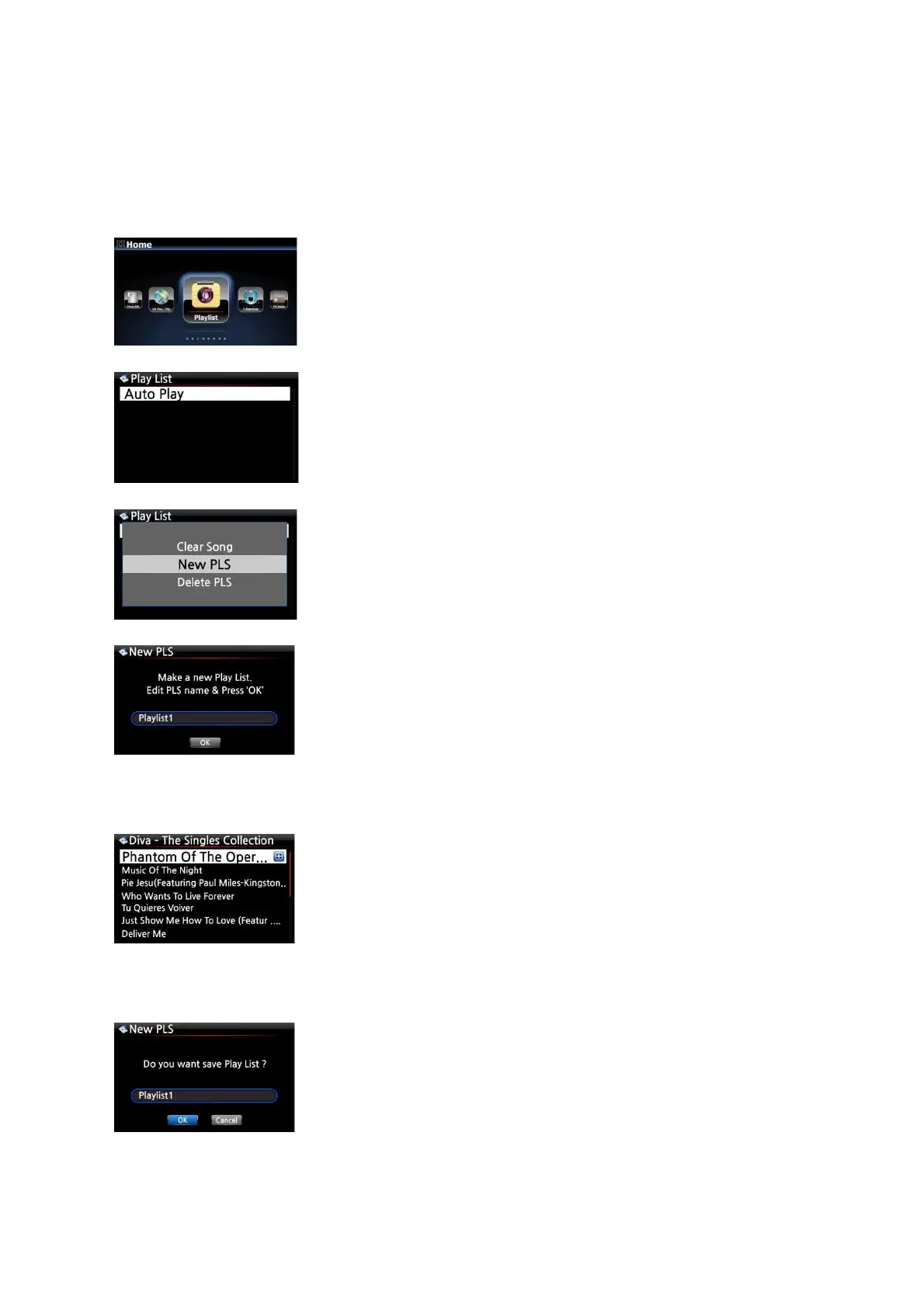
① Select the Playlist icon and press OK.
The screen below is then displayed.
【 TIP ① 】 The Auto Play folder is created automatically and it
can't be removed by the user.
② Press the MENU button to show a popup menu, see screen
shot below.
③ Select New PLS and confirm with the OK button.
The screen below is then displayed.
④ Enter a playlist name and select OK. Confirm the selection
with the OK button.
The album list is then displayed in the Music DB, as shown
below.
【 TIP ② 】 You can add music to a playlist by track or by album.
⑤ You may see + icon at the end of the cursor on an album. Press
the PLAYLIST key to add the album to the playlist.
※ NOTE: You can move the cursor by using the arrow key
(UP/DOWN)
⑥ Press the OK key if you would like to go down the track list of
an album
⑦ You can add more music (tracks) or albums using the above
procedure.
⑧ After adding a track or album, press RETURN to go to the
screen shown below.
⑨ Select OK and confirm with the OK button.
Then, the playlist 1 is stored in the Playlist folder, see below. You
can view the playlist if you go into the Playlist folder through
the Playlist icon on the home screen.



 To Next Page