PREPARING TO PRINT A FILE
4.1 Creating a GCODE File
The Cocoon Create 3D Printer Touch prints 3D les in GCODE format. GCODE les provide essential
movement and printer settings required to print your object. To prepare and convert your 3D le
to GCODE format, you must use a ‘Slicer’ program such as Cura. Cura is a free open source slicer
available for Windows and Mac platforms. Cura can convert various 3D le formats, such as STL
les, into GCODE. Follow the steps below to download and install Cura.
4.2 Cura Setup
Install the Cura software on the included SD card or download the latest version of Cura from the
link below:
https://ultimaker.com/en/products/cura-software/list
You can learn how to install and use Cura from below link:
https://ultimaker.com/en/resources/16579-installation
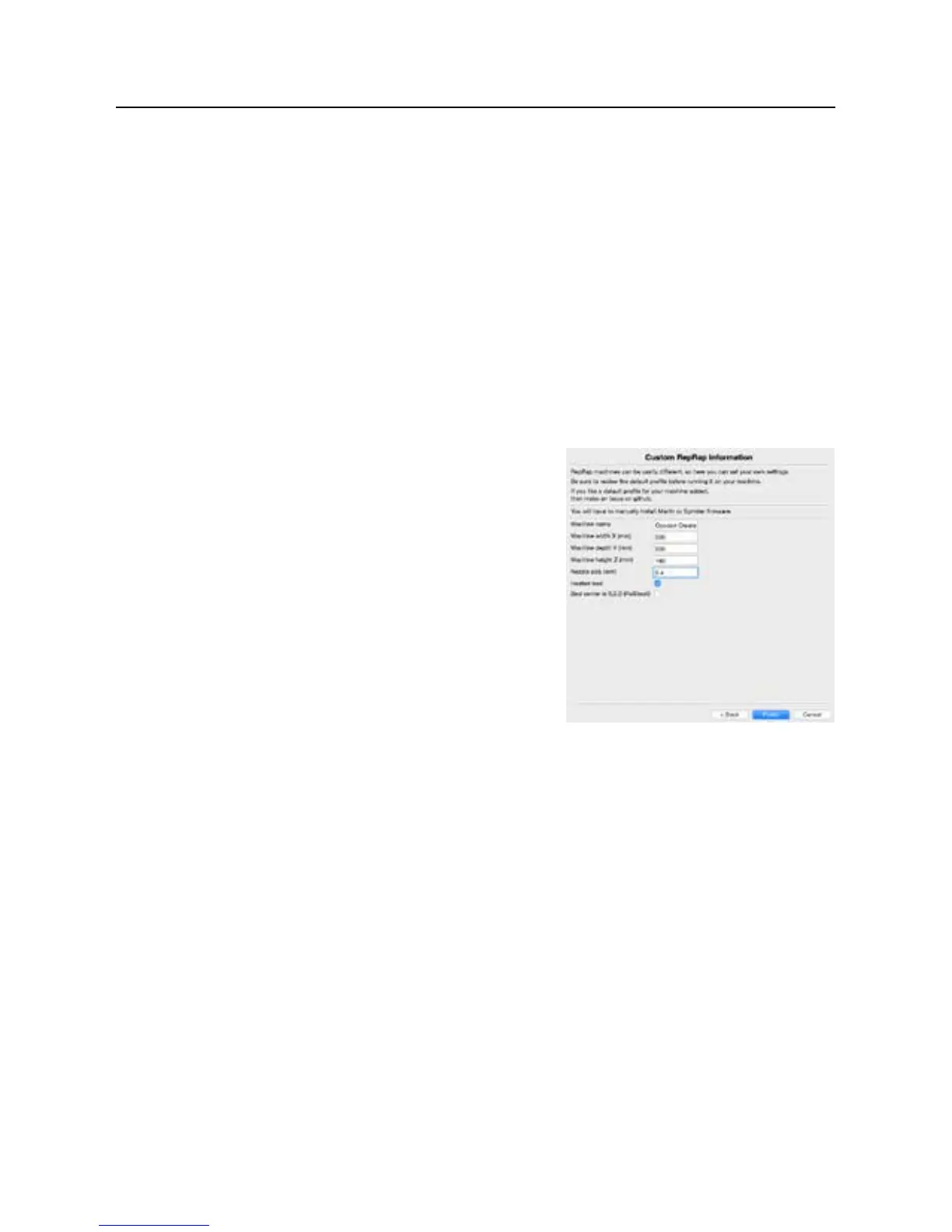
After installing Cura, please add your Cocoon Create 3D
Printer Touch to Cura:
1. On rst launch, Cura will ask you to add a 3D Printer
Touch. Alternatively, you can add a 3D Printer Touch
by selecting Machine > Machine Settings > Add
New Machine
2. Select Other
3. Select Custom…
4. Enter Machine name as ‘Cocoon Create Touch’, or your desired name
5. Input Machine width and depth as 200
6. Input Machine height as 180
7. Change Nozzle size to 0.4mm
8. Ensure Heated Print Bed is ticked
9. Select ‘Finish’
4.3 Download the Latest Cura Prole
For optimal print settings, download the most up to date Cocoon Create 3D Printer Touch Cura
Prole from the link below and import it into Cura. Note this is optimized for use with PLA.
https://www.cocoonproducts.com.au/download/


 To Next Page