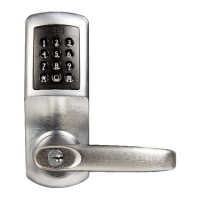
Register Card
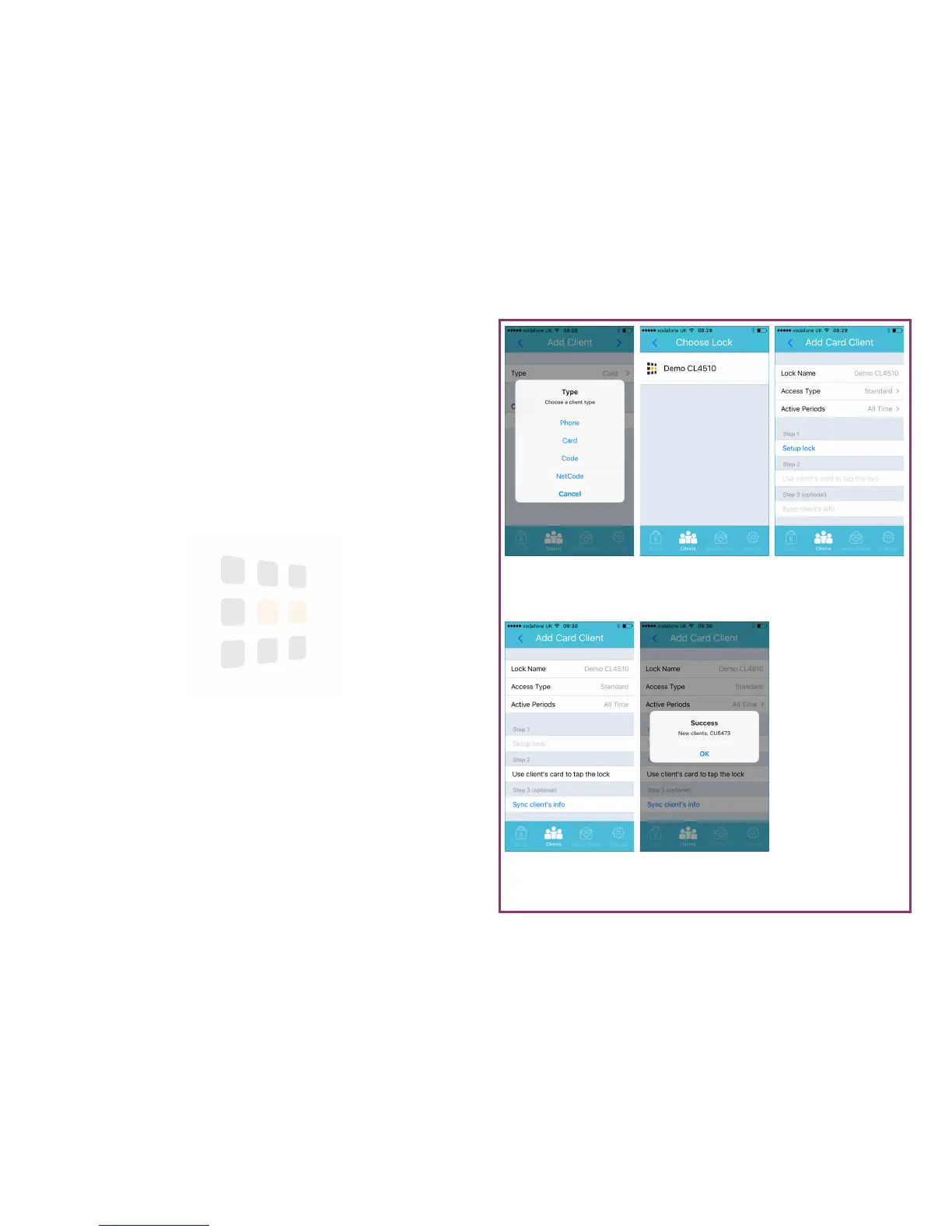
Touch Sync client’s info
and touch card to lock
Details
Set access periods and
touch Setup lock
Choose Lock
Select the lock to add
the client to
Select Type
Select card as the client
type
Success
Smartcard now added
to lock
Page 11
Card Client
A card client is a registered MIFARE based smartcard.
1. Follow the steps on page 9
2. Click the > (next) button (top-right of the screen)
3. Touch the lock to add the client to
4. Add any access periods
5. Touch Setup lock
6. Touch Sync client’s info
7. Touch a smartcard to the lock - the lock will beep to confirm acceptance
8. Touch OK to the onscreen success message
Note: You will need to be within range of the lock. The effective range is
up to 10m line-of-sight. Objects and walls will affect the effective range.


 To Next Page