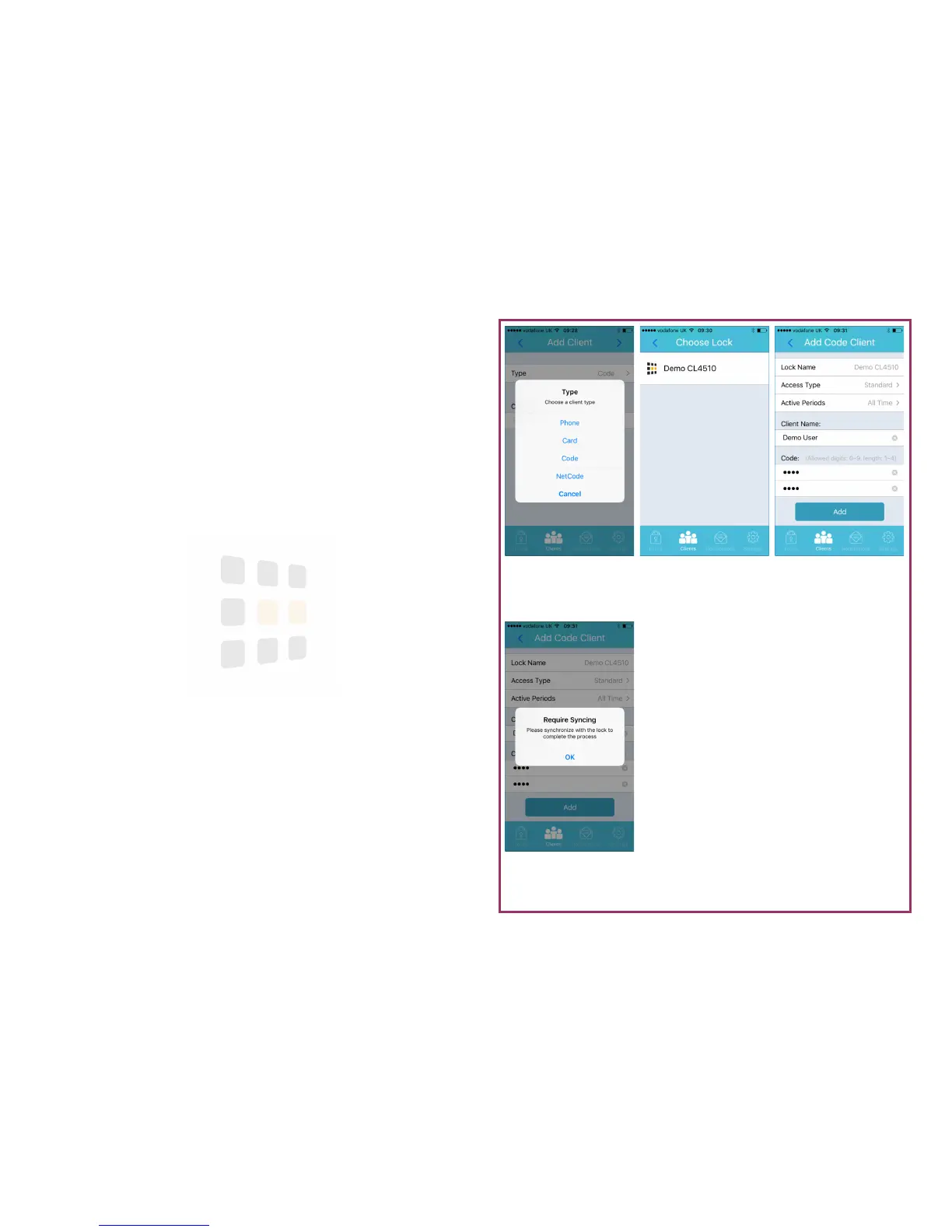
Sync Required
You will need to sync to
apply changes
Details
Enter details and click
Add to continue
Choose Lock
Select the lock to add
the client to
Select Type
Select code as the cli-
ent type
Page 12
Code Client
A card client is a registered MIFARE based smartcard.
1. Follow the steps on page 9
2. Click the > (next) button (top-right of the screen)
3. Touch the lock to add the client to
4. Add any access periods, enter a client name and choose a code
5. Touch Add
6. A reminder to synchronise with the lock will appear—touch OK to dismiss
Help: Remember to synchronise to apply the changes to the lock


 To Next Page