4 WEB GUI
The UHF PS DAS can be monitored and controlled via the WEB GUI; use the following guide to finish system
parameter setting and commissioning.
4.1 WEB GUI CONNECTION
Step 1: Connect the OMT port to the PC RJ45 port OF MU with the supplied RJ45 cable to set up a physical
connection.
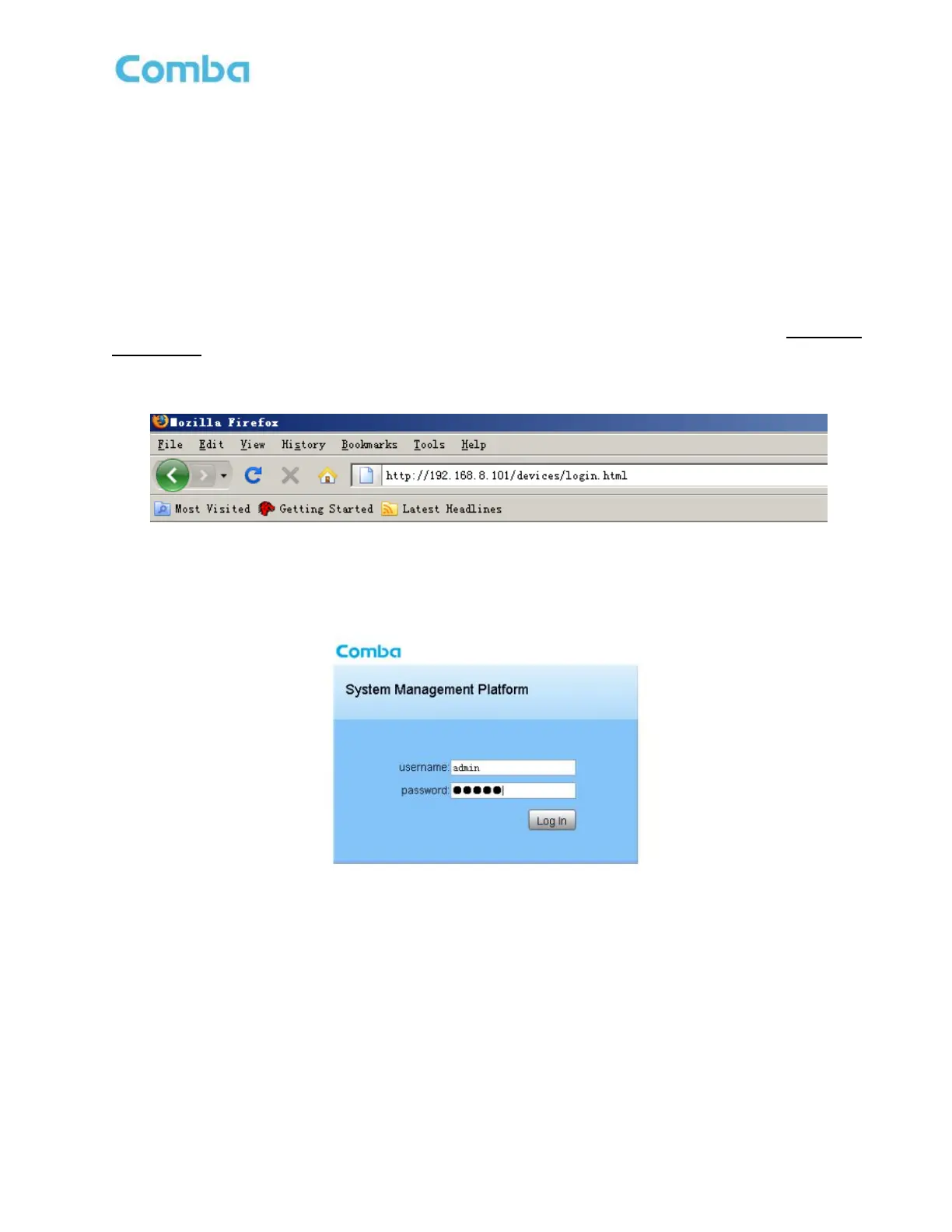
Step 2: Open a browser (suggested is the Firefox browser, display resolution is 1024×768), input Web GUI IP address:
192.168.8.101, click [Enter].
NOTE: DHCP and DNS are also available to login to the Web GUI.
Figure 22: Input IP Address
Step 3: Input User Name: admin; Password (default password: admin). Click [Log in].
Figure 23: Input User Name and Password



 To Next Page