B
Coax
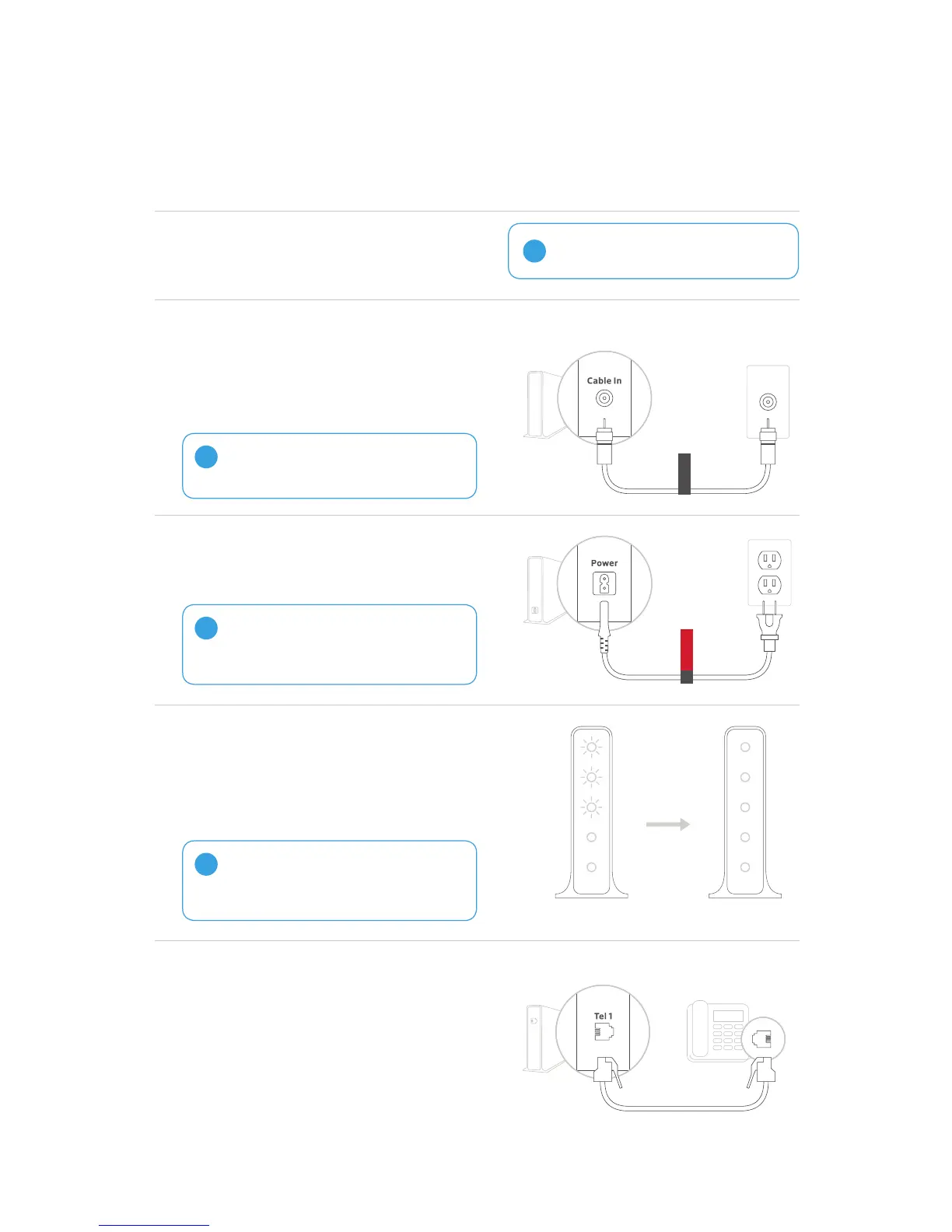
Screw one end of the coax cable to the
Cable In/RF In port on your Gateway.
Screw the other end to the cable wall outlet
or one of the ports on the splitter. Make
sure these connections are nger tight.
If this device is replacing an existing
modem/Wireless Gateway, please
disconnect it before proceeding.
!
C Plug the power cord into the back
of your Gateway and then into an
electricaloutlet.
If your Gateway doesn’t turn on, make sure
your electrical outlet works. Also, check
if your electrical outlet is controlled by a
wallswitch.
!
Power
For XFINITY Voice customers
If you have XFINITY Voice service, connect
your telephone to the Tel 1 connection on
your Gateway using a telephone cord (not
included). If you ordered a battery with
your service, please use the instructions
packaged with the battery to install it.
Place your xFi Wireless Gateway near
a cable wall outlet, in a central location,
away from windows and external walls.
A
If connecting multiple devices to one cable
wall outlet, you will need to use a splitter.
!
Wait until the Power, US/DS, and Online
lights remain solid for 1 minute. The lights
may ash for up to 20 minutes, and your
Wireless Gateway may reboot. When these
lights STOP ashing, move on to Step 2.
D
If the lights do not stop flashing after
20 minutes, tighten the cables. Then
try moving your Gateway to a
different cable wall outlet.
!
5 GHz
US/DS
Power
2.4 GHz
Online
Flashing = Wait
5 GHz
US/DS
Power
2.4 GHz
Online
Steady = Ready
Don’t Have a Smartphone? Start Here.
1. Connect Cables and Power Up.


 To Next Page